





How to maximize Nintendo Switch storage for digital games?
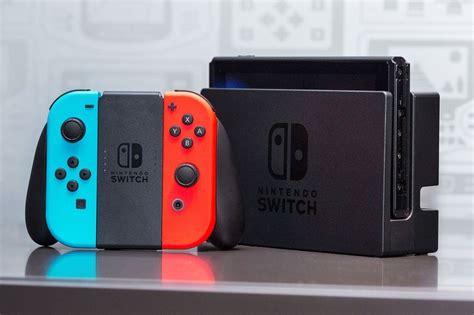
The Nintendo Switch, an incredibly versatile console, offers a vast library of digital games through the eShop. However, with file sizes growing, the console’s internal storage (32GB or 64GB for OLED models) can quickly become a bottleneck for avid digital collectors. Maximizing your storage isn’t just about buying more; it’s about smart management. Here’s how to ensure you always have space for your next adventure.
The Essential Role of MicroSD Cards
The internal storage of the Nintendo Switch is primarily for system data, save files, and a handful of smaller digital games. For any serious digital game library, a microSD card is not optional—it’s essential. The Switch supports microSD, microSDHC, and microSDXC cards up to a massive 2TB (though 1TB is currently the largest commercially available). Installing a high-capacity card is the first and most critical step in expanding your storage.

Choosing the Right MicroSD Card
- Capacity: While 128GB or 256GB might seem sufficient, game file sizes can range from a few gigabytes to over 20GB. Aim for at least 512GB if your budget allows, especially if you plan to download many large titles. 1TB offers the most peace of mind for heavy users.
- Speed: Look for cards rated UHS-I (Ultra High Speed Phase I) with a U3 speed class. This ensures faster read/write speeds, which translates to quicker game loading times and smoother performance. Avoid generic, unbranded cards, as they can be slower and less reliable. Stick to reputable brands like SanDisk, Samsung, or Lexar.
Smartly Managing Your Digital Game Library
Once you have ample storage, knowing how to manage your games effectively is key. The Nintendo Switch offers several built-in features to help you keep your storage tidy without losing precious game saves.
Archiving vs. Deleting Software
This is where many users get confused. When you archive software, the game data (the large installation files) is removed from your console, but the game icon remains on your Home screen, and more importantly, your save data is preserved. This is ideal if you want to free up space temporarily but plan to re-download the game later.

To archive a game:
- From the Home menu, highlight the game you wish to archive.
- Press the ‘+’ or ‘-‘ button to open the Options menu.
- Select “Manage Software” then “Archive Software.”
- Confirm your choice.
Deleting software, on the other hand, removes both the game data and the game icon from your Home screen. Crucially, unless you have Nintendo Switch Online (NSO) and cloud saves enabled for that title, deleting software will also delete your save data. Only delete software if you are absolutely sure you no longer need the save data or if you have a cloud save backup.
To delete a game:
- From the Home menu, highlight the game you wish to delete.
- Press the ‘+’ or ‘-‘ button to open the Options menu.
- Select “Manage Software” then “Delete Software.”
- Confirm your choice, noting the warning about save data.

Re-downloading Digital Games
Don’t worry about losing access to your games. Any digital game you’ve purchased can be re-downloaded from the Nintendo eShop at any time, as long as it’s still available on the store. Go to the eShop, select your user icon, then navigate to “Redownload.” You’ll see a list of all your purchased titles ready to be re-downloaded to your console or microSD card.
Leveraging Nintendo Switch Online for Cloud Saves
While cloud saves don’t directly free up storage on your console, they are an absolutely vital component of a smart storage strategy. With an active Nintendo Switch Online membership, most of your game save data is automatically backed up to the cloud. This means if you ever need to delete a game to free up space, you can do so with confidence, knowing your progress is safe. When you re-download the game, your save data will automatically sync back to your console.

It’s important to note that not all games support cloud saves (e.g., Splatoon 2, Pokémon Sword/Shield due to competitive integrity concerns). Always double-check a game’s compatibility if save data is critical.
Additional Tips for Optimal Storage
- Prioritize Downloads: If you’re running low, decide which games you play most frequently and keep those installed. Archive or delete less-played titles.
- Consider Physical Cartridges: For games with very large file sizes, purchasing a physical cartridge can save significant digital storage space, as the core game data is read directly from the cartridge.
- Regularly Review: Periodically check your “Data Management” settings (System Settings > Data Management) to see which games are taking up the most space and decide if they are still needed.

Conclusion
Maximizing your Nintendo Switch storage for digital games is a multi-faceted approach. It starts with investing in a high-capacity, fast microSD card, then moves to actively managing your game library through archiving and strategic deletion. Coupled with the security of Nintendo Switch Online’s cloud saves, you can enjoy a vast digital library without constantly worrying about running out of space. Happy gaming!


