





How to manage Switch storage for a diverse game library?
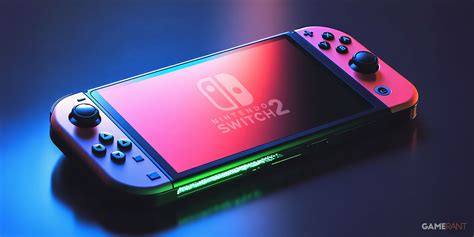
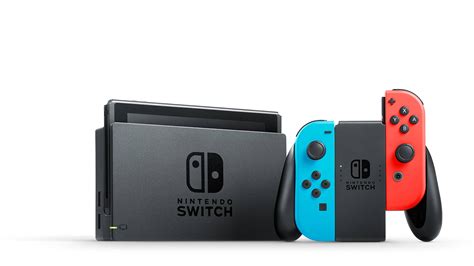
The Nintendo Switch, with its portability and incredible library of games, has become a beloved console for many. However, its relatively limited internal storage (32GB for the original and Lite, 64GB for the OLED model) can quickly become a bottleneck, especially for players with a diverse collection of large-scale digital titles and numerous updates. Understanding how to efficiently manage this storage is key to avoiding constant deletion dilemmas and ensuring your favorite games are always ready to play.
The Storage Challenge: Understanding Your Switch’s Limits
While 32GB or 64GB might sound adequate, system software and essential updates consume a significant portion of this space right out of the box. Many modern Switch games, particularly AAA titles, can easily demand 10GB, 20GB, or even more for their base installation, not including patches, DLC, and save data. This means your internal storage can fill up incredibly fast, often after just a handful of digital downloads. This limited capacity makes an external solution almost mandatory for anyone looking to build a substantial game collection.
The Indispensable MicroSD Card: Your Storage Savior
The primary solution to the Switch’s storage woes is a microSD card. The Switch supports microSD, microSDHC, and microSDXC cards, with capacities currently ranging up to 2TB. Opting for a reputable brand and a card with a good read/write speed (UHS-I compatible with a U3 rating is ideal for faster game loading) will significantly enhance your gaming experience.
Installing a microSD card is simple: just open the kickstand on the back of your Switch and insert the card into the slot. Once inserted, the Switch will automatically begin saving new downloads and screenshots to the card. If you already have games on your internal memory, you can transfer them to the microSD card via the system settings to free up internal space.
Digital vs. Physical: Weighing Your Options
Your preference for digital downloads versus physical game cartridges also plays a role in storage management. Physical game cartridges don’t require the base game data to be installed on your Switch’s internal or microSD memory. This can be a huge space saver. However, nearly all physical games still require updates and patches, which will be stored locally. Digital games, on the other hand, require their full installation size to be downloaded and stored, along with updates and DLC.

For a diverse library, a hybrid approach often works best. Reserve your physical game purchases for larger titles, and consider buying smaller indie games or those you frequently play digitally for convenience. Remember that DLC for both physical and digital games will always consume storage space.
Smart Management: Archiving, Deleting, and Re-downloading
When you need to free up space, the Switch offers two main options: archiving and deleting software. Understanding the difference is crucial:
- Archiving Software: This option deletes the game data but keeps its icon on your Home menu. It also preserves your save data. Archiving is ideal for games you might want to play again relatively soon, as it allows for a quick re-download directly from the icon.
- Deleting Software: This removes the game data, its icon, and any associated updates. Crucially, it also preserves your save data (unless specifically told otherwise for certain titles, or if you delete save data separately). Deleting is best for games you’re sure you won’t play for a long time or have completed and moved on from.
Always remember that your save data is stored separately from the game data. Even if you delete or archive a game, your progress is generally safe. For extra peace of mind, subscribing to Nintendo Switch Online provides cloud backup for most game saves.
Best Practices for a Tidy Game Library
To keep your diverse game library manageable, adopt a few best practices:
- Regular Audits: Periodically check your Data Management settings (System Settings > Data Management) to see which games are taking up the most space. Identify games you haven’t touched in months and consider archiving them.
- Prioritize Storage: If you have a particularly large microSD card, you might consider keeping all your major titles there. Use internal storage for system-critical files or very small, frequently accessed games if you prefer.
- Leverage Cloud Saves: If you’re a Nintendo Switch Online subscriber, ensure cloud saves are enabled for your games. This provides an invaluable backup and allows you to confidently delete games without fear of losing progress.
- Consider Game Card Cases: For physical game collectors, invest in a good game card case. This keeps your physical library organized and protected, reducing clutter and making it easy to swap games.
Managing storage on your Nintendo Switch doesn’t have to be a headache. By investing in a high-capacity microSD card, understanding the differences between digital and physical games, and utilizing the archiving feature, you can ensure your diverse game library remains accessible and enjoyable without constant storage anxieties. Keep your favorite adventures at your fingertips, ready to play whenever inspiration strikes.


