





How to free up storage on Nintendo Switch for more games using microSD cards effectively?

The Ever-Growing Need for Nintendo Switch Storage
The Nintendo Switch is a fantastic console, offering incredible portability and a vast library of games. However, one common frustration for many Switch owners is the console’s limited internal storage. With only 32GB (or 64GB for the OLED model), a significant portion of which is reserved for the system, it doesn’t take long for digital game downloads, updates, and DLC to eat up all available space. This often leads to the dreaded ‘not enough free space’ message just when you’re about to download that exciting new title.
Thankfully, Nintendo designed the Switch with expandability in mind, making it incredibly easy and affordable to boost your storage capacity. The solution? MicroSD cards. These tiny powerhouses can dramatically increase the number of games you can keep on your device, ensuring your gaming adventures are never cut short by a lack of space.
Choosing the Right MicroSD Card for Your Switch
Not all microSD cards are created equal, and selecting the right one can significantly impact your gaming experience. Here’s what to consider:
-
Capacity: How Much Do You Need?
MicroSD cards for the Switch range from a few gigabytes to a massive 2 terabytes (2000GB). While 32GB might seem sufficient initially, remember that many AAA Switch titles can be 10-20GB or more. For most gamers, a 128GB, 256GB, or even 512GB card offers a good balance of capacity and cost. If you primarily buy digital games, don’t shy away from 1TB or larger if your budget allows. The Switch officially supports up to 2TB, though cards that size are still quite expensive.
-
Speed: Class is Key
Speed is crucial for smooth game loading and performance. Look for cards with a UHS-I (Ultra High Speed – Phase I) rating and a ‘U1’ or ‘U3’ speed class, or even better, an ‘A1’ or ‘A2’ application performance class. These ratings indicate the card’s minimum sequential write speed, with higher numbers meaning faster data transfer. While a U1 card (10MB/s minimum write) is acceptable, a U3 or A1/A2 card (30MB/s minimum write for U3, better random performance for A1/A2) will provide the best experience for loading games and saving data.
Installing and Setting Up Your MicroSD Card
Getting your new microSD card ready for action is incredibly simple:
- Power Down Your Switch: Always turn off your console completely before inserting or removing a microSD card. Do not just put it into sleep mode.
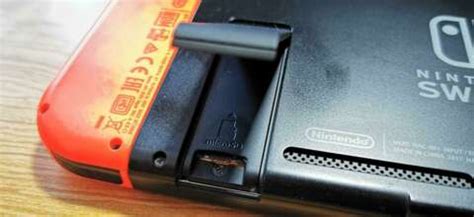
- Locate the Slot: The microSD card slot is typically found under the kickstand on the back of your Switch console.
- Insert the Card: Gently push the microSD card into the slot with the label facing the same direction as the console’s screen until it clicks into place.
- Power On: Turn your Switch back on. The console will automatically detect and format the card if needed. You don’t need to do anything else to make it usable.
Effectively Managing Your Game Data
Once your microSD card is installed, you have more control over your game data:
-
Moving Existing Data
You cannot directly move individual game data from the internal storage to the microSD card. Instead, you’ll need to archive the software from the internal memory and then redownload it, which will automatically save to your microSD card if it has sufficient space. To do this, navigate to System Settings > Data Management > Manage Software, select the game, and choose ‘Archive Software’. Then, redownload it from the eShop or your user page.
-
Setting Default Storage
All new downloads will automatically go to your microSD card as long as there is space. If the card fills up, new downloads will default to the internal storage. You don’t have to manually set the microSD as the primary storage; the Switch handles this automatically.
-
Archiving vs. Deleting
When space is tight, you have two options: ‘Archive Software’ or ‘Delete Software’. Archiving removes the main game data but keeps its icon on your Home menu and any save data. This is ideal if you plan to play the game again and want to quickly redownload it. Deleting software removes everything, including the icon and game data, but generally preserves your save data (which is stored separately on internal memory or cloud backup if you have Nintendo Switch Online).

Tips for Optimal Storage Management
- Prioritize Downloads: If you frequently buy digital games, investing in a large microSD card is a must. Physical game cartridges only store a portion of the game; updates, patches, and DLC still download to your storage, so a microSD card is beneficial even for cartridge collectors.
- Regularly Check Storage: Periodically go to System Settings > Data Management > Manage Software to see which games are taking up the most space and archive those you haven’t played in a while.
- Consider Cloud Saves: A Nintendo Switch Online subscription provides cloud save backup, which is invaluable. Even if you delete a game, your progress is safe and can be restored when you redownload it.
- Don’t Skimp on Quality: While cheaper cards exist, investing in a reputable brand (like SanDisk, Samsung, Kingston, or Lexar) is recommended to ensure reliability and advertised speeds. Counterfeit cards are unfortunately common and can lead to data corruption.
Troubleshooting Common Issues
Occasionally, you might encounter issues with your microSD card:
- Card Not Recognized: Ensure the card is fully inserted and the Switch is powered off before insertion. Try cleaning the card’s contacts with a soft cloth. If it’s still not recognized, test the card in another device if possible to rule out a faulty card.
- Slow Performance: If games are loading slowly, it might be due to a low-speed card. Consider upgrading to a faster U3 or A1/A2 rated card. Excessive heat or a heavily fragmented card (though less common with modern cards and file systems) can also sometimes contribute.

Conclusion
Embracing microSD cards is the most effective way to overcome the Nintendo Switch’s internal storage limitations. By choosing the right card, installing it correctly, and practicing smart data management, you’ll ensure that you always have ample space for new adventures, updates, and your ever-growing library of games. Never let ‘not enough space’ hinder your gaming fun again!


