





How to free up Nintendo Switch storage for new games? microSD card tips?

The Nintendo Switch, a fantastic console for gaming on the go or at home, comes with a common challenge: limited internal storage. With an internal capacity of just 32GB (or 64GB for the OLED model), which is further reduced by system software, it doesn’t take long for your digital game library to fill up. This can quickly become frustrating when a new, exciting title launches, and you find yourself without the space to download it. Fortunately, there are several effective methods to free up precious storage, often involving smart management of your existing games and utilizing microSD cards.
Understanding Your Nintendo Switch Storage
Before diving into solutions, it’s helpful to understand how your Switch uses its storage. Digital games, software updates, downloadable content (DLC), and game save data all consume space. While game save data is relatively small, digital game files can be enormous, ranging from a few gigabytes to over 20GB for a single title. Physical game cartridges reduce the impact on your internal storage as the main game data is read directly from the cartridge, but updates and DLC still need local space.
The core issue for most users is simply running out of room for new downloads, especially with the eShop offering so many enticing titles. Managing this space efficiently is key to a smooth gaming experience.
Quick Wins: Freeing Up Space Directly on Your Switch
There are immediate steps you can take within your Switch’s settings to reclaim space without needing any additional hardware.
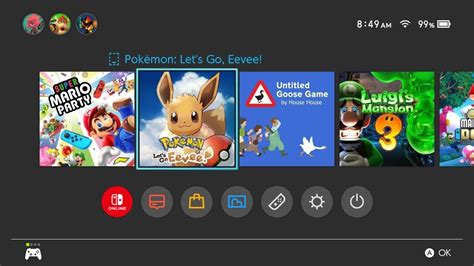
1. Archive Software You’re Not Playing
Archiving is your best friend for digital games you might want to play again someday. When you archive a game, the main game data is deleted from your system, but its icon remains on your Home screen. More importantly, your save data is preserved. This means you can redownload the game at any time from the eShop or your user page and pick up right where you left off.
- Go to System Settings > Data Management > Manage Software.
- Select the game you want to archive.
- Choose “Archive Software.”
2. Delete Downloaded Software (If You Own Physical Cartridges)
If you’ve bought a physical game cartridge but also downloaded the digital version (perhaps during a free trial or if you bought it twice accidentally), you can safely delete the digital version. Your progress will be tied to the cartridge once you re-insert it.
- Go to System Settings > Data Management > Manage Software.
- Select the digital version of the game.
- Choose “Delete Software.”
3. Delete Software That’s No Longer Needed
For games you’ve finished, didn’t enjoy, and have no intention of ever playing again, you can simply delete the software entirely. Similar to archiving, your save data for that game will remain on your console, allowing you to reinstall and continue later if you change your mind.
- Go to System Settings > Data Management > Manage Software.
- Select the game you want to delete.
- Choose “Delete Software.”
4. Clear Save Data (Use Caution!)
While save data files are typically small, if you’re truly desperate for space and absolutely sure you’ll never return to a specific game, you can delete its save data. However, be extremely cautious, as this action is irreversible and will erase your progress. If you’re a Nintendo Switch Online subscriber, your save data is likely backed up to the cloud, providing a safety net.
- Go to System Settings > Data Management > Delete Save Data.
- Select the game and user whose save data you wish to delete.
- Confirm the deletion.
The Ultimate Solution: Investing in a microSD Card
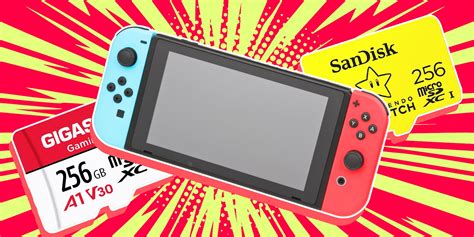
For most avid Switch gamers, a microSD card is not just recommended, it’s essential. This is the most effective way to drastically expand your console’s storage capacity.
Choosing the Right microSD Card
The Nintendo Switch supports microSD (up to 2GB), microSDHC (2GB-32GB), and microSDXC (4GB-2TB) cards. For practical purposes, you’ll want a microSDXC card, as these offer the higher capacities needed for modern games.
- Capacity: Aim for at least 128GB or 256GB. 512GB or even 1TB cards are great investments if your budget allows, providing ample space for years of downloads.
- Speed: Look for cards with a high “UHS-I” speed class (U1 or U3) and a “Video Speed Class” of V10 or V30. A “Class 10” rating is the minimum. Faster cards will reduce game loading times. Cards with an “A1” or “A2” app performance rating are also excellent choices for gaming.
- Brand: Stick with reputable brands like SanDisk, Samsung, or Lexar to ensure reliability and performance.
Inserting and Formatting Your microSD Card
Inserting a microSD card is simple:
- Turn off your Nintendo Switch.
- Open the kickstand on the back of the console to reveal the microSD card slot.
- Insert the microSD card firmly until it clicks into place.
- Close the kickstand and power on your Switch.
Your Switch will automatically detect and format the card if it’s new. If it’s been used before, you might be prompted to format it, which will erase any existing data on the card.
Moving Data Between Internal Storage and microSD Card
The Switch doesn’t have a direct “move” function for installed games between internal storage and the microSD card. However, new digital downloads will automatically prioritize the microSD card if one is inserted and has sufficient space. To move existing games:
- Archive or delete the game from your internal storage (remember, save data remains).
- Re-download the game from the eShop or your user page. It will now automatically install to your microSD card.
Best Practices for Managing Your Switch Storage
Proactive management can save you a lot of hassle in the long run.
Regularly Review Your Software Library
Periodically check your “Data Management” settings to see which games are taking up the most space. This allows you to make informed decisions about what to archive or delete.
Prioritize Physical Over Digital (When Possible)
If you’re buying a game that’s available both physically and digitally, opting for the physical cartridge will save valuable space on your internal storage and microSD card, as the core game data is on the cartridge.
Utilize Cloud Saves
If you’re a Nintendo Switch Online subscriber, ensure your important game saves are backed up to the cloud. This provides peace of mind if you ever need to delete save data for an old game or in case your console is lost or damaged.
Conclusion
Running out of storage on your Nintendo Switch is a common problem, but it’s far from insurmountable. By regularly archiving games you’re not actively playing, understanding the difference between deleting software and save data, and most importantly, investing in a high-quality microSD card, you can ensure you always have enough space for the next great adventure. Proactive storage management will keep your Switch ready for all the new games you want to play, without the frustration of constant deletions and re-downloads.
![[100+] Dayz Pictures | Wallpapers.com](/images/aHR0cHM6Ly90czQubW0uYmluZy5uZXQvdGg/aWQ9T0lQLjk5SzFwMVJGbG53UkZ3eXN3cExBWUFIYUU4JnBpZD0xNS4x.webp)


