





How to free up Nintendo Switch storage for more games?
Is Your Nintendo Switch Storage Full? Here’s How to Fix It!
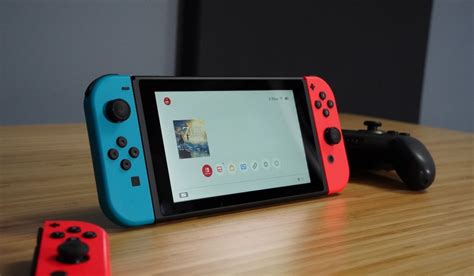
The Nintendo Switch has quickly become one of the most beloved consoles, offering an incredible library of games, both digital and physical. However, with so many amazing titles available, it’s easy to run into a common problem: insufficient storage space. Many modern games require significant chunks of memory, and if you primarily download digital titles, your console’s internal 32GB (or 64GB for OLED models) can fill up surprisingly fast. Don’t worry, you don’t have to delete your favorite game forever; there are several smart ways to reclaim valuable storage.
Check Your Current Storage Usage
Before you start deleting things at random, it’s a good idea to see what’s actually taking up space. This will help you prioritize what needs to go or be archived. To do this, navigate to your console’s system settings:
- From the HOME Menu, select System Settings.
- Scroll down the menu on the left and select Data Management.
- Here, you’ll see a breakdown of your system memory and any inserted microSD card, showing how much space is used by software, save data, and screenshots/videos.
Archive Software Data
Archiving is often the best first step. When you archive a game, the game’s software data is deleted, but its icon remains on your HOME Menu and all your save data is kept intact. This means you can easily redownload the game later without losing your progress. It’s perfect for games you’ve completed or aren’t actively playing but might want to revisit.
- From the HOME Menu, highlight the game you wish to archive.
- Press the + or – button to open the Options menu.
- Select Data Management, then choose Archive Software.
- Confirm your selection when prompted.
Alternatively, you can archive multiple games from the Data Management section in System Settings by selecting ‘Manage Software’ and then choosing ‘Archive Software’ for individual titles.
Delete Software
While archiving is great, sometimes you just need to free up a lot of space quickly or get rid of a game you know you’ll never play again. Deleting software completely removes the game data from your system. Unlike archiving, the game’s icon will also disappear from your HOME Menu. However, like archiving, your save data is still preserved separately.
- From the HOME Menu, highlight the game you wish to delete.
- Press the + or – button to open the Options menu.
- Select Data Management, then choose Delete Software.
- Confirm your selection when prompted.
![How To Delete Games On Nintendo Switch [The right way!] - Alvaro Trigo ...](/images/aHR0cHM6Ly90czQubW0uYmluZy5uZXQvdGg/aWQ9T0lQLlI3UHpjRUZEUDJ4anB2ZWZYOVJjTndIYUVLJnBpZD0xNS4x.webp)
Manage Save Data Separately
It’s important to understand that game save data is stored separately from game software data. Even if you archive or delete a game, your save file will remain on your console’s system memory. Save data usually takes up very little space (often just a few megabytes), so deleting it isn’t typically an effective way to free up significant storage for new games. However, if you need to specifically manage save data, you can do so:
- Go to System Settings from the HOME Menu.
- Select Data Management, then choose Delete Save Data.
- Select the game for which you want to delete save data. Be very careful, as this action cannot be undone and will permanently erase your progress for that title.
Move Downloadable Software Between System Memory and microSD Card
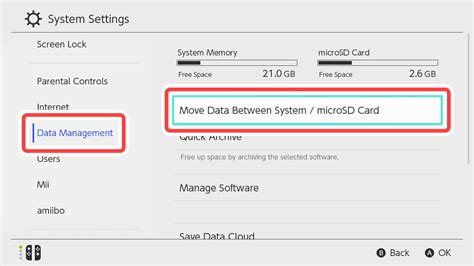
If you have a microSD card installed, you can transfer games between your console’s internal memory and the card. This is incredibly useful if you have larger games on your system memory that you’d rather move to the expandable storage, or vice-versa.
- Go to System Settings from the HOME Menu.
- Select Data Management.
- Choose Move Data Between System / microSD Card.
- Select the software you wish to move and follow the on-screen prompts.
Invest in a Larger microSD Card
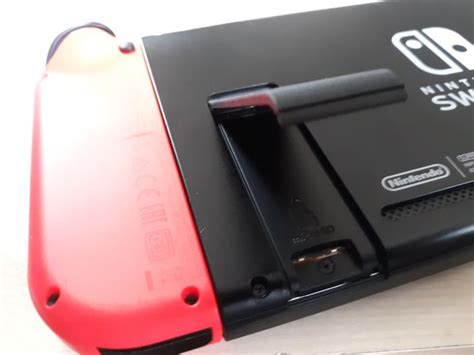
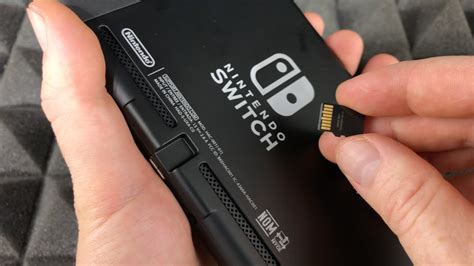
Ultimately, the most effective and hassle-free solution for increasing your Nintendo Switch storage is to get a larger microSD card. The Switch supports microSD, microSDHC, and microSDXC cards up to a whopping 2TB (though 2TB cards are not yet commercially available, 1TB cards are). Installing one is simple:
- Ensure your Switch is powered off.
- Open the kickstand on the back of the console to reveal the microSD card slot.
- Insert your new microSD card firmly until it clicks into place.
- Power on your Switch, and the console will automatically format the card for use.
Once installed, all future game downloads will automatically default to the microSD card until it’s full. This expansion significantly extends your gaming library capacity, allowing you to download dozens, if not hundreds, of games without worrying about space.
Conclusion
Running out of space on your Nintendo Switch is a common problem, but thankfully, it’s one with multiple easy solutions. Whether you choose to archive old games, strategically delete software, or invest in a high-capacity microSD card, these methods will ensure you always have room for the next big adventure. Keep your game library vast and your console ready for action!


