





How to free up game console storage for new releases?

The Ever-Growing Digital Library Dilemma
As new, highly anticipated game releases flood the market, a common challenge for many gamers is the dreaded “Not Enough Storage Space” notification. Modern games are massive, often requiring hundreds of gigabytes, and console hard drives, while larger than ever, still fill up quickly. Whether you’re a proud owner of a Nintendo Switch, PlayStation, or Xbox, managing your storage effectively is key to enjoying your gaming experience without constant frustration. This guide will walk you through practical steps to free up crucial space on your game console.
Identify and Delete Unused or Completed Games
The most straightforward way to reclaim space is to uninstall games you no longer play or have thoroughly completed. Most consoles offer a clear way to see which games are taking up the most room.
- On Nintendo Switch: Go to System Settings → Data Management → Manage Software. You can archive games (which keeps the icon but deletes the data, allowing easy re-download) or delete software completely.
- On PlayStation (PS4/PS5): Navigate to Settings → Storage. Here, you can see a breakdown of your storage use and select Games and Apps to delete titles.
- On Xbox (Xbox One/Series X|S): Go to My Games & Apps → Games. Highlight a game, press the Menu button, select “Manage game and add-ons,” then choose “Uninstall all.”
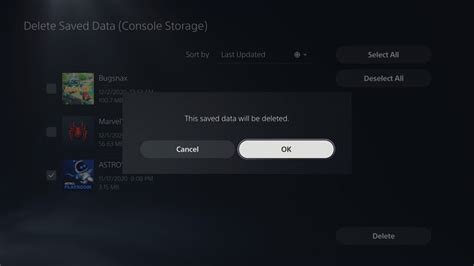
Prioritize games you haven’t touched in months or years. Also, consider deleting save data for games you know you’ll never revisit, though save data usually takes up minimal space compared to the game itself. Always ensure your important save data is backed up to the cloud if your console offers it (e.g., Nintendo Switch Online, PlayStation Plus, Xbox Live Gold/Game Pass Ultimate).
Manage Game Updates and DLC
Even if you don’t play a game, it might still download large updates in the background. While typically beneficial, these can consume space unnecessarily if you’ve decided to abandon the title. If you’ve uninstalled a game, any associated updates or DLC should also be removed.
Similarly, be mindful of downloadable content (DLC). If you bought a season pass for a game you’ve finished and don’t plan to play the DLC, you might consider uninstalling just the DLC components. Check your console’s storage management options for granular control over individual game components.
Invest in External Storage Solutions
For many, simply deleting games isn’t enough, especially with the sheer size of modern titles. Expanding your console’s storage is often the most effective long-term solution.
- Nintendo Switch: The Switch uses microSD cards. These are relatively inexpensive and easy to install, significantly boosting your console’s capacity for digital games and screenshots. Look for cards with fast read/write speeds for optimal performance.
- PlayStation (PS4/PS5) and Xbox (Xbox One/Series X|S):
- External USB Hard Drives: For older generation games (PS4 games on a PS5, Xbox One games on a Series X|S) and for storing current-gen games without playing them directly, an external USB 3.0 HDD or SSD is an excellent option. You can quickly transfer games back to the internal drive when you want to play them.
- Internal/Proprietary Expansion: PS5 offers an M.2 SSD slot for internal expansion, allowing you to play PS5 games directly from the expanded storage. Xbox Series X|S uses proprietary Expansion Cards that plug into a dedicated slot, also allowing direct play of current-gen games. These are generally more expensive but offer seamless integration and performance.
Clear Cache and Temporary Data
While typically small, accumulated cache files and temporary data can sometimes take up space. Periodically clearing your console’s cache can free up a small amount of space and sometimes resolve minor performance issues. The method varies by console, but often involves a full power cycle (unplugging the console for a minute or two) or a specific option within system settings.
For example, on PlayStation consoles, rebuilding the database via Safe Mode can sometimes free up fragmented space, though this isn’t a direct storage-clearing method in the same way deleting games is.

Utilize Cloud Saves Wisely
While cloud saves don’t directly free up game installation space, they are crucial for peace of mind when deleting games. Knowing your progress is safely backed up allows you to uninstall large titles without fear of losing hours of gameplay. Most console subscriptions (Nintendo Switch Online, PlayStation Plus, Xbox Game Pass Ultimate) include cloud save functionality. Always ensure your saves are synced before uninstalling a game, especially if you think you might want to re-download and play it again in the future.

Future-Proofing Your Storage
Staying ahead of storage issues means a combination of regular maintenance and smart investments. Periodically review your game library and delete what’s no longer needed. Consider upgrading to a larger internal or external storage solution if you frequently hit capacity limits. With these strategies, you’ll be well-prepared for any new release, ensuring your console always has room for the next big adventure.


