





How to free up console storage without losing crucial game saves/data?

The Ever-Growing Digital Library vs. Limited Console Space
It’s a tale as old as digital gaming: you excitedly download a new blockbuster title, only to be met with the dreaded “Insufficient Storage Space” message. Modern video games are massive, often exceeding 100GB, and coupled with updates, DLC, and a sprawling library, console storage fills up incredibly fast. The natural reaction is to delete something, but the fear of losing hours of progress saved in your game files can be paralyzing. Fortunately, there are smart ways to free up space without sacrificing your crucial game saves.
Understanding Your Data: Game Saves vs. Game Installations
Before you start deleting, it’s essential to understand the difference between two primary types of game data:
- Game Saves: These are tiny files (often just a few megabytes) that record your progress within a game – your character level, inventory, mission completion, etc. These are irreplaceable and typically stored separately by the console.
- Game Installations: These are the large files that make up the game itself – the executable program, textures, audio, levels, and so on. These can be hundreds of gigabytes but are always re-downloadable from your console’s store if you own the digital version or have the physical disc.
The goal is almost always to remove game installations while preserving your game saves.
Effective Strategies to Reclaim Storage Space
1. Archive or Delete Unplayed Games (Carefully)
This is the most straightforward method. Go through your library and identify games you’ve completed or haven’t touched in ages. Most consoles have a function to “delete” or “archive” a game installation while preserving its save data.
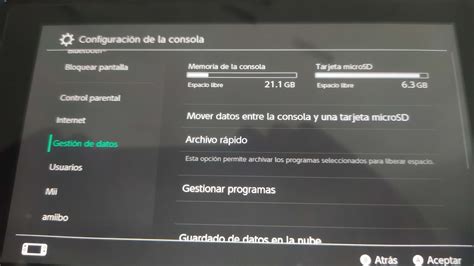
- Nintendo Switch: Select a game, press ‘+’, and choose “Archive Software.” This deletes the game data but keeps the save data and icon on your home screen. You can re-download it later.
- PlayStation (PS4/PS5): Highlight a game, press ‘Options’, and select “Delete.” On PS5, you often get a prompt asking if you want to delete the game and/or its save data. Always ensure you only delete the game application, not the save data.
- Xbox (Xbox One/Series X|S): Go to “My games & apps,” highlight a game, press the ‘Menu’ button, and select “Uninstall.” Xbox typically keeps save data separate and synced to the cloud by default.
2. Leverage Cloud Saves (Subscription Services are Your Best Friend)
Cloud saves automatically back up your game progress to online servers, providing an invaluable safety net. This means even if you accidentally delete local save data (which you shouldn’t if following the above steps), a cloud backup is likely available.
- Nintendo Switch Online: Most (but not all) games support cloud save backup. Ensure your subscription is active and auto-backup is enabled.
- PlayStation Plus: All PS Plus tiers include cloud storage for PS4 and PS5 game saves. Saves are often uploaded automatically.
- Xbox Game Pass Ultimate/Core: Xbox has robust cloud save integration that’s typically automatic for all games, regardless of subscription status, as long as you’re connected to Xbox Live.
Always verify your critical saves are synced to the cloud before making drastic changes.

3. Expand Storage with External Devices
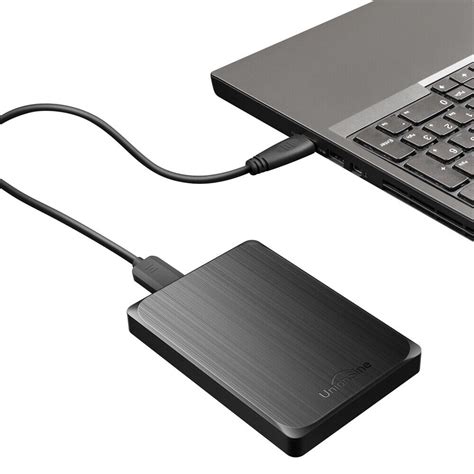
If you’re constantly running out of space, it might be time for an upgrade. External storage solutions offer a significant boost to your console’s capacity.
- Nintendo Switch: Easily expand storage with a microSD card. Once inserted, you can download new games directly to it or move existing games from internal memory. Save data always remains on the console’s internal storage or cloud.
- PlayStation (PS4/PS5): PS4 supports external USB hard drives for game installations. PS5 can store and play PS4 games from external USB drives, and store (but not directly play current-gen games) PS5 games there. For playing PS5 games, an internal M.2 SSD expansion is required.
- Xbox (Xbox One/Series X|S): Xbox consoles support external USB hard drives for game installations. For playing Xbox Series X|S optimized games, an official Seagate Storage Expansion Card is needed, which performs like the internal SSD.
Moving games to external storage is a great way to keep them installed and accessible without occupying precious internal space.
4. Manage Screenshots and Video Captures
Over time, the collection of screenshots and video clips you take can accumulate into several gigabytes. While not as large as games, they can certainly contribute to a full drive.
- Regularly review your captures and delete old or unwanted ones.
- Transfer important screenshots and videos to a USB drive, a computer, or upload them to cloud services (like Google Drive, OneDrive, or console-specific apps) to clear space on your console.

5. Clear Game Cache/Corrupted Data (Use with Caution)
Sometimes, individual games accumulate large cache files or encounter corrupted data. While less common for general storage freeing, specific issues might require this:
- Nintendo Switch: In System Settings > Data Management > Manage Software, you can select a game and choose “Delete Software” (deletes game and save data, so be careful!) or “Manage Software” to clear cache for specific apps if available. Usually, “Archive Software” is safer.
- PlayStation: For corrupted data, you might need to go into Storage settings and look for “Saved Data” or “Game Data.” Be extremely cautious here and only delete “Corrupted Data” if identified, or cache for a specific troublesome game.
- Xbox: Often, a hard reset (holding power button for 10 seconds) clears system cache. For individual games, an uninstall/reinstall usually clears any game-specific cache issues.
Always prioritize options that explicitly state they preserve save data or use cloud backups before attempting to clear caches, as this can sometimes be intertwined with local save data.

Conclusion: Smart Management for Endless Gaming
Running out of console storage is an inevitable part of modern gaming, but it doesn’t have to be a frustrating experience that jeopardizes your precious progress. By understanding the difference between game installations and save data, regularly archiving unplayed titles, leveraging cloud save services, and investing in external storage, you can effectively manage your console’s space. Always prioritize the safety of your save data, and you’ll be able to download and play new games without worry, ensuring your epic adventures continue uninterrupted.


