How to effectively manage storage for Switch & console digital games?

In the era of digital downloads, our game libraries are expanding faster than ever. While the convenience of instant access is undeniable, the ever-growing size of modern games can quickly overwhelm your console’s internal storage, leading to frustrating ‘storage full’ messages and the tedious decision of which beloved title to uninstall. Whether you’re a proud owner of a Nintendo Switch, a PlayStation, or an Xbox, understanding and implementing effective storage management strategies is key to a smooth gaming experience.
Why Storage Management Matters
Running out of storage space is more than just an inconvenience; it can directly impact your gaming. New game installations might be impossible, system updates could fail, and even game performance can suffer if your drive is constantly at its limit. Proactive storage management ensures you spend less time deleting and more time playing, keeping your favorite titles ready to launch at a moment’s notice.
Understanding Console Storage Basics
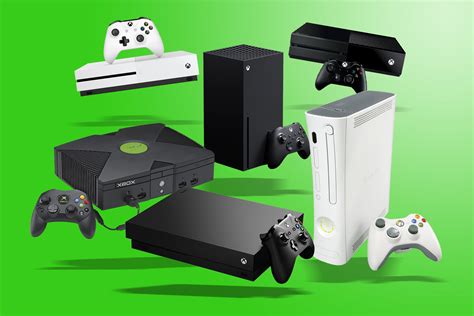
Each console platform handles storage a little differently. The Nintendo Switch, with its smaller internal memory (32GB or 64GB for OLED model), relies heavily on microSD cards for expansion. PlayStation and Xbox consoles, on the other hand, typically come with larger internal SSDs or HDDs (500GB to 2TB) but also support external USB hard drives or NVMe SSDs for expansion. Recognizing these differences is the first step towards tailored management.
Nintendo Switch: Mastering microSD Cards
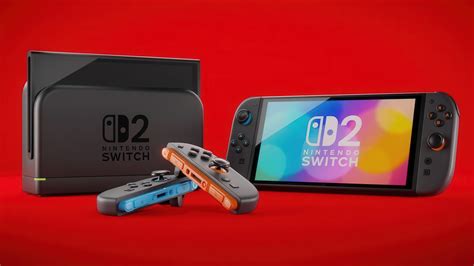
For Switch owners, a high-capacity microSD card is practically essential. When choosing one, prioritize speed (UHS-I Speed Class 3 or V30 is recommended) and capacity (256GB, 512GB, or even 1TB are popular choices). Once installed, the Switch will automatically download new games to the microSD card if there’s enough space. For games already on internal storage, you can manually move them to the card via the Data Management settings.
Regularly reviewing your installed games is vital. The Switch offers two options for clearing space: ‘Archive’ and ‘Delete’. Archiving removes the game data but keeps its icon and save data, allowing for quick re-downloading later. Deleting removes everything. Always choose ‘Archive’ unless you’re absolutely sure you’ll never play the game again and don’t care about the save data.
PlayStation & Xbox: The Power of External Drives
PlayStation 4, Xbox One, PS5, and Xbox Series X|S all support external storage via USB. For previous-gen games and current-gen games not optimized for the console’s internal SSD, a USB 3.0 external HDD offers a cost-effective way to expand storage significantly. For PS5 and Xbox Series X|S optimized games, an external SSD is generally preferred for faster loading times, though PS5 requires a specific internal NVMe SSD for playing PS5-native games directly from expanded storage, while Xbox Series X|S uses proprietary Expansion Cards.
Moving games between internal and external storage is straightforward on both platforms via their respective settings menus. It’s often a good strategy to keep your most frequently played or graphically intensive games on the internal SSD (or a compatible internal NVMe/Expansion Card) and less frequently played or older titles on a slower, but larger, external HDD.

Best Practices for All Consoles
- Regular Audits: Periodically check your storage usage. Most consoles provide a clear breakdown of how much space each game occupies.
- Utilize Cloud Saves: Always ensure your cloud saves are active (requires a subscription like Nintendo Switch Online, PS Plus, or Xbox Game Pass Ultimate). This protects your progress even if you delete game data.
- Consider Physical vs. Digital: While this article focuses on digital, owning physical copies can free up digital space, as only a portion of the game (or none, for older titles) needs to be installed, and the disc acts as the license.
- Uninstall Unfinished Demos: Demos can take up significant space and are often forgotten. Delete them once you’re done.
- Manage Screenshots & Videos: Recorded gameplay clips and screenshots can accumulate quickly. Transfer them to a PC or cloud service if you want to keep them.
Future-Proofing Your Gaming Setup
As games continue to grow in size and complexity, storage demands will only increase. Invest in reliable, high-capacity storage solutions that align with your console and gaming habits. For Switch, a large, fast microSD card. For PlayStation and Xbox, consider a balance between external HDDs for bulk storage and SSDs or proprietary expansion for performance-critical titles. By staying proactive, you can ensure your digital game collection remains accessible and your gaming experience smooth and uninterrupted.