How to boost Switch game performance and reduce lag?

Unlock Your Nintendo Switch’s Full Potential
The Nintendo Switch is a marvel of portable gaming, but like any console, it can sometimes struggle with performance, leading to frame drops, stuttering, and frustrating lag. Whether you’re battling in a fast-paced online game or exploring vast open worlds, a smooth experience is paramount. Fortunately, there are several steps you can take to optimize your Switch and ensure it runs games as fluidly as possible. Let’s dive into practical tips to boost performance and reduce lag.
1. Keep Your Software Up-to-Date
Nintendo regularly releases system updates that include performance enhancements, bug fixes, and optimization for new games. Ensuring your console’s operating system and your games are always updated is the first and most crucial step in preventing performance issues.
- System Software: Go to System Settings > System > System Update.
- Game Software: Highlight the game on the HOME Menu, press ‘+’ or ‘-‘, then select Software Update > Via the Internet.
2. Manage Storage and Corrupted Data
Over time, your Switch’s storage can fill up, potentially leading to slower load times or game stutters. Corrupted data can also wreak havoc on performance.
Clear Out Unnecessary Data
Check your storage in System Settings > Data Management. Delete games you no longer play or archive them to free up space. Digital games and updates take up significant room.
Check for Corrupted Data
The Switch has a built-in feature to check for corrupted data. Go to System Settings > Data Management > Manage Software > (Select a Game) > Check for Corrupt Data. If found, re-download the affected software.
3. Optimize System Settings for Performance
Your Switch’s settings offer a few tweaks that can subtly impact performance, especially in handheld mode or when connected to certain displays.
Disable Automatic Brightness
While convenient, automatic brightness adjustments can sometimes cause momentary stutters. Set your screen brightness manually for consistent performance. System Settings > Screen Brightness > Toggle off Auto-Brightness.
Consider Archiving Software
Instead of deleting games, you can ‘Archive Software’ (from the + / – menu on a game icon). This keeps your save data but removes the game data, freeing up space. You can re-download the game anytime.
4. Enhance Network Connectivity for Online Games
Lag in online games is often a symptom of poor network connection rather than console performance. A stable and fast internet connection is vital.
Use a Wired Connection
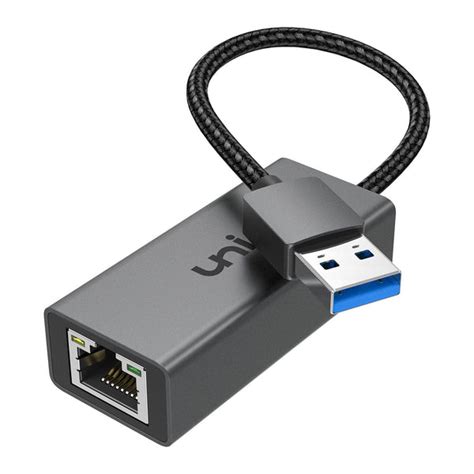
If you primarily play docked, investing in a USB LAN adapter for your Switch dock can dramatically improve stability and speed over Wi-Fi. A wired connection minimizes latency and packet loss.
Optimize Your Wi-Fi Network
- Proximity: Move your Switch closer to your Wi-Fi router.
- Frequency Band: If your router supports both 2.4GHz and 5GHz, try connecting to the 5GHz band for faster speeds, though it has less range.
- Reduce Congestion: Minimize other devices using bandwidth-intensive tasks (streaming, large downloads) while you play.
5. Ensure Proper Cooling and Environment
Overheating can lead to the Switch throttling its performance to prevent damage. Keeping your console cool is essential for sustained high performance.
Clean Vents Regularly
Dust can accumulate in the Switch’s fan vents, impeding airflow. Gently clean the vents with compressed air or a soft brush to ensure proper cooling.
Proper Dock Placement
If playing in docked mode, ensure your dock is in an open, well-ventilated area. Avoid placing it in enclosed cabinets where heat can build up.
Avoid Direct Sunlight
Do not expose your Switch (especially in handheld mode) to direct sunlight for extended periods, as this can cause it to overheat quickly.

6. Restart Your Switch Periodically
A simple restart can often resolve minor performance glitches. Just like a computer, your Switch can benefit from a fresh boot to clear temporary data and refresh its system processes.
- Hold down the POWER Button for three seconds.
- Select Power Options > Restart.
By implementing these strategies, you can significantly enhance your Nintendo Switch’s performance, reduce annoying lag, and enjoy your favorite games with greater fluidity and immersion. Happy gaming!