





How to boost console game download speeds for big titles?
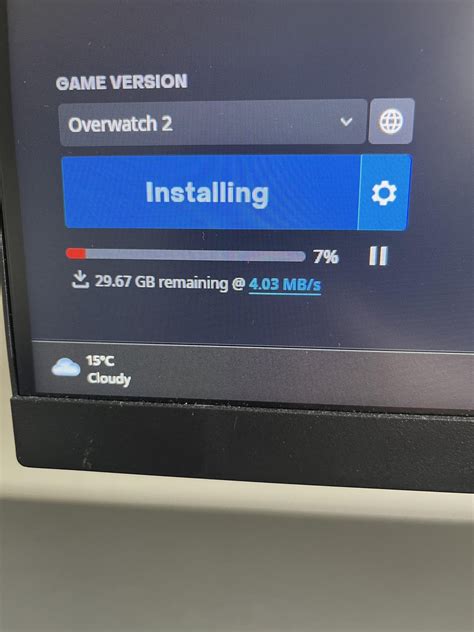
The anticipation of downloading a massive new game title, only to be met with glacial download speeds, is a familiar frustration for many console gamers. Whether it’s the latest open-world epic or a crucial update, waiting hours (or even days) for files that often stretch into the hundreds of gigabytes can dampen even the most fervent gaming excitement. For PlayStation, Xbox, and Nintendo Switch players, optimizing download speeds isn’t just about patience; it’s about getting into the action faster.
Understanding the Bottleneck
Before you can supercharge your downloads, it’s essential to understand what might be holding them back. Your internet service provider (ISP) speed plan is a primary factor, but it’s not the only one. Your home network setup, the console’s internal hardware and settings, and even the distance to the game server can all play a significant role. Modern games are massive, demanding substantial bandwidth and stable connections to transfer all that data efficiently.
Often, the problem isn’t your overall internet speed, but rather how efficiently that speed is delivered to your console. Wireless interference, outdated network equipment, or even too many devices hogging bandwidth can turn a fast connection into a slow trickle for your gaming machine.
Prioritize a Wired Connection
For sheer speed and stability, nothing beats an Ethernet cable. While Wi-Fi offers convenience, it’s susceptible to interference, signal degradation, and higher latency. A direct wired connection eliminates many of these variables, providing your console with a dedicated, uninterrupted data stream. This is especially critical for large downloads where every bit per second counts.
Connecting your PlayStation, Xbox, or Switch dock (if applicable, like the OLED Switch or via an adapter for older models) directly to your router with a Cat5e or Cat6 Ethernet cable is often the single most effective way to boost download speeds. You’ll likely see an immediate and significant improvement in both download and upload rates, as well as reduced ping during online gameplay.
Optimize Your Wi-Fi Network
If a wired connection isn’t feasible, optimizing your Wi-Fi is the next best thing. Start by placing your router in a central location, away from obstructions like walls, large furniture, and other electronics that can cause interference. Elevating the router can also improve signal spread.
Consider using the 5GHz band on your Wi-Fi router if your console supports it (most modern consoles do). While 5GHz has a shorter range, it offers faster speeds and is generally less congested than the 2.4GHz band, which is used by many older devices and appliances. Ensure your router’s firmware is up to date, as manufacturers often release updates that improve performance and security. You can also explore Wi-Fi channel optimization, using tools to find the least congested channels in your area.

Tweak Your Console Settings
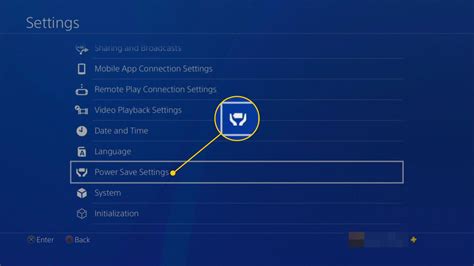
Consoles offer several settings that can indirectly affect download speeds. For PlayStation and Xbox users, utilizing ‘Rest Mode’ or ‘Instant-On’ mode often allows the console to download games and updates in the background with minimal power consumption, sometimes even providing faster download speeds as the console isn’t actively running games or demanding other resources.
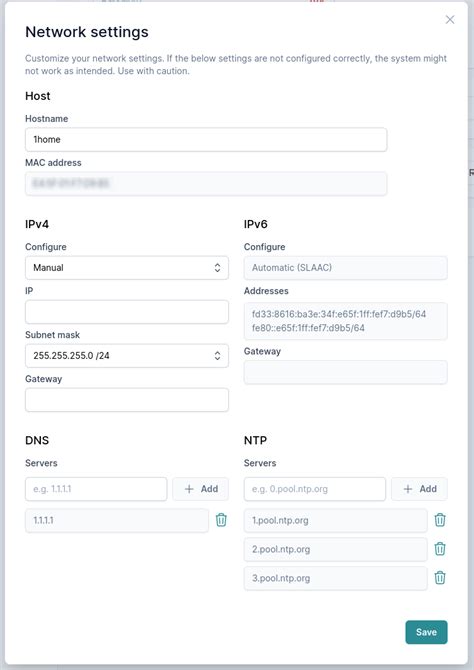
Experimenting with custom DNS settings can also yield positive results. Public DNS servers like Google DNS (8.8.8.8, 8.8.4.4) or Cloudflare DNS (1.1.1.1, 1.0.0.1) can sometimes offer a faster route to game servers compared to your ISP’s default DNS, potentially speeding up the initial handshake and data transfer. Finally, ensure no other applications or games are running in the background on your console while downloading, as these can consume valuable network resources.
Minimize Network Congestion
Your home network bandwidth is a shared resource. If multiple devices are simultaneously streaming 4K video, downloading large files, or running bandwidth-intensive applications, your console’s download speeds will suffer. Pause or halt these activities on other devices while your game is downloading.
Some advanced routers offer Quality of Service (QoS) settings, which allow you to prioritize network traffic for specific devices or applications. If your router supports it, you can set your console as a high-priority device to ensure it gets preferential treatment when it comes to bandwidth allocation, especially during peak usage times in your household.
Router and ISP Considerations
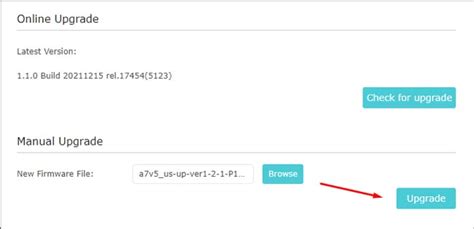
Regularly rebooting your router can resolve minor network glitches and refresh its connection to your ISP. This simple step often fixes unexplained slowdowns. Additionally, ensure your router’s firmware is always up to date, as manufacturers frequently release updates that improve performance, stability, and security.
If you’ve tried everything and your speeds are still consistently low, it might be worth contacting your Internet Service Provider. Verify that you’re receiving the speeds you pay for, and inquire if there are any known issues in your area or if an upgrade to your internet plan might be beneficial, especially if your current plan is very low bandwidth for modern demands.
Conclusion
Boosting your console game download speeds for big titles doesn’t have to be a mystery. By systematically addressing potential bottlenecks – from opting for a wired connection and optimizing your Wi-Fi to tweaking console settings and managing network congestion – you can significantly reduce your waiting time. Implementing even a few of these strategies can transform your gaming experience, getting you from download queue to in-game action much faster. Patience is a virtue, but in the world of massive game downloads, a little network optimization goes a long way.
![How to Make Games Download Faster on PC [Ultimate Guide]](/images/aHR0cHM6Ly90czQubW0uYmluZy5uZXQvdGg/aWQ9T0lQLmpGOFo1eGphVjRhTjR3MnVoS3hUZ3dBQUFBJnBpZD0xNS4x.webp)


