How to best manage Nintendo Switch storage for growing game collections?

The Nintendo Switch, with its incredible library of games, often presents a delightful dilemma for its owners: how to manage a rapidly expanding game collection when internal storage feels perpetually scarce. While the console offers 32GB (or 64GB for the OLED model) of internal storage, a significant portion is reserved for the system itself, leaving limited space for downloaded titles, updates, and save data. This guide will walk you through the most effective ways to manage your Switch’s storage, ensuring your gaming adventures never hit a dead end due to lack of space.
Understanding Your Switch’s Storage Options
Your Nintendo Switch comes with a built-in storage capacity, but it’s quickly eaten up by system files and game installations. For instance, a single major title like The Legend of Zelda: Tears of the Kingdom can consume over 18GB, making the internal memory insufficient for more than a handful of digital games. This is where external storage becomes not just an option, but a necessity.
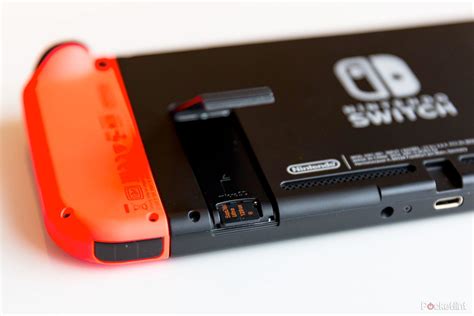
The primary method for expanding your Switch’s storage is through a microSD card. The console supports microSD, microSDHC, and microSDXC cards, allowing for massive expansions that can hold hundreds of games. Investing in a good microSD card is the single most impactful step you can take for storage management.
Choosing the Right MicroSD Card
Not all microSD cards are created equal. When selecting one for your Switch, consider two main factors: capacity and speed.
Capacity
MicroSD cards for the Switch range from small capacities like 32GB to enormous 1TB cards. For most users, a 128GB or 256GB card offers a good balance of cost and space. If you exclusively buy digital games or plan to download many large titles, a 512GB or even 1TB card will provide ample room for years to come. Remember, it’s generally better to buy a larger card than you think you need, as game sizes only tend to increase.
Speed
The speed class of a microSD card affects how quickly games load and download. Look for cards with a UHS-I (Ultra High Speed-I) classification and a speed class rating of U1 or U3. Many cards also come with A1 or A2 app performance ratings, which indicate good performance for running applications (like games) directly from the card. While A2 cards are faster, A1 cards are perfectly adequate and often more cost-effective for the Switch.

Digital vs. Physical: The Storage Impact
Your choice between digital and physical game copies significantly affects your storage needs.
- Digital Games: When you purchase a digital game from the eShop, the entire game data is downloaded and stored either on your Switch’s internal memory or your microSD card. These files are typically large, making them the biggest storage hogs.
- Physical Cartridges: While physical game cartridges contain the core game data, they often require significant downloads for updates, patches, and DLC. Save data for all games, whether physical or digital, is always stored on the Switch’s internal memory. So, even with a cart, you’ll still use some internal storage.
A mixed collection is common, but be mindful that digital purchases will quickly fill up your storage, regardless of how many physical cartridges you own.
Smart Storage Management Strategies
Once you have a microSD card, or if you’re trying to make the most of your existing setup, these strategies will help keep your storage tidy.
Archiving vs. Deleting Software
Nintendo offers two options when removing games: ‘Archive Software’ and ‘Delete Software’.
- Archive Software: This removes the game data but keeps the game icon on your Home menu. Your save data remains intact. If you want to play the game again, you can redownload it from the eShop or your user page. This is the recommended option for games you might want to play again without losing progress.
- Delete Software: This removes both the game data and the game icon from your Home menu. It does NOT delete your save data (unless you specifically delete save data separately). You’ll need to go to the eShop or your user page to redownload it.
Regularly archive games you aren’t currently playing to free up space. You can always redownload them later.
Check Data Management Regularly
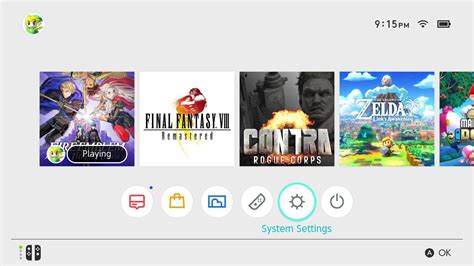
Go to System Settings > Data Management to see a breakdown of your storage usage. This screen shows how much space is taken by games, save data, screenshots, and videos. It’s a great way to identify which titles are consuming the most space and decide what to archive or move.
Prioritize Downloads
When downloading multiple games or updates, you can prioritize which ones download first. While this doesn’t directly manage storage, it ensures that the games you want to play immediately are ready sooner, preventing frustration with a full queue.
Tips for a Seamless Gaming Experience
- Don’t Wait Until It’s Full: Proactively manage your storage. Don’t wait until you can’t download a new game to start archiving old ones.
- Cloud Saves are Your Friend: If you have a Nintendo Switch Online subscription, utilize cloud saves. While save data isn’t large, it’s invaluable. Cloud saves ensure your progress is backed up, even if you delete a game or have an issue with your console.
- Consolidate Game Data: If you’ve been using the internal storage and then add a microSD card, new downloads will default to the card. You can manually move game data (not save data) between internal storage and the microSD card via the Data Management settings. This is useful for making sure your most frequently played games are on the faster storage (if your card is significantly faster than internal).

Effectively managing your Nintendo Switch storage is key to enjoying your growing game collection without constant interruptions. By investing in a suitable microSD card, understanding the differences between digital and physical titles, and regularly utilizing the console’s data management features, you can ensure your Switch always has room for the next great adventure.