





How do I best manage Switch storage for big AAA titles and small indie games?

The Nintendo Switch Storage Conundrum
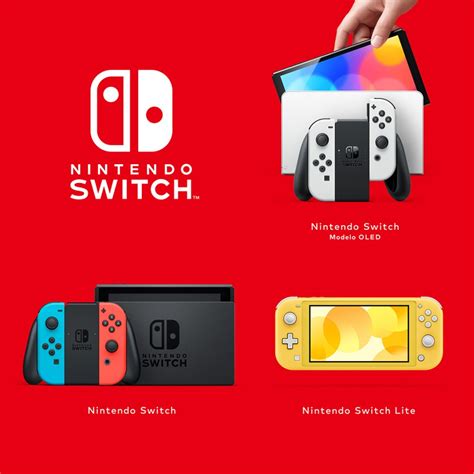
The Nintendo Switch, with its hybrid nature, offers unparalleled flexibility for gaming on the go or at home. However, its modest internal storage capacity (32GB for the original and Lite models, 64GB for the OLED model) can quickly become a bottleneck, especially when balancing the demands of sprawling AAA titles with the charm of compact indie games. AAA games can easily consume tens of gigabytes, while even a handful of smaller indie titles can add up. Understanding how to navigate this storage challenge is key to an uninterrupted gaming experience.
Embrace the MicroSD Card: Your Primary Solution
The most fundamental and essential step in managing Switch storage is investing in a high-capacity microSD card. The Switch supports microSDXC cards up to 2TB, though cards in the 128GB to 512GB range offer a great balance of capacity and cost for most users. When choosing a card, prioritize reputable brands and look for cards with a high read/write speed (UHS-I compatible, with a Speed Class of 10 or higher) to ensure faster game loading times and smoother performance.
Once inserted, the Switch will automatically use the microSD card for new game downloads, screenshots, and video captures. You can also move previously downloaded games from the internal memory to the microSD card via the system settings (System Settings > Data Management > Move Data Between System / microSD Card).

Digital vs. Physical: A Storage Strategy
The choice between digital downloads and physical game cartridges also plays a role in storage management. Physical cartridges don’t consume significant storage space for the core game data itself (though updates and DLC still do), making them an attractive option for large AAA titles you might only play once or twice before selling or trading. Indie games, often smaller in file size and more prone to being digitally purchased, are less of a concern in this regard.
However, digital games offer convenience, allowing you to switch between titles without changing cartridges. For digital-heavy users, a large microSD card is non-negotiable. Consider a hybrid approach: buying physical for your biggest, most storage-intensive AAA games, and going digital for everything else, especially smaller indie titles.
Archiving vs. Deleting: Freeing Up Space Wisely
When your storage inevitably fills up, the Switch offers two main options: archiving or deleting software.
- Archiving Software: This is generally the preferred method. Archiving removes the game data from your system but keeps the game icon on your Home menu and, crucially, preserves all your save data. If you decide to play the game again, you can redownload it from the eShop or your game library, and your progress will be intact. This is perfect for AAA titles you’ve completed but might revisit, or indie games you want to keep easily accessible without taking up full space.
- Deleting Software: This removes both the game data and the save data. Only use this for games you are absolutely certain you will never play again or for games where your progress isn’t important.
To archive a game, highlight its icon on the Home menu, press the + or – button, select ‘Manage Software,’ and then ‘Archive Software.’
Managing Game Saves: A Separate Entity
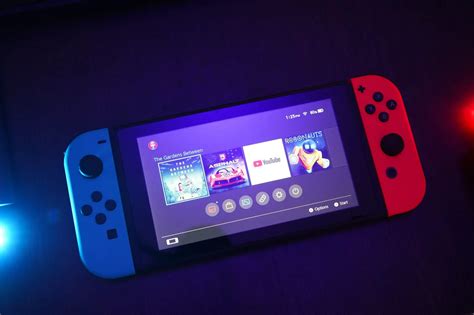
It’s important to remember that game save data is always stored on the Switch’s internal memory and takes up very little space compared to game files. Even if you archive or delete a game, your save data for that game will remain (unless you specifically choose to delete it). Nintendo Switch Online subscribers also benefit from Cloud Save Data Backup, allowing you to upload your save files to the cloud, providing an extra layer of security and making it easy to transfer saves between consoles.
Prioritization and Organization: Your Gaming Library
Develop a system for your gaming library. Think about:
- Currently Playing: Keep these installed, ideally on your microSD card if they are large AAA titles.
- Always-On Favorites: These might be smaller indie games or essential multiplayer titles that you want ready to play at a moment’s notice. They can often reside on internal storage or a dedicated section of your microSD.
- Rotating Library: For AAA games you’ve finished or indie games you play intermittently, archive them to free up space. You can always redownload them when you’re in the mood to revisit.
Practical Tips for Both AAA and Indie Titles
- For AAA Titles: Always prioritize downloading these to your microSD card. If you’re done with a large game, archive it immediately. If you have physical copies, that’s even better for conserving digital space.
- For Indie Games: Many indie games have small file sizes (under 1GB), making them perfect for filling any remaining space on your internal storage or keeping a large collection installed on your microSD card without much impact. Don’t be afraid to keep dozens of your favorite indie gems ready to play.
- Regular Audits: Periodically check your Data Management settings (System Settings > Data Management) to see what’s taking up the most space and make informed decisions about archiving.
Conclusion: A Balanced Approach to Switch Storage
Managing your Nintendo Switch storage effectively is an ongoing process, but by combining a large microSD card with smart practices like archiving, understanding digital vs. physical game formats, and prioritizing your library, you can ensure there’s always room for both the biggest AAA blockbusters and the most charming indie darlings. With a little planning, you’ll spend less time deleting and more time playing.


