How can I maximize Nintendo Switch storage for more games, big and small?

Unlocking Your Nintendo Switch’s Full Gaming Potential
The Nintendo Switch is a phenomenal console, offering unparalleled flexibility to play on the go or at home. However, its modest 32GB (or 64GB for the OLED model) internal storage can quickly become a bottleneck for even moderate game collectors. With game sizes ranging from a few hundred megabytes to over 20GB, maximizing your storage is crucial for an uninterrupted gaming experience. Let’s explore the best ways to expand and manage your Switch’s capacity for all your big and small gaming adventures.
The Cornerstone: Investing in a microSD Card
Without a doubt, the most effective and essential step to boost your Switch’s storage is to purchase a high-capacity microSD card. The Switch supports microSDHC and microSDXC cards up to a staggering 2TB, although 128GB, 256GB, or 512GB cards are generally more cost-effective and sufficient for most players.
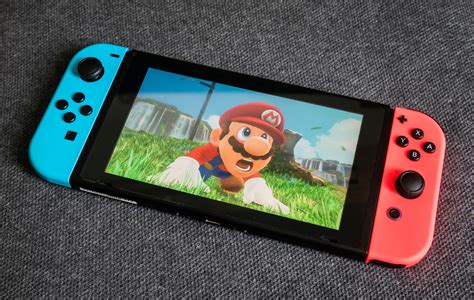
When selecting a card, look for reputable brands and prioritize those with a high transfer speed rating (UHS-I with a speed class of 10 or higher). This ensures faster game loading times and smoother performance. Simply insert the card into the slot under the kickstand, and your Switch will automatically recognize and format it, making it ready to store new game downloads, updates, and screenshots.
Digital vs. Physical: Understanding Your Game Library
Your game acquisition strategy significantly impacts your storage needs. Each approach has its pros and cons:
- Digital Games: Purchased directly from the eShop, these titles are downloaded directly onto your Switch’s internal memory or microSD card. While incredibly convenient, they are the primary consumers of storage space.
- Physical Cartridges: These games come on small game cards. While they save you from downloading the core game data, remember that many physical games still require downloads for updates, patches, and DLC (downloadable content), which will occupy storage space.

For optimal storage management, consider keeping your most frequently played digital titles on your internal memory (if space allows for faster load times, though the difference is often negligible with a good microSD) and using the microSD card for the bulk of your digital library. Physical games inherently save space on your digital storage, as the main game data is read from the cartridge.
Smart Storage Management Strategies
Even with a large microSD card, smart management is key to keeping your storage organized and preventing it from filling up unexpectedly.
Archiving Software
The Switch allows you to “archive” software. This process deletes the game data from your console but keeps its icon on your Home menu and saves your game save data. If you wish to play the game again, you can redownload it from the eShop without losing your progress. This is an excellent method for temporarily clearing space from games you don’t play often but might want to revisit.
Deleting Games
Similar to archiving, deleting software removes both the game data and its icon. This is useful for games you’ve finished and don’t intend to play again, or for demos. Like archived games, you can always redownload purchased digital titles from the eShop, and your save data (if stored locally or backed up to the cloud via Nintendo Switch Online) will remain intact.
Prioritizing Installation Location
By default, new downloads will go to your microSD card if one is inserted. However, you can manually move eligible game data between the internal storage and the microSD card via the Data Management settings, though this is primarily for specific cases or if you’re trying to optimize performance for a particular title (which, again, is often not a major factor).
Proactive Storage Management Tips
Beyond games, other data consumes space. Here’s how to manage it:
- Check Your Storage Usage Regularly: Go to System Settings > Data Management to see exactly what’s taking up space. This overview helps you identify games or data to archive or delete.
- Manage Screenshots and Video Captures: The Switch allows you to take screenshots and record video clips. These can quickly accumulate, especially video. Consider periodically transferring them to your computer or another device, or deleting older, less important captures.
- Clear Cache Data: Over time, some applications or games might accumulate cache data. While not always a huge space hog, clearing the cache (found under Data Management in System Settings) can sometimes free up a small amount of space.
By regularly reviewing your storage, you can make informed decisions about what to keep, what to archive, and what to delete, ensuring you always have room for new adventures.
Conclusion: Game On, Unrestricted
Maximizing your Nintendo Switch storage is straightforward but requires a proactive approach. By investing in a high-quality microSD card, understanding the nuances of digital vs. physical games, and regularly employing smart management techniques like archiving and data oversight, you can significantly expand your console’s capacity. This ensures you’ll always have space for new releases, beloved classics, and all the big and small games that make the Nintendo Switch such a joy to own.