How can I free up Switch storage without deleting save data?

Understanding Your Nintendo Switch Storage Woes
It’s a common dilemma for Nintendo Switch owners: your console’s internal storage is filling up, but the thought of deleting beloved game save data is terrifying. Fortunately, the Nintendo Switch is designed to separate game installation data from your precious save files, meaning there are several effective ways to free up space without ever touching your progress.
Most of the space on your Switch is consumed by game downloads, software updates, and downloadable content (DLC). Save data, on the other hand, is typically very small and is usually stored separately on the console’s internal memory, or backed up to the cloud via a Nintendo Switch Online subscription. This distinction is key to managing your storage efficiently.
1. Archive Software Instead of Deleting It
This is arguably the most straightforward method to reclaim significant space without losing save data. When you “archive” software, the game’s main data (the large installation files) is removed from your console, but its icon remains on your HOME Menu, and crucially, all save data is preserved. You can re-download the game at any time if you own it digitally or insert the game card if it’s a physical copy.
How to Archive Software:
- From the HOME Menu, highlight the game you wish to archive.
- Press the ‘+’ or ‘-’ button to open the Options menu.
- Select “Manage Software,” then choose “Archive Software.”
- Confirm your selection when prompted.
2. Invest in a MicroSD Card
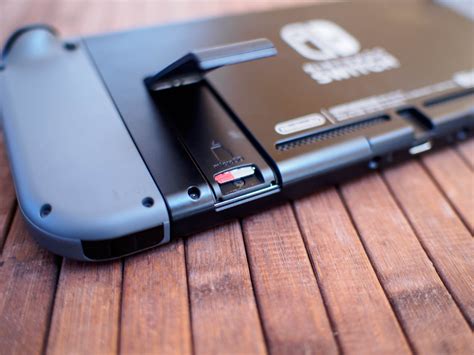
The most robust long-term solution for storage expansion is a microSD card. The Nintendo Switch supports microSD (up to 2GB), microSDHC (4GB-32GB), and microSDXC (64GB-2TB) cards. Once inserted, new downloads will automatically prioritize the microSD card, and you can even transfer some existing data to it.
Benefits of a MicroSD Card:
- Vastly increases usable storage for games, updates, and DLC.
- Easy to install and use.
- Allows you to keep more games readily available without constant archiving.
To transfer data to your microSD card, you might need to archive and then re-download games, ensuring they install onto the card. Alternatively, for screenshots and videos, you can directly move them.
3. Manage Screenshots and Video Captures
Screenshots and video clips can surprisingly consume a considerable amount of space, especially if you’re an avid capture enthusiast. Reviewing and deleting old or unwanted captures is a quick way to free up some internal storage.
How to Manage Captures:
- From the HOME Menu, select “Album.”
- Highlight the capture you wish to manage.
- Press ‘A’ to view it, then press ‘A’ again to bring up options.
- Select “Delete” or “Copy to a microSD card” (if available and you have one inserted).
4. Check for Corrupted Data
While less common, corrupted data can sometimes take up space on your console. The Switch has a feature to check for and remove corrupted data, which doesn’t affect your save files.
How to Check for Corrupted Data:
- From the HOME Menu, go to System Settings.
- Scroll down to “Data Management.”
- Select “Manage Software,” then choose the game you suspect might have corrupted data.
- Select “Check for Corrupt Data.” If found, you’ll be prompted to delete and re-download the software.
5. Understanding Nintendo Switch Online Cloud Saves
It’s important to clarify that Nintendo Switch Online’s Save Data Cloud backup feature does not free up space on your console. Instead, it creates a backup of your save data to the cloud, protecting it in case your console is lost or damaged, or if you transfer to a new console. This is an excellent safety net for your progress, but it won’t help clear internal storage.
Conclusion
Managing your Nintendo Switch storage doesn’t have to be a scary process involving the deletion of precious save files. By understanding the difference between game data and save data, you can effectively utilize features like archiving software, expanding storage with a microSD card, and managing your captures to keep your console running smoothly with plenty of room for new adventures. Your save data is almost always safe, allowing you to focus on the fun of gaming.