





Expand console storage for more games: SSD vs. microSD on PS5, Xbox, Switch?
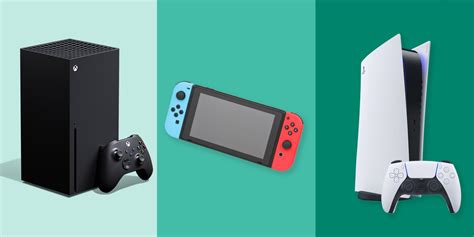
The Ever-Growing Digital Library: Why Console Storage Matters
In the world of modern gaming, file sizes are constantly ballooning. With graphically intense titles and massive open worlds, it’s not uncommon for a single game to demand 100GB or more of storage space. This rapid consumption of internal drive capacity quickly leads to a dilemma for many console owners: how do you keep all your favorite games installed without constantly deleting and redownloading? This guide delves into the best storage expansion solutions for PlayStation 5, Xbox Series X|S, and Nintendo Switch, comparing the suitability of SSDs and microSD cards for each platform.
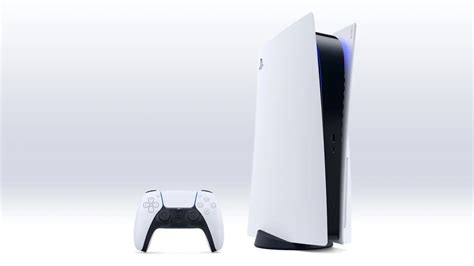
PlayStation 5: The Need for Speed with NVMe SSDs
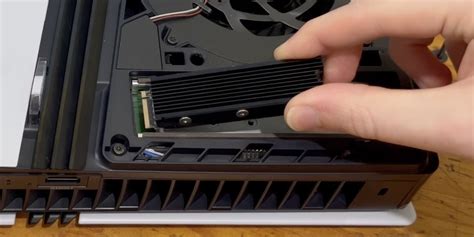
Sony designed the PlayStation 5 with a blazing-fast custom NVMe SSD, and for expanding this storage, only drives that meet specific, high-performance criteria will do. The PS5 supports M.2 NVMe PCIe Gen4 SSDs, which can be easily installed into a dedicated expansion slot.
Key Considerations for PS5 SSDs:
- Performance: The SSD must meet or exceed Sony’s recommended read speed of 5,500 MB/s.
- Form Factor: M.2 2230, 2242, 2260, 2280, or 22110 are supported.
- Heatsink: A heatsink is crucial to prevent overheating and maintain optimal performance. Many compatible SSDs come with one pre-attached, or you can purchase one separately.
- Installation: It’s a straightforward process, requiring a screwdriver to remove the console’s faceplate and access the M.2 slot.
While you can connect external USB hard drives or SSDs to a PS5, these can only store and play PS4 games. For PS5 titles, an internal M.2 NVMe SSD is the only option for expanded storage that retains next-gen performance.
Xbox Series X|S: Proprietary Expansion or External Flexibility
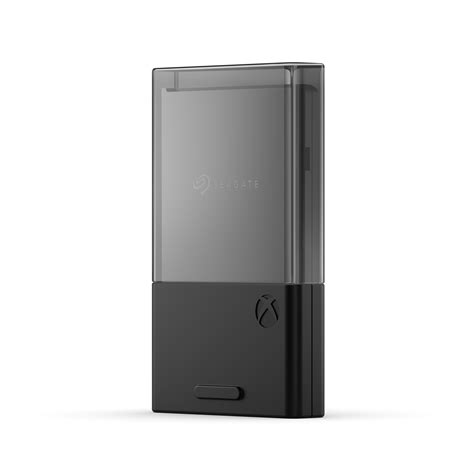
Microsoft offers a more streamlined, albeit proprietary, solution for Xbox Series X|S storage expansion: the Seagate or WD_Black Storage Expansion Card. These cards plug directly into a dedicated port on the back of the console, replicating the internal SSD’s performance precisely.
Key Considerations for Xbox Storage:
- Proprietary Card: For playing Xbox Series X|S optimized games directly from expanded storage, the official Storage Expansion Card is currently the only option. They come in 512GB, 1TB, and 2TB capacities.
- Seamless Performance: These cards offer identical performance to the console’s internal SSD, meaning no compromises on load times or game features.
- External USB Drives: You can connect standard external USB 3.0 HDDs or SSDs. These are great for storing Xbox One, Xbox 360, and original Xbox titles, and can even store (but not play) Xbox Series X|S games, which must be transferred to the internal drive or expansion card to play.
Nintendo Switch: The MicroSD Card Advantage
Unlike its beefier console counterparts, the Nintendo Switch relies on readily available and cost-effective microSD cards for storage expansion. Its internal storage is a modest 32GB or 64GB (for OLED models), making a microSD card almost essential for anyone with a digital library.
Key Considerations for Switch MicroSD:
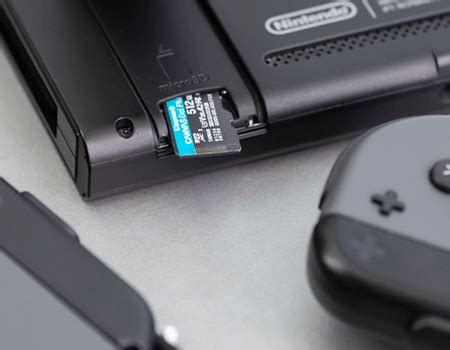
- Ease of Use: Simply insert the microSD card into the slot under the kickstand. The console will prompt you to format it if needed.
- Speed: While faster cards exist, a UHS-I (U3) rated microSD card is more than sufficient for the Switch. Faster cards won’t significantly improve game load times beyond this standard, as the console’s reader is the bottleneck.
- Capacity: MicroSD cards are available in capacities up to 1.5TB (and theoretically 2TB), offering vast amounts of space for dozens or even hundreds of Switch games.
- Cost-Effectiveness: Compared to NVMe SSDs or proprietary Xbox cards, microSD cards offer the best value per gigabyte.
SSD vs. MicroSD: A General Comparison
While the choice is often dictated by the console itself, it’s useful to understand the fundamental differences:
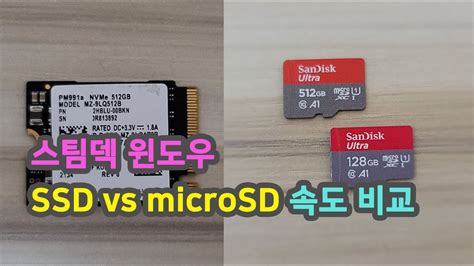
- Speed: NVMe SSDs (PS5, Xbox proprietary) are incredibly fast, offering read/write speeds in the thousands of MB/s. MicroSD cards, even high-speed ones, operate in the hundreds of MB/s range. This speed is critical for current-gen games that stream assets rapidly.
- Cost: Generally, microSD cards offer the lowest cost per gigabyte, especially for capacities suitable for the Switch. High-performance NVMe SSDs and proprietary Xbox cards are significantly more expensive.
- Physical Size & Form Factor: SSDs come in various forms (M.2 for PS5, proprietary card for Xbox, external enclosures), while microSD cards are tiny and universally compatible with their designated slot on the Switch.
- Performance Impact: For PS5 and Xbox Series X|S, using the correct, high-speed storage ensures no performance degradation. For Switch, microSD cards are the native expansion method, and performance differences between high-end cards are negligible.
Conclusion: Tailoring Storage to Your Console
Expanding your console’s storage is no longer a luxury but a necessity for most gamers. The approach, however, varies significantly by platform:
- For PS5: Invest in a high-speed M.2 NVMe PCIe Gen4 SSD with a heatsink to ensure you can store and play all your next-gen titles without compromise.
- For Xbox Series X|S: The proprietary Seagate or WD_Black Storage Expansion Card is the premium, no-compromise solution for optimized games. External USB drives are excellent for older generation titles and for archiving current-gen games.
- For Nintendo Switch: A large-capacity, U3-rated microSD card is the most practical and cost-effective way to carry your entire digital library wherever you go.
By understanding the specific requirements of your console, you can make an informed decision to expand your game library and spend more time playing and less time managing storage.


