Console storage full? Tips to make space for your next big or small game.
The Ever-Growing Digital Library Dilemma
In today’s gaming landscape, digital downloads reign supreme, offering convenience and instant access to new titles. However, this ease comes with a common challenge: rapidly dwindling console storage. Whether you’re a proud owner of a Nintendo Switch, PlayStation 5, or Xbox Series X/S, that “storage full” notification is an all too familiar sight, halting your excitement for the next big adventure. But don’t fret; there are effective strategies to reclaim that precious space and get back to gaming.
Strategic Game Management: What to Keep, What to Go
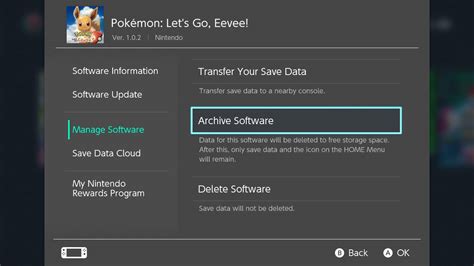
The most straightforward way to free up space is to address your existing game library. While it might seem daunting, many games you’ve completed or haven’t touched in months are prime candidates for removal. Remember, for digital titles, deleting a game from your console doesn’t mean losing it forever. You can always re-download it from your platform’s store or library when you’re ready to play again. Prioritize uninstalling the largest games you don’t actively play.
For physical games, while the disc is your license, the installed data still takes up significant room. If you’re not playing a disc-based game, uninstalling it is just as effective as removing a digital title.
Tackling Game Saves and Media Captures
Cloud Saves vs. Local Saves
Game save data is typically small, but it’s crucial. Modern consoles offer cloud save features (often tied to subscription services like PlayStation Plus, Xbox Game Pass Ultimate, or Nintendo Switch Online). Ensure your important saves are backed up to the cloud before deleting game installations. This provides peace of mind and allows you to pick up exactly where you left off if you ever reinstall a game.
Clearing Screenshots and Video Clips
Modern consoles make it incredibly easy to capture those epic moments, but these high-resolution screenshots and video clips can quickly accumulate, eating into your storage. Regularly review your capture gallery. Delete unwanted media, or better yet, offload them to an external drive (USB drive for PS/Xbox, microSD card for Switch) or upload them to social media/cloud storage services, and then remove them from your console.
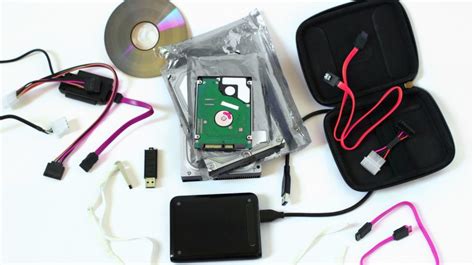
Expanding Your Horizon: External Storage Solutions
When internal storage just isn’t enough, external solutions are your best friend. The options vary slightly by console:
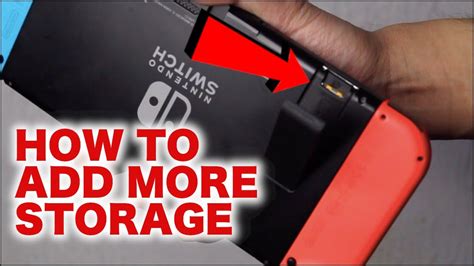
- Nintendo Switch: The Switch relies heavily on microSD cards. A high-speed, high-capacity microSD card (up to 2TB) is almost essential for anyone with a significant digital library. Games and updates can be installed directly to the card.
- PlayStation (PS4/PS5): PS4 and PS5 can use external USB hard drives for storing and playing PS4 games. For PS5 games, you can store them on an external USB drive but need to transfer them back to the internal SSD or an installed M.2 SSD to play. PS5 also supports installing a compatible M.2 NVMe SSD internally for direct PS5 game playback.
- Xbox (Xbox One/Series X|S): Xbox One and Series X|S consoles support external USB 3.0 hard drives for storing and playing Xbox One games and older titles. For playing Xbox Series X|S optimized games directly, you’ll need the proprietary Xbox Storage Expansion Card. You can store optimized games on a standard external USB drive, but they must be moved to the internal SSD or Expansion Card to play.
Other Handy Tips and Tricks
- Clear Cache/Temporary Data: While not always an option accessible to users directly, some consoles allow clearing system cache which can sometimes free up small amounts of space or resolve performance issues. Check your console’s settings for system or storage management options.
- Reinstall Specific Components: Some larger games offer options to install only specific parts (e.g., campaign vs. multiplayer). If you only play one aspect, consider only installing that.
- Factory Reset (Last Resort): A factory reset will wipe everything and return your console to its default state. This should only be considered if you’ve exhausted all other options and have thoroughly backed up all your saves and media.
Keep Your Console Ready for Adventure
Managing your console’s storage doesn’t have to be a chore. By regularly reviewing your installed games, managing your captures, and leveraging external storage solutions, you can ensure that you’re always ready to download and dive into the next big (or small) game without encountering that frustrating “storage full” message. Proactive management is key to uninterrupted gaming pleasure.