





Best Switch storage tips for your growing digital game library?

Conquering the Digital Hoard: Essential Switch Storage Tips
The Nintendo Switch, with its incredible library of games, often becomes a digital hoarding ground for many players. While the console’s portability is a major draw, its internal storage of 32GB (or 64GB for the OLED model) fills up surprisingly fast, especially with large AAA titles and numerous indie gems. If you’re constantly running into ‘not enough space’ messages, it’s time to get strategic about your Switch’s storage. Don’t let a full memory card stop you from downloading that next must-play game!

1. Invest in a High-Quality microSD Card
This is by far the most crucial step. The Switch supports microSD, microSDHC, and microSDXC cards up to 2TB (though 1TB is currently the largest commercially available). A larger card provides ample space for dozens, if not hundreds, of games. When choosing a card, look for reputable brands and prioritize high read/write speeds (UHS-I compatible, with a speed class of 10 or higher) to ensure smooth game loading and performance. A 256GB, 512GB, or even 1TB card is highly recommended for avid digital game collectors.
2. Understand Where Games and Data Are Stored
It’s important to differentiate between game data storage. Downloaded software (digital games), software updates, and DLC are primarily stored on your microSD card if one is inserted. If not, they use the internal memory. Save data, however, is always stored on the Switch’s internal memory and cannot be moved to a microSD card. This means even if you archive a game, its save data remains on the console.
3. Archive Software You’re Not Currently Playing
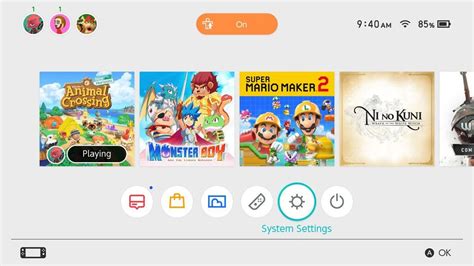
The ‘Archive Software’ feature is your best friend. When you archive a game, the game data itself is deleted from your console or microSD card, but the game icon remains on your HOME Menu and, crucially, your save data is preserved. This frees up significant space. You can easily re-download the game later from the eShop or your user page when you’re ready to play it again, provided it’s still available.
- How to Archive: From the HOME Menu, highlight the game, press the + or – button, select ‘Manage Software’, then ‘Archive Software’.

4. Delete Screenshots and Video Captures
While individual screenshots and video clips don’t take up much space, they can accumulate quickly, especially if you’re frequently capturing gameplay moments. Regularly review your Album and delete any unwanted media. You can also transfer them to a microSD card or a smart device to back them up.
5. Check for Corrupt Data and Redundant Downloads
Occasionally, download errors or incomplete data can take up space unnecessarily. While rare, checking your ‘Data Management’ settings for ‘Corrupt Data’ can help identify and delete these files. Also, ensure you haven’t accidentally downloaded the same game multiple times if you’ve been swapping microSD cards.
6. Leverage Cloud Saves (Nintendo Switch Online)
While cloud saves don’t directly free up storage on your console, they provide peace of mind. If you ever need to factory reset your console or get a new one, your save data for most games (with a Nintendo Switch Online subscription) will be safely backed up. This allows you to delete and re-download games without fear of losing your progress, indirectly contributing to better storage management.
Keeping Your Digital Library Agile
By implementing these strategies, you can effectively manage your Nintendo Switch’s storage and ensure that a full memory card never hinders your gaming experience. A little proactive organization goes a long way in keeping your ever-growing digital game library accessible and ready to play.


