





Best Switch SD card for optimal game storage and performance?
The Nintendo Switch, while a revolutionary handheld console, comes with a significant limitation: its internal storage. With only 32GB (or 64GB for the OLED model), a substantial portion of which is reserved for the system itself, avid gamers quickly find themselves running out of space. This makes an external microSD card an indispensable accessory for anyone looking to download multiple digital titles or even manage updates for physical games. But with so many options available, how do you pick the best SD card that offers both ample storage and optimal performance?
Why an SD Card is Essential for Your Switch
The standard Nintendo Switch offers a mere 32GB of internal storage, which is quickly consumed by operating system files, screenshots, save data, and digital game downloads. Even a few major titles like The Legend of Zelda: Tears of the Kingdom or Pokémon Scarlet and Violet can easily gobble up over 10-15GB each. Opting for a microSD card dramatically expands your console’s capacity, allowing you to build a substantial digital game library without constantly deleting and re-downloading games.
The Limitations of Internal Storage
Without an SD card, you’ll frequently encounter ‘Not enough space’ error messages. This can be frustrating, especially when a new game update drops or you want to download a new title. Relying solely on the internal memory is simply not sustainable for most Switch owners.
Digital vs. Physical Games
While physical game cartridges save some space by containing most of the game data, many titles still require significant downloads for updates, DLC, and even core game files. Digital-only games, purchased directly from the eShop, entirely reside on your console’s storage, making an SD card a must-have for digital collectors.
Understanding SD Card Types and Speeds
Not all microSD cards are created equal. For optimal performance with your Nintendo Switch, you need to understand the key specifications.
microSDXC vs. microSDHC
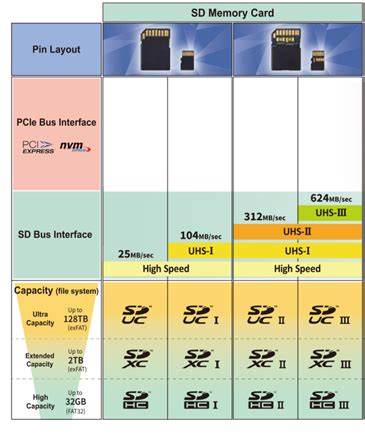
- microSDHC (High Capacity): These cards range from 4GB to 32GB. While compatible with the Switch, their smaller capacities make them less ideal for long-term storage needs.
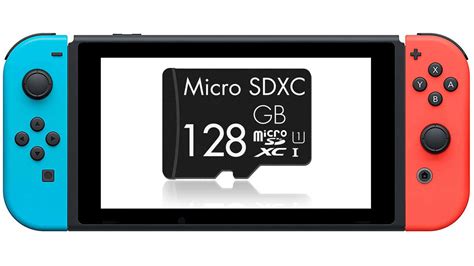
- microSDXC (Extended Capacity): These cards range from 64GB up to 2TB. The Switch supports microSDXC cards, and these are highly recommended for their larger storage potential.
Speed Classes (UHS-I, Class 10, U1, U3)
The Nintendo Switch supports UHS-I (Ultra High Speed Phase I) microSD cards. While UHS-II cards exist and are faster, the Switch cannot fully utilize their increased speeds, meaning you’d pay a premium for performance you can’t access.
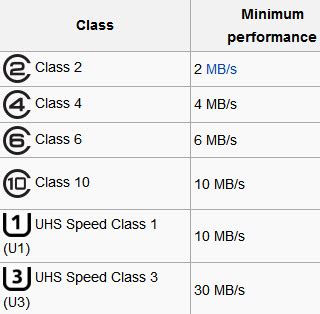
- Class 10: Guarantees a minimum sequential write speed of 10 MB/s.
- UHS Speed Class 1 (U1): Guarantees a minimum sequential write speed of 10 MB/s, equivalent to Class 10.
- UHS Speed Class 3 (U3): Guarantees a minimum sequential write speed of 30 MB/s.
For the Switch, a U1 or U3 rated card is ideal. While U3 offers theoretically faster write speeds, the actual difference in game loading times on the Switch between a good U1 and U3 card is often negligible due to the console’s own limitations. The key is a fast read speed, as this impacts how quickly games load.
Read and Write Speeds Explained
Most manufacturers prominently display the ‘up to’ read speed (e.g., 100MB/s), as this is what determines how fast your Switch can access game data from the card. Write speed is less critical for general gaming but can affect how quickly games download or transfer to the card.
Recommended SD Card Capacities for Switch Users
The ‘best’ capacity depends entirely on your gaming habits.
64GB – Casual Gamer
If you mostly play physical games and only download a few small digital titles, 64GB might suffice, but you’ll likely outgrow it quickly.
128GB – Moderate Gamer
A 128GB card is a great starting point for many. It offers a good balance of cost and space, allowing for several large digital games and many smaller ones.
256GB – Dedicated Gamer
For those who frequently download new games or have a mix of digital and physical titles with large updates, 256GB provides comfortable breathing room for a significant library.
400GB+ – Digital Hoarder
If you prefer a fully digital library and want to download almost everything that catches your eye, 400GB, 512GB, or even 1TB cards are the way to go. These capacities ensure you won’t have to worry about storage for a very long time.
Top SD Card Brands for Nintendo Switch
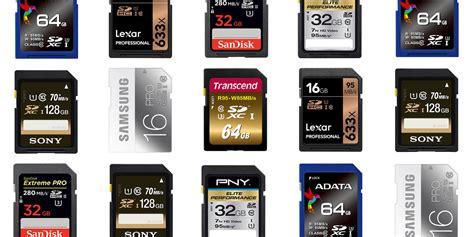
When selecting a brand, reliability and reputation are key. Sticking to well-known manufacturers reduces the risk of counterfeit cards or performance issues.
SanDisk microSDXC for Switch
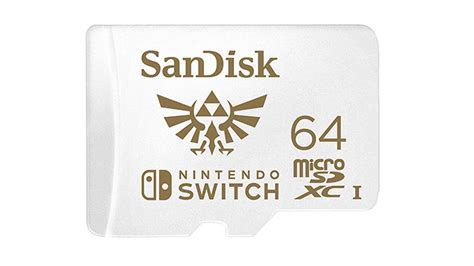
SanDisk officially partners with Nintendo, offering branded microSD cards specifically for the Switch. These cards typically come in eye-catching Nintendo themes (e.g., Mario, Zelda) and guarantee UHS-I U3 speeds. They are highly reliable and optimized for the console.
Samsung EVO Select/Plus
Samsung’s EVO Select and EVO Plus lines are excellent alternatives. They offer competitive read/write speeds, are widely available, and are known for their durability and value. They are typically UHS-I U3 rated.
PNY Elite-X
PNY also offers reliable microSD cards, such as the Elite-X line, which provide strong performance for the Switch at a good price point. These are typically UHS-I U3.
When purchasing, always buy from reputable retailers to avoid fake cards, which can lead to data loss or poor performance.
Installing and Managing Your Switch SD Card
Once you have your SD card, installation is straightforward.
Installation Steps
- Turn off your Nintendo Switch completely (hold power button > Power Options > Turn Off).
- Open the kickstand on the back of the console to reveal the microSD card slot.
- Insert the microSD card into the slot with the label facing down, pushing gently until it clicks into place.
- Close the kickstand and power on your Switch.
Formatting Your Card
Your Switch will automatically detect the new card and prompt you to format it if necessary. If not, you can manually format it via System Settings > System > Formatting Options > Format microSD Card. This process will erase any existing data on the card.
Moving Games Between Storage
Unfortunately, the Switch does not have a built-in feature to directly move installed games between internal memory and the SD card. To move a game, you must archive or delete it from its current location and then re-download it to your preferred storage. You can set the SD card as the default download location for future games in System Settings > Data Management.
Conclusion
Investing in a high-quality microSD card is essential for unlocking the full potential of your Nintendo Switch. While there are many options, prioritize a microSDXC card from a reputable brand like SanDisk or Samsung, with a capacity that suits your gaming habits. Aim for a UHS-I U1 or U3 speed class to ensure smooth game loading and overall performance. With the right SD card, you can stop worrying about storage limits and focus on enjoying your extensive game library.


