





Best microSD for Nintendo Switch: optimizing game storage & speed?
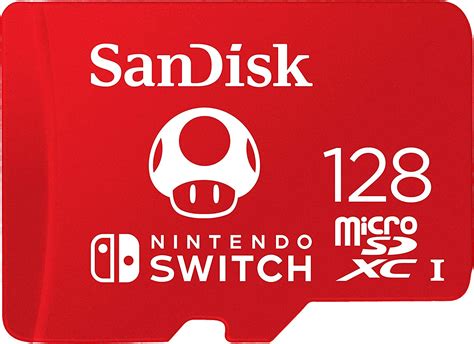
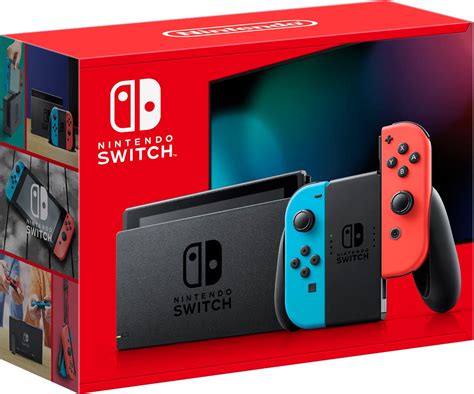
The Nintendo Switch, a marvel of portable gaming, comes with a rather modest 32GB or 64GB of internal storage. While sufficient for a few small titles, modern games, patches, and DLC can quickly consume this space, leaving avid gamers scrambling for more room. This is where a high-quality microSD card becomes an indispensable accessory, not just for expanding storage but also for potentially improving game loading times.
Why Your Nintendo Switch Needs a Good MicroSD Card
Unlike some consoles, the Switch relies heavily on its external storage for digital games. Every digital purchase, every game update, and even screenshots and videos contribute to the storage footprint. Without ample space, you’ll constantly be deleting games to make room for new ones, a frustrating cycle no gamer wants to endure. A robust microSD card provides the freedom to download an extensive library without compromise.
Understanding MicroSD Card Specifications for Switch
Not all microSD cards are created equal, and choosing the right one involves understanding a few key specifications:
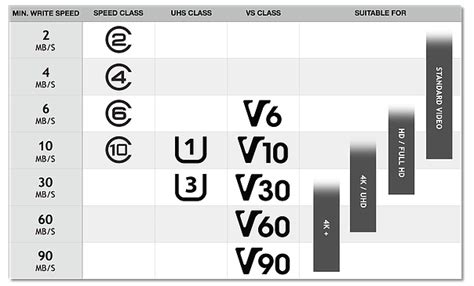
- UHS-I (Ultra High Speed – Phase I): The Nintendo Switch supports UHS-I cards. While UHS-II cards exist and are faster, the Switch cannot fully utilize their increased speeds, so investing in one would be overkill and unnecessary. Stick to UHS-I.
- Speed Class (U1 or U3): This indicates minimum write speed. U1 (Class 10) guarantees at least 10MB/s, while U3 guarantees at least 30MB/s. For gaming, U3 is preferable for smoother performance.
- Application Performance Class (A1 or A2): This rating is crucial for Switch performance. It indicates how well the card handles random read/write operations, which are common with game files.
- A1: Minimum random read of 1500 IOPS and random write of 500 IOPS.
- A2: Minimum random read of 4000 IOPS and random write of 2000 IOPS. A2 cards offer significantly better performance for applications (like games) and are highly recommended for the Switch.
Look for cards that prominently display “UHS-I,” “U3,” and “A2” for the best experience.
Does MicroSD Card Speed Really Matter for Gaming?
Absolutely. While the Switch’s internal card reader has its limits, a faster microSD card can noticeably improve:
- Game Loading Times: Games stored on a faster card will generally load quicker, getting you into the action sooner.
- Patch and Update Installation: Downloading and applying updates can be faster.
- Game Performance (Minor): While not directly impacting in-game frame rates, faster data access can reduce minor stutters or texture pop-ins in some games that constantly stream assets from storage.
Recommended Brands and Capacities
When it comes to reliability and performance, a few brands consistently stand out:
- SanDisk: Widely recognized, their “Extreme” or “Extreme Pro” lines (often marked with the Nintendo Switch logo) are excellent choices.
- Samsung: The “EVO Select” or “PRO Endurance” series offer great value and performance.
- Lexar: Known for their reliable media cards, Lexar options are also worth considering.
Most of these top-tier cards boast read speeds of up to 100MB/s and write speeds typically around 60-90MB/s, coupled with A2 and U3 ratings.
Choosing the Right Capacity
How much storage do you actually need? Consider your gaming habits:
- 128GB: A good starting point for casual digital gamers, offering room for several AAA titles and many indie games.
- 256GB: Ideal for most dedicated digital gamers, providing a comfortable buffer for a growing library. This is often the sweet spot for price-to-storage.
- 512GB: For heavy digital collectors or those with many large titles, this capacity offers significant peace of mind.
- 1TB: The maximum supported capacity. While expensive, it’s the ultimate solution for massive digital libraries, ensuring you rarely, if ever, run out of space.
Remember that games vary greatly in size, from a few hundred MBs to over 50GB. Always check game sizes when planning your storage.
Installation and Management Tips
Installing a microSD card is simple: just open the kickstand on your Switch and slide the card into the slot. Here are a few management tips:
- Transferring Games: You can move games between the internal storage and the microSD card via the Switch’s Data Management settings. It’s generally recommended to install new games directly to the microSD card.
- Backup: While not a traditional backup, if your card fails, you can redownload your purchased games from the eShop.
- Formatting: Always format a new microSD card using the Switch itself (System Settings > System > Formatting Options > Format microSD Card) to ensure optimal compatibility.
Conclusion: Invest in Smart Storage
Upgrading your Nintendo Switch with a high-quality microSD card is one of the most impactful improvements you can make to your gaming experience. By prioritizing cards with UHS-I, U3, and especially A2 ratings from reputable brands, and choosing a capacity that suits your needs, you’ll unlock a world of expanded game libraries and smoother performance. Don’t let limited storage hold back your adventures in the vast and exciting world of Nintendo Switch gaming.


