





Best methods to free up Switch storage for new digital games?

Why Switch Storage Fills Up Fast
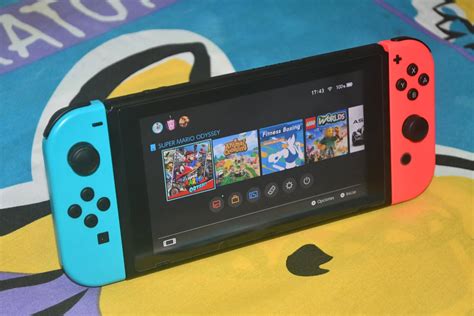
The Nintendo Switch, a beloved hybrid console, offers an incredible library of games, many of which are available digitally. While convenient, downloading numerous titles can quickly exhaust the console’s internal storage (32GB for the original/Lite, 64GB for the OLED model). Large game files, DLC, updates, and even game saves all contribute to a shrinking pool of available space. Before you can dive into that exciting new eShop release, you might find yourself needing to make some room.
Fortunately, there are several straightforward and effective methods to manage and free up storage on your Switch. Let’s explore the best ways to ensure your console is always ready for your next gaming adventure.
1. Check Your Current Storage Usage
The first step in any storage management plan is to understand what’s taking up the most space. Your Switch provides a clear breakdown of your data.
- Navigate to System Settings: From the HOME Menu, select the gear icon.
- Scroll to Data Management: On the left sidebar, find and select ‘Data Management’.
- Review Detailed Info: Here you’ll see how much space is used on your System Memory and any inserted microSD Card, along with a list of software arranged by size.
This overview will quickly highlight the biggest culprits, helping you prioritize which games or data to manage first.
2. Archive Software (The Smart Way to Delete)
Archiving is often the best method for games you might want to play again in the future. When you archive a game, the game software itself is deleted, but your save data remains untouched on the console’s internal memory. This means if you re-download the game later, you can pick up right where you left off.
- From the HOME Menu: Highlight the game icon you wish to archive.
- Press ‘+’ or ‘-‘ button: This opens the game’s Options menu.
- Select ‘Data Management’ > ‘Archive Software’.
- Confirm: Select ‘Archive’ again to confirm.
Archived games will still appear as an icon on your HOME Menu, making them easy to identify and re-download from the eShop or your ‘Redownloadable Software’ list in your user page settings.
3. Delete Software (For Games You Won’t Revisit)
If you’re absolutely certain you’ll never play a digital game again, or if it’s a demo, deleting the software is an option. Unlike archiving, deleting software removes both the game data and its icon from your HOME Menu. However, your save data for that game will still remain on the console’s internal memory unless you manually delete it separately.
To delete:
- From the HOME Menu: Highlight the game icon.
- Press ‘+’ or ‘-‘ button: Open the game’s Options menu.
- Select ‘Data Management’ > ‘Delete Software’.
- Confirm: Select ‘Delete’ again.
You can also delete software via System Settings > Data Management > Manage Software, which gives you a list view for easier selection.
4. Delete Save Data (Use with Caution)
Save data typically takes up very little space compared to game software, but for a truly clean slate, you can delete it. Be warned: this is permanent and cannot be undone. Only do this for games you’ve truly finished and have no intention of ever playing again, or if you want to start a game from scratch.
- Go to System Settings > Data Management > Delete Save Data.
- Select the game whose save data you wish to delete.
- Confirm deletion.
Remember that Nintendo Switch Online subscribers have access to Cloud Saves for most games, providing a backup if you accidentally delete local save data. Always check if a game supports cloud saves before deleting.
5. Utilize a microSD Card
This is by far the most impactful method for expanding your Switch’s storage. The Nintendo Switch supports microSD, microSDHC, and microSDXC cards up to a whopping 2TB (though 1TB is currently the largest commercially available). Investing in a high-capacity microSD card allows you to store dozens, if not hundreds, of digital games.
How it Works:
- When a microSD card is inserted, new digital game downloads and software updates will automatically save to the card.
- Existing digital games stored on the console’s internal memory will NOT automatically move to the microSD card.
Moving Existing Games to microSD:
Unfortunately, there’s no direct ‘move’ function for individual games. To transfer a game from internal memory to the microSD card, you must:
- Archive or Delete the game from the internal memory (as described above).
- Re-download the game. With the microSD card inserted, the game will now automatically install onto the card.
This process saves your save data, so you won’t lose progress. It’s a bit tedious, but highly effective for long-term storage management.
6. Upgrade Your microSD Card
If you already have a microSD card but it’s filling up, it might be time for an upgrade. Moving your data from an old, smaller card to a new, larger one is relatively straightforward:
- Power off your Switch.
- Remove the old microSD card.
- Insert the old microSD card into a computer (using an adapter if necessary).
- Copy all contents from the old microSD card to a temporary folder on your computer. Ensure you copy the entire ‘Nintendo’ folder.
- Insert the new, larger microSD card into your computer.
- Copy the ‘Nintendo’ folder from your computer to the new microSD card.
- Safely eject the new microSD card from your computer and insert it into your Switch.
- Power on your Switch. All your games and data should now be accessible on the new card.
Always ensure you use a reputable brand of microSD card (like SanDisk, Samsung, or Lexar) with good read/write speeds for optimal performance.
Conclusion
Managing your Nintendo Switch storage doesn’t have to be a headache. By regularly checking your data, archiving games you’re not currently playing, and leveraging the power of a high-capacity microSD card, you can ensure there’s always plenty of room for new digital games. Keep your save data safe, keep your console lean, and keep gaming!


