How can I set up parental controls to manage screen time and ensure age-appropriate gaming?
Navigating the Digital Playground: Why Parental Controls Matter
In today’s digitally saturated world, video games and online content are an integral part of many children’s lives. While offering entertainment and educational benefits, they also present challenges, particularly concerning excessive screen time and exposure to age-inappropriate material. Setting up effective parental controls is not about stifling fun, but about creating a safe, balanced, and enriching digital environment for your children.

Understanding Your Parental Control Arsenal
Before diving into specific settings, it’s helpful to understand the various tools at your disposal and what you aim to achieve:
- Screen Time Limits: Restricting how long children can play games or use devices daily.
- Content Filtering: Blocking access to games, apps, or websites based on age ratings (ESRB, PEGI) or specific keywords.
- Purchase Restrictions: Preventing unauthorized in-game purchases or app downloads.
- Communication Monitoring: Managing who your child can interact with online (e.g., friend requests, chat features).
- Privacy Settings: Ensuring personal information isn’t shared inappropriately.
Platform-Specific Setup Guides
Parental controls are typically managed at the device, app, or network level. Here’s a breakdown for common platforms:
Gaming Consoles (PlayStation, Xbox, Nintendo Switch)
Each major console offers robust built-in parental control systems. You’ll usually find these settings within the console’s system settings menu, often under a “Family” or “Parental Controls” section.
- PlayStation (PS4/PS5): Use the Family Management feature to create accounts for children, set play time limits, restrict games by age rating, control online communication, and manage spending.
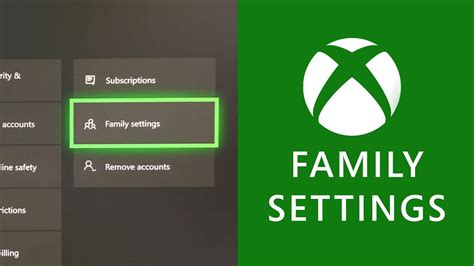
- Xbox (One/Series X|S): The Xbox Family Settings app allows you to manage screen time, content restrictions, privacy, and social settings for all family members from your phone.
- Nintendo Switch: The Nintendo Switch Parental Controls app offers similar functionalities, letting you set daily play limits, suspend software, and restrict games based on age ratings.

Computers (Windows, macOS)
Both Windows and macOS provide integrated family safety features:
- Windows Family Safety: Microsoft Family Safety allows you to set screen time limits, content filters, app and game restrictions, and track activity across Windows PCs, Xbox, and Android devices (with Microsoft Launcher).
- macOS Screen Time: Found in System Settings, Screen Time enables you to set downtime, app limits, content and privacy restrictions, and communication limits for children’s accounts.
Mobile Devices (iOS, Android)
Smartphones and tablets are often primary sources of screen time. OS-level controls are essential:
- iOS Screen Time: Similar to macOS, it offers app limits, downtime, communication limits, and content & privacy restrictions for iPhones and iPads. Family Sharing can extend these controls to all family devices.
- Android Digital Wellbeing & Google Family Link: Android’s Digital Wellbeing helps users monitor and manage their own device use, while Google Family Link is designed for parents to manage their children’s Android devices, offering screen time limits, app blocking, location tracking, and content filters.

Streaming Services and Apps
Many individual streaming services (Netflix, Disney+, YouTube Kids) and gaming platforms (Roblox, Minecraft) have their own in-app parental control settings. Always check these specific apps to ensure content filtering and spending limits are enabled.
Router-Level Controls and Third-Party Software
For a more comprehensive approach, consider:
- Router Parental Controls: Some home routers offer built-in content filtering or time restrictions that apply to all devices connected to your home network. This can be a good first line of defense.
- Third-Party Parental Control Software: Solutions like Qustodio, Bark, or Net Nanny offer advanced features, cross-platform management, and often more granular control and reporting than built-in options.

Best Practices for Effective Digital Parenting
Technology alone isn’t enough; open communication and a balanced approach are key:
- Communicate Openly: Explain why you’re setting limits. Involve your children in the discussion to foster understanding and cooperation.
- Be Consistent and Clear: Enforce rules consistently. Children thrive on clear expectations.
- Review and Adjust: As your children grow, their needs and interests change. Regularly review and adjust settings to match their maturity and developmental stage.
- Lead by Example: Model healthy screen habits yourself.
- Encourage Offline Activities: Balance screen time with outdoor play, reading, hobbies, and family time.
- Educate Yourself: Stay informed about the games, apps, and platforms your children use.

Creating a Safe and Balanced Digital Environment
Setting up parental controls is an ongoing process, not a one-time task. By leveraging the tools available across various platforms and combining them with open communication and consistent guidance, you can effectively manage screen time, ensure age-appropriate gaming, and help your children develop healthy digital habits that will serve them well into adulthood. The goal is to empower them to explore the digital world safely and responsibly, rather than simply restricting access.