How to free up Switch storage for new games?

Why Does Switch Storage Fill Up So Fast?
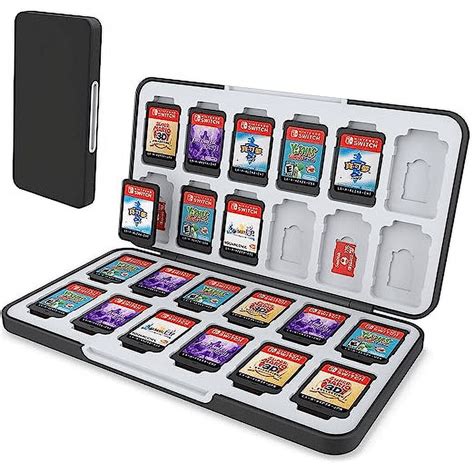
As Nintendo continues to release an impressive library of games, both digital and physical, your Nintendo Switch’s storage can quickly become a bottleneck. While physical game cartridges save space on your console, digital downloads, game updates, DLC, screenshots, and video captures all consume valuable internal memory or microSD card space. Running out of storage often means you can’t download new games, apply updates, or even save your progress in some cases. Fortunately, there are several straightforward methods to reclaim space.
1. Check Your Current Storage Status
Before you start deleting, it’s wise to know what’s taking up the most space. This helps you prioritize what to remove.
- From the HOME Menu, select System Settings.
- Scroll down the menu on the left and select Data Management.
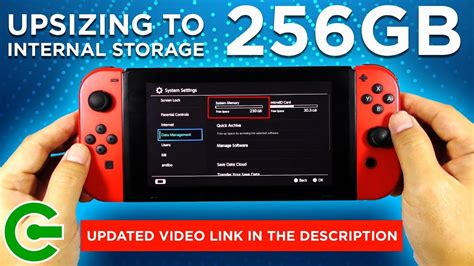
- Here, you’ll see a breakdown of your Console Memory and any inserted microSD Card, indicating how much space is used by Software, Save Data, Screenshots, and Videos.
By reviewing this, you can identify the biggest culprits.
2. Archive or Delete Software
This is typically the most effective way to free up significant space. The Switch offers two options for removing games:
Archiving Software (Recommended for Replayable Games)
When you archive software, the game data is deleted from your console, but its icon remains on the HOME Menu, and crucially, your save data is preserved. This means if you want to play the game again later, you only need to redownload the game data, not start from scratch.
- From the HOME Menu, select the game icon you wish to archive.
- Press the + or – button to open the Options menu.
- Select Data Management, then Archive Software.
- Confirm your choice.
Deleting Software (Use with Caution!)
Deleting software removes both the game data and its icon from the HOME Menu. It generally preserves your save data if it’s stored on the console or backed up to Nintendo Switch Online cloud saves. However, always be cautious. If you’re not a Nintendo Switch Online subscriber and a game doesn’t support local save data transfer, deleting the software *might* result in losing progress if the save data is linked specifically to the game installation. Always ensure your save data is safe before deleting.
- From the HOME Menu, select the game icon you wish to delete.
- Press the + or – button.
- Select Data Management, then Delete Software.
- Confirm your choice.
3. Manage Screenshots and Video Captures
Those epic in-game moments you captured can add up! Video captures, especially, can consume a lot of space.
- From the HOME Menu, select the Album icon.
- You can view and select individual screenshots/videos to delete.
- To free up space more efficiently, you can transfer these to a microSD card or even to a smart device/computer via a USB-C cable or wireless connection for backup, then delete them from your Switch.
4. Delete Old Save Data (Extremely Cautious!)
While game save data typically takes up very little space compared to game software, it can be deleted. This option should be used with extreme caution, as once deleted, save data is gone permanently unless backed up via Nintendo Switch Online’s Save Data Cloud.
- Go to System Settings > Data Management > Delete Save Data.
- Select the game for which you want to delete save data.
- Confirm your choice.
Only use this for games you are absolutely certain you’ll never play again and whose save data holds no sentimental value.
5. Invest in a MicroSD Card
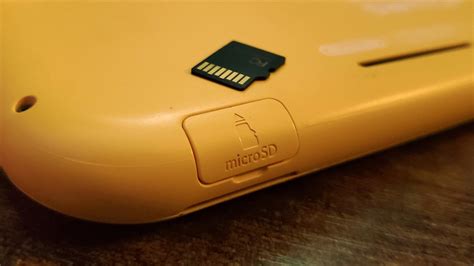
This is arguably the most practical long-term solution for storage woes. The Nintendo Switch supports microSD, microSDHC, and microSDXC cards up to 2TB. A high-capacity microSD card allows you to store dozens, if not hundreds, of digital games without touching your console’s internal memory.
- Simply insert a compatible microSD card into the slot under the kickstand.
- Your Switch will automatically use the microSD card for new software downloads once inserted.
- To move existing games from internal storage to the microSD card: you’ll need to archive or delete them from the internal memory and then redownload them, ensuring the microSD card is inserted. The system will then install them to the card.
6. Re-download Games as Needed
One of the beauties of digital purchases is that they are tied to your Nintendo Account. You can redownload any game you’ve purchased from the Nintendo eShop at any time, as long as it’s still available on the store. Don’t feel compelled to keep every game installed if you’re not actively playing it.
- Access the Nintendo eShop from the HOME Menu.
- Select your user icon in the top-right corner to access your account information.
- Go to Redownload. Here you’ll find a list of all your purchased software that isn’t currently installed.
- Select the cloud icon next to the game you wish to redownload.
Conclusion
Managing your Nintendo Switch storage doesn’t have to be a headache. By regularly checking your data, making smart choices between archiving and deleting, and leveraging a good microSD card, you can ensure your console always has room for the next big adventure. Keep your game library fresh and your Switch running smoothly with these simple storage management tips.