

What game data can I safely delete to free up Switch storage?

The Nintendo Switch, while a marvel of portable gaming, often faces a common adversary for many users: limited storage space. Whether you own the original model, the Lite, or the OLED, the internal storage (32GB or 64GB respectively) can quickly fill up with digital game downloads, updates, DLC, and screenshots. When that “Not enough free space” message pops up, it’s time to become a digital declutter expert. But what exactly can you safely remove without regretting it later?
Understanding Switch Data Types
Before you start deleting, it’s crucial to understand the different types of data your Switch stores. This knowledge will empower you to make informed decisions about what to keep and what to jettison.
- Software Data: This is the main game itself, whether downloaded from the eShop or installed from a physical game card.
- Save Data: Crucial progress files unique to each user profile, stored separately from the game software.
- Update Data: Patches and improvements for games.
- DLC (Downloadable Content): Additional content like new levels, characters, or cosmetic items.
- Screenshots & Videos: Media captured during gameplay.
The Safest Bets for Deletion
These are the items you can almost always safely remove with minimal risk, as they are either easily re-downloadable or don’t affect your game progress.
Archived Software: Your Best Friend for Space
When you “Archive” software, the main game data is deleted, but your precious save data remains intact on the console. This is the absolute safest and most recommended first step for freeing up significant space. If you decide to play the game again, you simply re-download it from the eShop, and your progress will be right where you left off.
How to Archive:
- From the HOME Menu, highlight the game you wish to archive.
- Press the
+or-button to open the Options menu. - Select “Manage Software” > “Archive Software.”
- Confirm your selection.

Deleting Software (Use with Caution!)
Unlike archiving, deleting software removes everything associated with the game, including the software data, update data, DLC, and—critically—save data for all users. Only use this option if you are absolutely certain you will never play the game again and don’t care about your progress. Even then, archiving is generally preferred unless you want a complete wipe.
Update Data
Game updates can be surprisingly large. While you can’t delete just some update data, you can delete all of it for a specific game. The console will simply re-download the necessary updates the next time you launch the game (if connected to the internet). This is a safe way to free up space temporarily, though the updates will eventually return.
How to Delete Update Data:
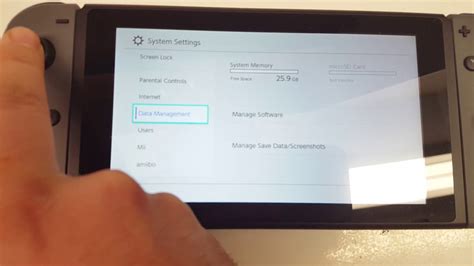
- Go to System Settings > Data Management > Manage Software.
- Select the game in question.
- Choose “Delete Software” (note: this typically deletes the base game and updates, but sometimes there’s an option for just updates if available). A better option is often to archive, then delete if you really want to clear all associated files except save data, then re-download the base game. For only update data, it’s often bundled with the main game data for deletion or re-download.
DLC (Downloadable Content)
Similar to game software and updates, DLC can be re-downloaded from the eShop at any time if you own it. If you’ve finished a particular DLC storyline or don’t play with specific content packs anymore, deleting them can free up space. Your game’s save file will still likely recognize that you own the DLC and its progress, but the content itself won’t be accessible until re-downloaded.
How to Manage DLC:
- Go to System Settings > Data Management > Manage Software.
- Select the base game.
- You might see options to manage individual DLC components here, allowing you to delete specific packs.
Screenshots and Video Captures
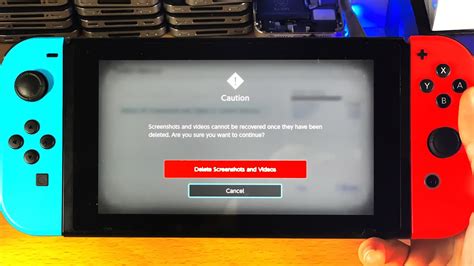
This is often the lowest-hanging fruit for quick space liberation. A few short video clips can chew up hundreds of megabytes. If you regularly capture moments, consider transferring them to a microSD card or uploading them to social media, then deleting them from your console.
How to Delete Screenshots/Videos:
- From the HOME Menu, select “Album.”
- Choose the screenshot or video you wish to delete.
- Press
Ato view it, then select “Editing and Deleting” > “Delete.” - You can also select multiple items by pressing
Yin the Album.
What You Should NOT Delete (or be Very Cautious With)
Save Data
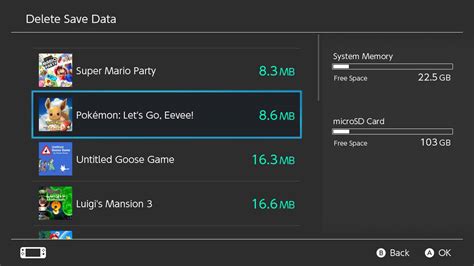
Under almost no circumstances should you manually delete save data unless you intend to completely start a game over from scratch and have no desire to preserve your progress. Save data files are typically very small (a few MBs at most) and do not significantly contribute to storage issues. Deleting save data is permanent and irreversible unless you have a Nintendo Switch Online subscription with Cloud Save Data enabled, and even then, there are caveats.
Always check for Cloud Save Data: If you have a Nintendo Switch Online subscription, your save data might be backed up to the cloud. However, it’s not guaranteed for every game, and you still need to be careful when manually deleting.
Optimizing Your Storage Strategy
Beyond deleting, consider these proactive steps:
- Invest in a microSD Card: This is by far the most effective solution for storage woes. Purchase a high-capacity (e.g., 128GB, 256GB, or more) microSDXC card and set it as your default download location.
- Regularly Review Your Games: Periodically check your “Data Management” section (System Settings > Data Management) to see which games are taking up the most space and if any are rarely played.
- Prioritize Physical Cartridges: While physical games still require some install data and updates, their core game files don’t consume internal storage in the same way digital downloads do.
Conclusion
Managing your Nintendo Switch’s storage doesn’t have to be a daunting task. By understanding the difference between game software, save data, updates, and DLC, you can confidently free up space by archiving old games, managing media, and selectively deleting re-downloadable content. Remember, your save data is almost always safe when archiving, making it the go-to method for decluttering your console and ensuring you always have room for the next great adventure.



