How can I optimize my Switch for better game performance and battery life?
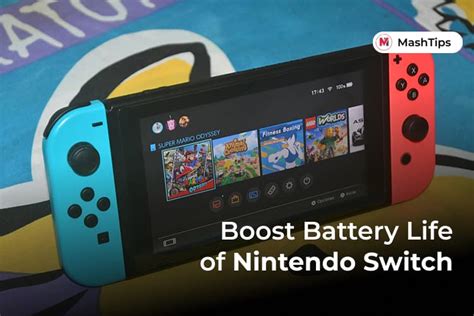
The Nintendo Switch is a versatile console, beloved for its portability and unique gaming experiences. However, over time, users might notice a dip in game performance or a shorter battery life. Fortunately, with a few adjustments and good habits, you can significantly optimize your console for a much better experience. Let’s dive into practical steps to get the most out of your Switch.
Software Tweaks for Enhanced Performance
Optimizing your Switch often starts with its software. Simple actions can free up resources and ensure games run more smoothly.
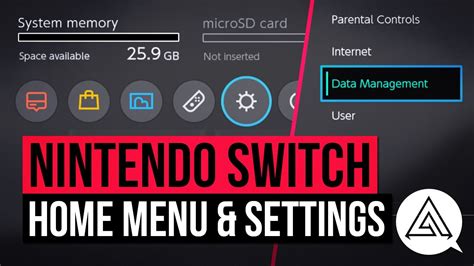
- Archive or Delete Unused Games: Games and their updates take up storage space. While a full SD card doesn’t directly slow down game performance in the same way a full PC hard drive might, a cluttered system can sometimes lead to longer loading times. Go to System Settings > Data Management and clear out titles you’re not actively playing. Archiving keeps your save data, while deleting removes everything.
- Restart Your Switch Regularly: Just like any electronic device, a quick restart can clear temporary data and refresh the system’s memory. Hold down the Power button, then select “Power Options” and “Restart.” Do this periodically, especially if you notice lag.
- Ensure System and Game Updates: Developers frequently release updates that include performance improvements, bug fixes, and optimization patches. Always ensure your Switch’s system software is up-to-date (System Settings > System > System Update) and check for game updates regularly (hover over a game icon, press ‘+’, then “Software Update”).
Maximize Battery Life Through System Settings
While game performance often takes center stage, extending battery life is crucial for portable play. Adjusting a few system settings can make a significant difference.
- Lower Screen Brightness: The screen is the biggest power draw. Access the Quick Settings menu by holding down the HOME button, then adjust the brightness slider. Consider enabling “Auto-Brightness” (System Settings > System > Auto-Brightness) if you play in varying light conditions.
- Disable Joy-Con Vibration (Rumble): While haptic feedback enhances immersion, the rumble feature consumes a noticeable amount of power. You can disable it globally in System Settings > Controllers and Sensors > Controller Vibration, or often within individual game settings.
- Turn Off Wi-Fi and Bluetooth When Not Needed: If you’re playing offline or in airplane mode, there’s no need for your Switch to constantly search for Wi-Fi signals or communicate wirelessly. Toggle Wi-Fi off from the Quick Settings menu. Bluetooth is used for Joy-Cons, Pro Controllers, and other accessories, but can be temporarily disabled if you’re playing in handheld mode and only using the attached Joy-Cons (though this has minimal impact).
Advanced Power Saving & Cooling
Beyond the basics, there are a few more steps you can take to preserve battery life and ensure optimal hardware health.
- Adjust Sleep Mode Settings: In System Settings > Sleep Mode, you can change how quickly your Switch goes into sleep mode when docked or handheld. Shorter times mean less idle power consumption.
- Check for In-Game Power Saving Options: Some games offer their own graphics or performance modes. For instance, reducing resolution or frame rate targets within a game’s settings can significantly reduce the load on the console, improving both performance stability and battery life.
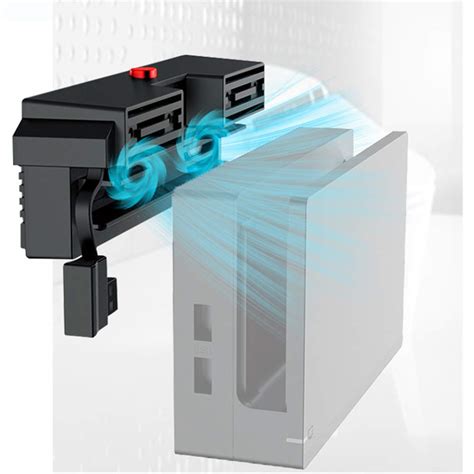
- Ensure Proper Ventilation: The Switch has vents to dissipate heat. Blocked vents can lead to overheating, which can cause the console to throttle performance to prevent damage. Always ensure the vents (on top and bottom of the tablet, and on the dock) are clear of obstructions, especially during demanding gameplay or when docked.
Maintenance and Best Practices
Good habits go a long way in preserving your Switch’s performance and longevity.
- Charge Properly: While modern batteries are more resilient, try not to constantly drain your Switch to 0% or keep it perpetually docked at 100% for extended periods. A good practice is to keep the battery between 20-80% when possible.
- Use a High-Quality microSD Card: For games installed on external storage, the read/write speed of your microSD card can impact loading times. Investing in a reputable, high-speed card (UHS-I with a high speed class, like a U3 or V30) can make a difference.
- Calibrate Control Sticks: While not directly tied to battery or raw performance, drifting Joy-Cons can severely impact your gaming experience. Regularly check and calibrate them in System Settings > Controllers and Sensors > Calibrate Control Sticks to ensure precise input.
By implementing these tips, you can transform your Nintendo Switch experience. From smoother frame rates to longer gaming sessions away from an outlet, a little optimization goes a long way. Regular maintenance and mindful usage will ensure your console remains a top-notch portable powerhouse for years to come.