





How to effectively manage Switch storage for a large library of diverse games?

The Perpetual Storage Challenge for Switch Enthusiasts
For many Nintendo Switch owners, the joy of collecting a vast and diverse game library quickly runs headfirst into a frustrating reality: limited storage space. With the console’s internal memory filling up surprisingly fast, especially for digital-only titles, effectively managing your storage becomes less of a luxury and more of a necessity. This guide will walk you through the best strategies to keep your extensive game collection organized and accessible, ensuring you always have room for your next gaming obsession.
The Foundation: Understanding Switch Storage Options
The Nintendo Switch, Switch Lite, and Switch OLED models come with 32GB or 64GB of internal storage, respectively. While this might sound adequate, system software and a few large games can quickly consume it. This is where external storage comes into play, specifically microSD cards, which are the primary and most practical way to expand your console’s capacity.
Selecting the Right MicroSD Card
Investing in a high-quality, high-capacity microSD card is the single most important step for managing a large game library. Look for cards with a large capacity (512GB, 1TB, or even larger) and a good speed rating (UHS-I, Speed Class 3/V30). Faster cards can slightly reduce game loading times, though the Switch doesn’t fully utilize the fastest speeds available on some cards.

When choosing a brand, stick to reputable manufacturers to avoid counterfeit cards that may offer less storage or slower speeds than advertised. A good rule of thumb is to buy the largest capacity you can reasonably afford, as you’ll likely grow into it.
Digital vs. Physical: Storage Implications
Your choice between digital and physical game purchases significantly impacts your storage strategy.
The Digital Advantage (and disadvantage)
Digital games offer unparalleled convenience: you can access your entire library without swapping cartridges. However, these games require their full download size plus any patches or DLC to be stored on your console or microSD card. For massive titles, this can quickly eat up hundreds of gigabytes.
The Physical Cartridge Benefit
Physical game cartridges store the core game data directly on the cart. This means you typically only need to download patches, updates, and any purchased DLC, saving significant space compared to their digital counterparts. While you still need internal or microSD space for save data (which always lives on the internal storage) and updates, the base game rarely contributes to your storage woes.

Smart Storage Management Strategies
Archiving vs. Deleting Software
The Switch offers two primary ways to remove games from your active storage: archiving and deleting. Understanding the difference is crucial.
- Archiving Software: This removes the game’s core data while keeping its icon on your Home menu. Your save data for the game is also preserved. If you want to play it again, you simply select the icon, and the game will re-download. This is ideal for games you might return to but aren’t actively playing.
- Deleting Software: This removes the game’s core data, its icon, and all associated save data (unless backed up via Cloud Saves). Only use this for games you’re absolutely certain you’ll never play again, or if you’ve already backed up your save data.
Prioritizing and Identifying Storage Hogs
To effectively manage space, you need to know what’s taking up the most room. Navigate to System Settings > Data Management > Manage Software. Here, you’ll see a list of your games, sorted by size. This allows you to quickly identify the largest titles you haven’t played recently.
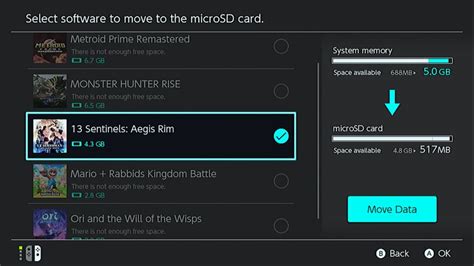
Focus on archiving large, infrequently played digital games first. If you primarily play a few large games, consider keeping them on your internal storage for slightly faster loading, or dedicate them to a high-speed section of your microSD card.
Don’t Forget Save Data! (It’s Different)
A common misconception is that save data can be moved to a microSD card. This is incorrect. Save data for all games is *always* stored on the Nintendo Switch’s internal memory. While individual save files are typically small, they can accumulate. Fortunately, save data does not take up a significant amount of space compared to game files.

The most important aspect of managing save data is backing it up. A Nintendo Switch Online subscription provides cloud save backups for most games, offering peace of mind in case your console is lost or damaged. This feature, however, doesn’t free up internal storage space; it only creates a copy in the cloud.
Best Practices for Long-Term Management
- Go Big Early: Invest in the largest capacity microSD card you can afford from the start. It saves headaches down the line.
- Regular Reviews: Periodically check your Data Management settings to identify games you’ve completed or haven’t touched in months.
- Strategic Archiving: Archive games you’re taking a break from. You can always re-download them.
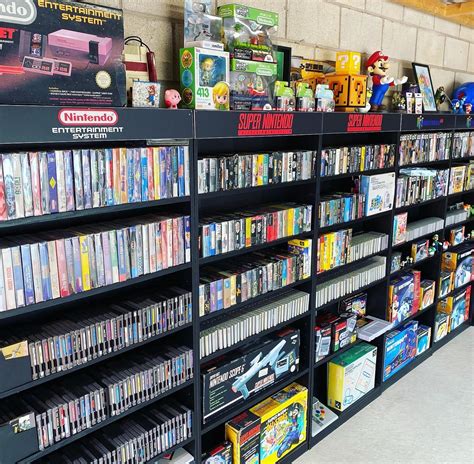
- Consider Physical for Blockbusters: For extremely large games or titles you might wish to resell, physical cartridges can be a smart choice to minimize digital footprint.
- Leverage Cloud Saves: Subscribe to Nintendo Switch Online for essential save data backups.
Conclusion
Managing a large and diverse Nintendo Switch game library doesn’t have to be a constant struggle. By understanding how the Switch handles storage, making smart choices about microSD cards and game formats, and adopting a few simple management habits, you can ensure that your console always has room for new adventures. A little proactive planning goes a long way in keeping your gaming experience seamless and enjoyable.


