





How to free up storage on Switch for more digital games?
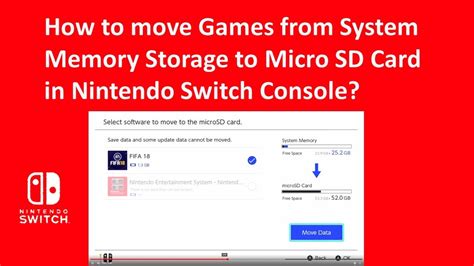
The Nintendo Switch, with its vast library of digital titles, can quickly become a storage hog. For avid gamers who prefer the convenience of digital downloads over physical cartridges, running out of space is a common frustration. But don’t fret – there are several effective methods to reclaim precious gigabytes on your console, ensuring you always have room for that next must-play game.
Understanding Your Nintendo Switch Storage
Before diving into solutions, it’s helpful to understand how your Switch manages data. The console comes with either 32GB (original/Lite) or 64GB (OLED) of internal storage, a portion of which is reserved for the system itself. Most digital games and updates will be stored here or on an inserted microSD card. Save data, screenshots, and video captures also consume space. Knowing what’s taking up the most room is the first step.
Method 1: Archive Software (Re-downloadable)
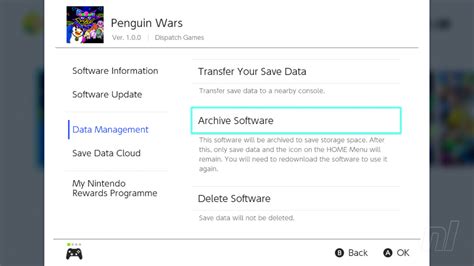
This is often the quickest and safest way to free up space without losing your game progress. When you archive software, the game’s core data is deleted from your console, but your save data remains untouched. You can re-download the game from the eShop anytime you wish, and pick up right where you left off.
How to do it:
- From the HOME Menu, select the game you wish to archive.
- Press the + or – button to open the Options menu.
- Select “Manage Software” > “Archive Software.”
- Confirm your choice.
Method 2: Delete Software (When Archiving Isn’t Enough)
Deleting software completely removes both the game data and its updates from your console. Unlike archiving, this method does not preserve your save data unless you have Nintendo Switch Online’s cloud save backup enabled. Only use this if you are absolutely sure you no longer need the save data or if it’s already backed up.
How to do it:
- From the HOME Menu, select the game.
- Press the + or – button.
- Select “Manage Software” > “Delete Software.”
- Confirm your choice.
Method 3: Upgrade Your MicroSD Card (The Ultimate Solution)
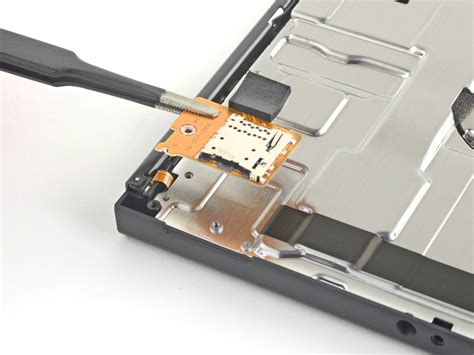
If you’re consistently running out of space, investing in a larger microSD card is the most comprehensive and long-term solution. The Nintendo Switch supports microSD, microSDHC, and microSDXC cards up to 2TB. Swapping to a higher capacity card can exponentially expand your digital library.
Tips for upgrading:
- Always opt for a reputable brand (e.g., SanDisk, Samsung) to ensure reliability and speed.
- Consider a high-speed card (UHS-I compatible, with read speeds of 60-95 MB/s) for faster loading times.
- You can transfer data from your old card to a new one using a computer, or simply re-download all your games to the new card.
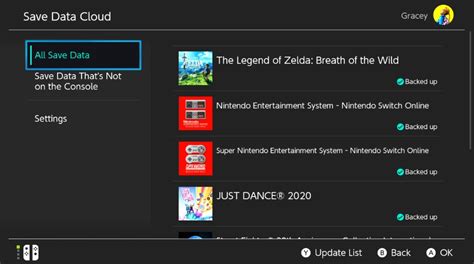
Method 4: Manage Your Save Data (Cloud Saves & Local)
It’s crucial to remember that save data is stored separately from game software data and takes up relatively little space. Even if you archive or delete a game, your save data typically remains on the console. For peace of mind and extra protection, subscribe to Nintendo Switch Online, which offers cloud save backups for most titles.
To check save data:
- From the HOME Menu, select “System Settings.”
- Scroll down to “Data Management” > “Delete Save Data.”
- From here, you can see how much space each game’s save data occupies and selectively delete if absolutely necessary (use with extreme caution!).
Method 5: Clear Out Screenshots and Video Captures
Often overlooked, a collection of high-resolution screenshots and 30-second video clips can accumulate over time and consume noticeable storage. Regularly reviewing and deleting unnecessary media can free up a surprising amount of space.
How to do it:
- From the HOME Menu, select “Album.”
- Browse your captures.
- To delete, select an image/video, press A, then “Delete.” You can also multi-select from the Album’s options.
Conclusion
Running out of space on your Nintendo Switch is a common problem, but one that’s easily solvable with a few smart data management techniques. Whether you choose to archive older games, delete rarely played titles, or make the wise investment in a larger microSD card, these methods will help you keep your Switch ready for its next digital adventure. By regularly reviewing your storage, you can ensure a seamless and uninterrupted gaming experience.


