





Switch storage full? Optimize space for new digital games & save data.
Running into the dreaded ‘not enough free space’ message on your Nintendo Switch can be incredibly frustrating, especially when a new digital title drops or a major game update arrives. With game sizes growing and the convenience of digital downloads, it’s easy for your console’s internal memory to fill up quickly. Fortunately, there are several effective strategies you can employ to optimize your Switch’s storage, making room for all the fantastic games and essential save data you need.
Understanding Your Switch’s Storage
Your Nintendo Switch console comes with 32 GB (or 64 GB for the OLED model) of internal NAND flash memory, but a portion of this is reserved for the system itself. This leaves a limited amount for games, screenshots, video captures, and save data. Digital games, especially larger titles, can quickly consume this space. Even physical game cartridges require some internal storage for updates, DLC, and save files.
Before you start deleting, it’s helpful to know exactly what’s taking up the most space. You can check this by going to System Settings > Data Management. Here, you’ll see a breakdown of your internal memory and any inserted microSD card.

The Quickest Fix: Archiving Software
For digital games you don’t currently play but might want to revisit, archiving is your best friend. When you archive software, the game’s core data is deleted from your system, but its icon remains on your Home menu. Crucially, your save data for that game is preserved! This means if you decide to play it again, you can simply redownload the game from the eShop, and pick up right where you left off.
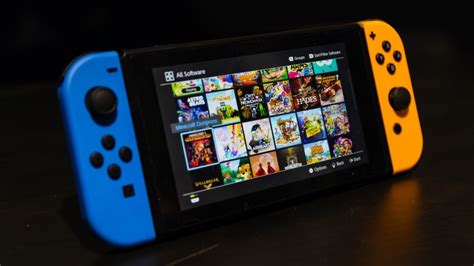
- How to Archive: From the Home menu, highlight the game you want to archive, press the ‘+’ or ‘-‘ button, select ‘Manage Software’, then ‘Archive Software’. Confirm your choice.
Deleting Software (When Archiving Isn’t Enough)
If you’re absolutely certain you won’t play a game again, or you need to clear a significant amount of space, you can delete the software entirely. This removes both the game data and its icon from your Home menu. Similar to archiving, deleting software does not remove your save data for that game, which is stored separately on the console’s internal memory.
- How to Delete: From the Home menu, highlight the game, press ‘+’ or ‘-‘, select ‘Manage Software’, then ‘Delete Software’. Confirm your choice.
You can always redownload any digital game you’ve purchased from the Nintendo eShop’s ‘Redownload’ section under your user icon, or by finding it directly in the store.
Managing Your Save Data
While save data generally takes up much less space than game files, it’s vital. Nintendo Switch saves are typically stored on the console’s internal memory, even if the game itself is on a microSD card. It’s generally not recommended to delete save data unless you are absolutely sure you no longer need it, as this progress cannot be recovered.
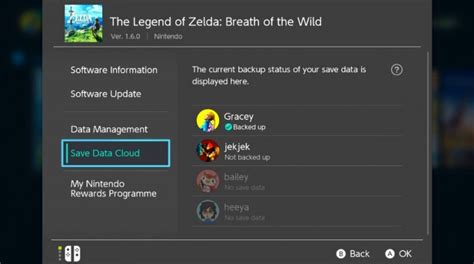
- Nintendo Switch Online Cloud Saves: If you have a Nintendo Switch Online subscription, many (but not all) games support Cloud Save Data Backup. Ensure this feature is enabled for your games (System Settings > Data Management > Save Data Cloud Backup) to protect your progress in case your console is lost or damaged.
- Transferring Save Data: While you can’t move save data to a microSD card, you can transfer save data between Switch consoles for a single user, or transfer a user’s save data to another console entirely.
Upgrading with a microSD Card
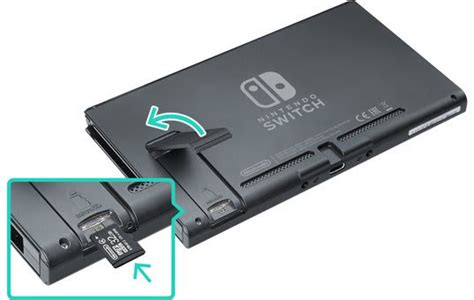
The most effective long-term solution for expanding your Switch’s storage is to invest in a high-capacity microSD card. The Nintendo Switch supports microSD, microSDHC, and microSDXC cards up to 2TB (though 2TB cards are not yet commercially available). A 128GB, 256GB, or even 512GB card can dramatically increase your available space.
Once inserted, your Switch will automatically start saving new digital game downloads and software updates to the microSD card. You can also transfer existing game data (but not save data) from the console’s internal memory to the microSD card:
- How to Transfer: Go to System Settings > Data Management > Move Data Between System / microSD Card. Select the software you wish to move.
Always opt for a reputable brand and a high-speed card (UHS-I compatible, with a read speed of 60-95 MB/s) for optimal performance.
Conclusion
With these strategies, you can effectively manage and optimize your Nintendo Switch’s storage, ensuring there’s always room for your next gaming adventure. Whether it’s through smart archiving, occasional deletion, or the essential upgrade of a microSD card, taking control of your data management will enhance your overall Switch experience.



