



How do I optimize Nintendo Switch storage for a growing game library?
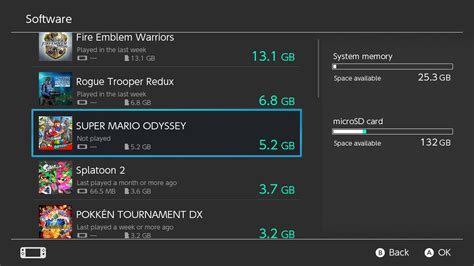
The Nintendo Switch, a phenomenal hybrid console, often becomes a treasure trove of digital adventures. However, its modest internal storage can quickly become a bottleneck as your game library expands. Whether you prefer physical cartridges or digital downloads, understanding how to optimize your Switch’s storage is crucial for an uninterrupted gaming experience. This guide will walk you through the best practices to keep your console ready for the next big title.
Understanding Your Switch’s Storage Limitations
Out of the box, the original Nintendo Switch and the Switch Lite come with 32GB of internal storage, while the OLED model boasts 64GB. While this might sound sufficient, a significant portion is reserved for the system’s operating software. Game sizes vary wildly, from a few hundred megabytes for indie titles to over 30GB for AAA blockbusters like The Legend of Zelda: Tears of the Kingdom. This means your console can fill up surprisingly fast.
The Essential Expansion: MicroSD Cards
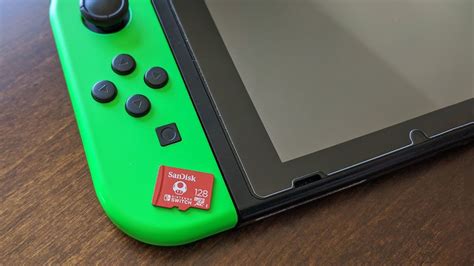
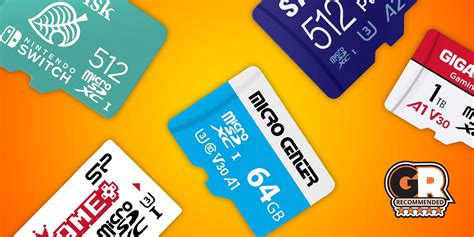
The most fundamental step in optimizing your Switch’s storage is investing in a high-capacity microSD card. The Switch supports microSD, microSDHC, and microSDXC cards up to 2TB, offering a vast improvement over internal storage. Look for cards with a high read/write speed (UHS-I compatible with a speed class of 10 or higher) to ensure quick game loading times and smooth performance.
- Capacity: For a growing library, 128GB, 256GB, or even 512GB cards are excellent starting points. Consider your gaming habits and budget.
- Speed: A U3 or V30 speed rating is recommended for optimal performance, indicated by a ‘3’ inside a ‘U’ symbol or ‘V30’ on the card.
- Installation: Simply open the kickstand on the back of your Switch to reveal the microSD card slot. Insert the card, and the system will automatically recognize it.
Smart Game Management Strategies
Even with an expanded microSD card, smart management is key. Not all games need to be readily accessible at all times.
Archiving vs. Deleting Software
The Nintendo Switch offers two primary options for clearing space:
- Archive Software: This is your best friend. Archiving removes the game data from your console but keeps its icon on your Home menu. Your save data remains intact, and you can redownload the game at any time from the eShop or your user profile. This is ideal for games you might want to play again in the future.
- Delete Software: This removes both the game data and its icon from your Home menu. While your save data is usually preserved separately (unless you explicitly delete it), it’s a more drastic step. Only use this for games you’re certain you won’t play again, or if you prefer a completely clean Home menu.
To access these options, navigate to System Settings > Data Management > Manage Software, or hover over a game icon on the Home menu, press ‘+’ or ‘-‘, then select ‘Data Management’.
Managing Screenshots and Videos
Your captured memories can also consume significant space. Regularly transfer screenshots and video clips to a computer or upload them to social media platforms. You can also transfer them directly to a microSD card if they are currently on internal storage.
Leveraging Cloud Saves with Nintendo Switch Online
A Nintendo Switch Online (NSO) membership offers numerous benefits, one of the most critical for storage optimization being Save Data Cloud Backup. This service automatically uploads your game save data to the cloud, providing a safety net against data loss and allowing you to easily transfer saves between consoles.
- Peace of Mind: Even if you archive or delete a game, your progress is safe in the cloud (for supported titles).
- Automatic Backup: For most games, save data is automatically backed up when connected to the internet. You can also manually back up important saves.
- Exclusions: Be aware that some games (e.g., Pokémon titles, Splatoon 2/3) do not support cloud saves due to competitive integrity or other reasons.
Pro Tips for Maximum Efficiency
- Regular Audits: Periodically review your installed games. Ask yourself: ‘When was the last time I played this?’ and ‘Do I plan to play this again soon?’ Archive games you’re not actively playing.
- Prioritize Downloads: When installing new games, the Switch prioritizes the microSD card if one is inserted. Ensure your card is properly installed to direct new downloads there automatically.
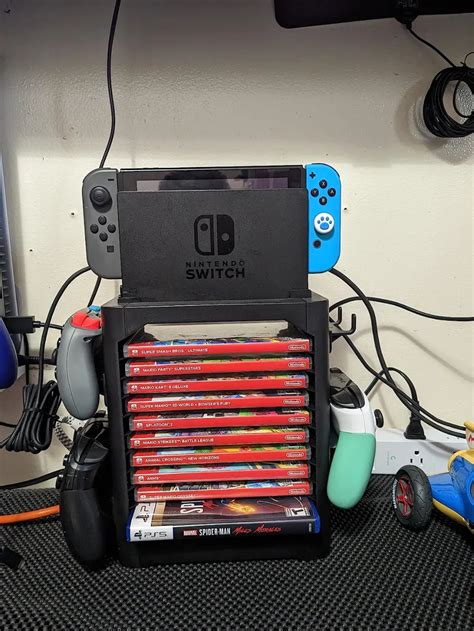
- Digital vs. Physical: While physical cartridges save space on your internal storage (they often still require updates and DLC to be installed), digital games offer convenience. Weigh these factors based on your preferences.
- Check for Updates and DLC: Game updates and downloadable content (DLC) can take up significant space. Ensure you have enough room for these alongside the base game.
By combining a high-capacity microSD card with smart game management and leveraging cloud saves, you can ensure your Nintendo Switch has ample room for your ever-growing library. Never let storage concerns prevent you from diving into your next adventure!