





Maximize Switch storage for more games?
The Nintendo Switch, with its incredible library of games, offers endless entertainment. However, for many players, one common bottleneck quickly emerges: storage space. With digital game downloads growing in size and a finite amount of internal memory, it’s easy to run out of room for new adventures. This guide will walk you through effective strategies to maximize your Switch’s storage, ensuring you always have space for more games.
Understanding Your Switch’s Storage Limitations
Out of the box, the standard Nintendo Switch comes with 32 GB of internal storage, while the OLED model boasts a slightly more generous 64 GB. While this might sound like a decent amount, a significant portion is reserved for the system’s operating software, leaving much less for actual games. Large titles like The Legend of Zelda: Tears of the Kingdom can easily consume over 18 GB, meaning even an OLED model can only comfortably fit a handful of major games before crying for more space.
The Indispensable MicroSD Card Solution
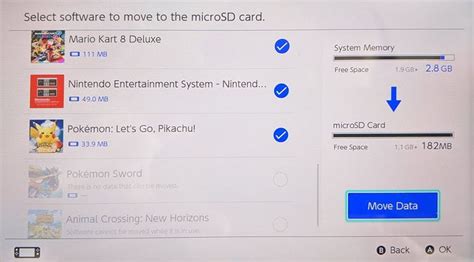
The most crucial and effective way to expand your Switch’s storage is by investing in a high-capacity microSD card. The Switch supports microSD, microSDHC, and microSDXC cards, with capacities ranging up to 2TB (though 1TB is currently the largest widely available and practical option).
Choosing the Right MicroSD Card
- Capacity: Aim for at least 128GB or 256GB to start, but 512GB or 1TB will offer far more longevity for avid gamers.
- Speed: Look for cards with a high read speed (UHS-I compatible, Class 10 or higher). While the Switch’s read speed is capped, faster cards can still offer a smoother experience when loading games. Brands like SanDisk, Samsung, and Kingston are generally reliable.
Installing and Managing Your MicroSD Card
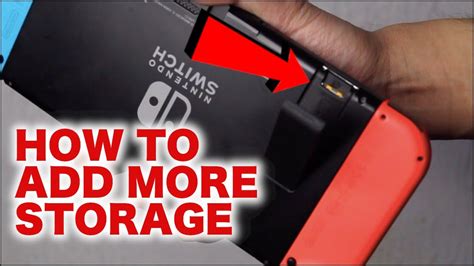
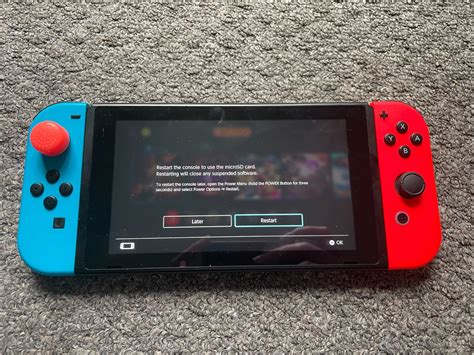
Installing a microSD card is simple: just open the kickstand on the back of your Switch and slide the card into the slot. Once inserted, the Switch will automatically recognize it. All new game downloads and most updates will then default to saving on the microSD card.
Optimizing Your Digital Game Library
Even with a large microSD card, smart management of your digital games is key. Not every game needs to be installed at all times.
Archiving vs. Deleting Software
The Nintendo Switch offers two options for removing games: archiving and deleting. Understanding the difference is vital:
- Archiving: This is the recommended method. It removes the game data from your system, freeing up space, but keeps the game’s icon on your Home screen. Your save data remains untouched, and you can easily re-download the game from the eShop or your game library at any time.
- Deleting: This option completely removes the game data and its icon from your Home screen. While it also preserves your save data (usually), it makes it slightly less convenient to find and re-download the game later.
To archive or delete a game, navigate to the game icon on your Home screen, press the + button, select “Manage Software,” and then choose “Archive Software” or “Delete Software.”
Managing Save Data and Other Media
While game data takes up the most space, save data, screenshots, and video captures can also accumulate.
Nintendo Switch Online and Cloud Saves
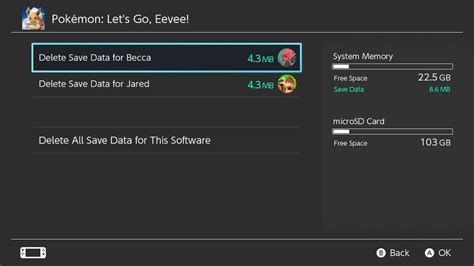
If you have a Nintendo Switch Online subscription, many of your game saves are automatically backed up to the cloud. This is a crucial safety net and means you don’t need to worry about losing progress if you archive or delete games. However, save data itself typically takes up very little space locally (MBs, not GBs), so managing it won’t free up significant room for new games.
Cleaning Up Screenshots and Videos
The Switch allows you to capture screenshots and record short video clips. These can quickly add up, especially videos. You can move these media files to a microSD card if they are currently on internal storage, or transfer them to a computer via the USB-C port or by removing the microSD card. To manage them, go to the Home menu > Album.

Regular Storage Audits and Best Practices
Periodically checking your storage status is a good habit. Go to System Settings > Data Management to see a breakdown of what’s taking up space on your internal memory and microSD card.
- Identify large games: This menu clearly shows which games are consuming the most space. Prioritize archiving or deleting titles you haven’t played in a while.
- Think before you download: Before purchasing a new digital game, especially a large one, consider if you have space or if there’s an older game you’re willing to archive.
- Physical vs. Digital: While physical game cartridges use less download space initially, they still require space for updates, patches, and DLC. So, even with cartridges, storage management is still relevant.
Conclusion
Running out of space on your Nintendo Switch doesn’t have to be a recurring nightmare. By strategically utilizing a high-capacity microSD card, regularly archiving games you’re not actively playing, and keeping an eye on your media files, you can ensure your console remains ready for any new adventure the eShop throws your way. Invest wisely in a microSD card, manage your digital library proactively, and you’ll always have room for more games.


