





Switch storage full? Efficiently free space for new games.
Understanding Your Switch’s Storage Dilemma
The Nintendo Switch, with its vast library of incredible games, often presents a common challenge to its owners: running out of storage space. Whether you’re a digital-only player or you frequently download updates and DLC for your physical cartridges, the console’s internal 32GB (or 64GB for OLED models) can fill up surprisingly fast. Add to that the ever-growing file sizes of modern titles, and you’ll quickly find yourself unable to download that exciting new release.
But fear not! Freeing up space on your Switch is a straightforward process that doesn’t necessarily mean sacrificing your beloved game library. This guide will walk you through efficient methods to reclaim storage, ensuring you always have room for your next adventure.
Quick Wins: Deleting or Archiving Unnecessary Data
The first step in decluttering your Switch involves examining what’s currently taking up the most space. Nintendo provides excellent tools directly on the console to help you manage this.
1. Managing Software (Games)
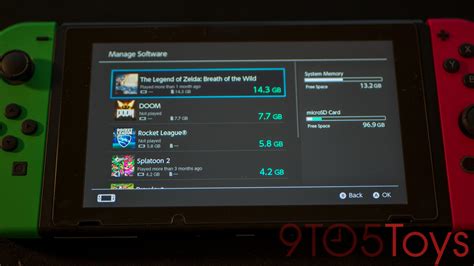
Navigate to System Settings > Data Management > Manage Software. Here, you’ll see a list of all your installed games, ordered by size. You have two primary options:
- Archive Software: This is the recommended method for games you might want to play again. Archiving deletes the game’s core data but keeps its icon on your Home menu and, crucially, preserves your save data. You can redownload the game from the eShop or by inserting its game card anytime.
- Delete Software: This completely removes the game and its icon from your Home menu. Like archiving, it preserves your save data unless you specifically choose to delete that too. Use this for games you are certain you won’t play again, or if you need to free up a significant amount of space immediately.
Most games allow you to keep your save data even if you delete the software. Save data is typically very small compared to the game itself, so deleting it is rarely necessary unless you are truly desperate for every last kilobyte or want to start a game completely fresh.
2. Clearing Screenshots and Videos
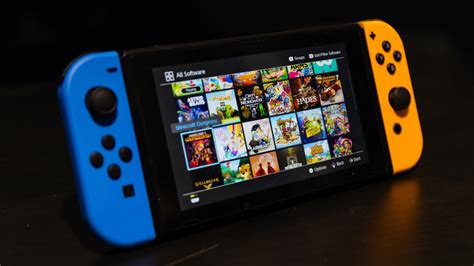
Every time you press the Capture button, you’re storing data. Over time, these can accumulate, especially if you record lengthy video clips. To manage them, go to System Settings > Data Management > Manage Screenshots and Videos. You can select and delete individual captures or entire albums.
3. Deleting Save Data (Use with Caution!)
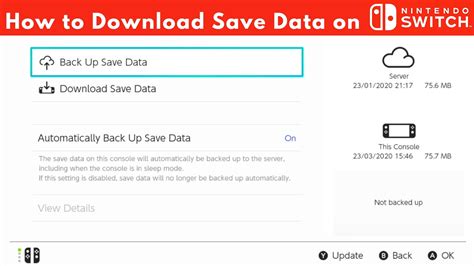
While generally not a major space hog, individual game save data *can* add up, particularly for games with extensive progression or many play sessions. To delete save data, go to System Settings > Data Management > Delete Save Data. Be extremely careful here, as deleting save data is permanent and cannot be recovered unless you have a Nintendo Switch Online backup. Only delete save data for games you are absolutely finished with or if you want to restart from scratch.
Maximize Your Storage with a MicroSD Card
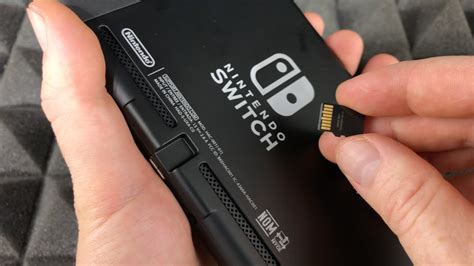
For most Switch users, the ultimate solution to storage woes is a microSD card. The Switch supports microSD, microSDHC, and microSDXC cards up to a whopping 2TB (though 1TB cards are currently the largest commercially available). This external storage is where almost all your digital game downloads should reside.
1. Check Your Current MicroSD Card (or Get One!)
If you don’t have a microSD card, it’s highly recommended to invest in one. Look for reputable brands and a fast transfer speed (UHS-I compatible with a speed class of 3 is ideal). If you already have one, check its remaining capacity via System Settings > Data Management. If it’s nearly full, it might be time for an upgrade.
2. Transferring Data to a New MicroSD Card
While the Switch doesn’t have an in-built function to “move” installed games from internal memory to a microSD card (or vice-versa), new digital game downloads will automatically install to the microSD if one is inserted. To move existing games, you’ll need to archive them from the internal memory and then re-download them once a microSD card is inserted. They will then install directly to the card.
Nintendo Switch Online and Cloud Saves
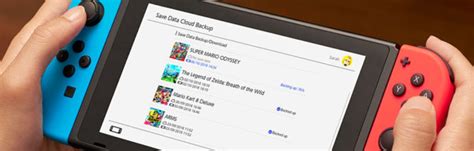
It’s worth noting that a Nintendo Switch Online (NSO) subscription provides cloud backup for most game save data. While this doesn’t directly free up storage on your console, it offers peace of mind. If you accidentally delete save data (and it’s supported by NSO), you can often retrieve it from the cloud. Always check if your favorite games support cloud saves, as some, like Pokémon and Animal Crossing: New Horizons, have specific restrictions or separate backup methods.
Regular Maintenance for a Smooth Experience
Keeping your Switch’s storage optimized is an ongoing task. Make it a habit to periodically check your Data Management settings. Archive games you’re not actively playing, clear out old screenshots, and consider upgrading your microSD card if you frequently find yourself bumping into storage limits. With these strategies, you’ll ensure your Nintendo Switch is always ready for new adventures and downloads.


