


How to free up Nintendo Switch storage for new games efficiently?

The Nintendo Switch, with its ever-growing library of fantastic games, often leaves players facing a common dilemma: running out of storage. Whether you’re a digital-only gamer or just love downloading updates and DLC, managing your Switch’s internal memory and microSD card is crucial. Don’t let limited space stop you from experiencing the next big adventure. This guide will walk you through efficient strategies to free up storage, so you can make room for new titles without hassle.
Understanding Your Switch’s Storage
Before you start deleting, it’s wise to know what’s taking up space. Your Nintendo Switch has internal storage (32GB or 64GB depending on the model), and you likely have a microSD card inserted. Both store game data, save files, screenshots, and videos. To check your storage:
- From the HOME Menu, select System Settings.
- Scroll down and select “Data Management.”
- Here, you’ll see a breakdown of your Console Memory and microSD Card usage.
This overview will help you identify the biggest culprits hogging your space.
Archive vs. Delete: Knowing the Difference
Nintendo offers two primary options for removing software from your device: Archiving and Deleting. It’s important to understand which to use and when.
Archiving Software
When you “Archive” software, the game’s executable data is removed from your system, but its save data remains. This is the most common and recommended method for freeing up space. If you decide to play the game again, you can redownload it from the eShop or your user page, and your progress will be intact.
Deleting Software
When you “Delete” software, both the game’s executable data AND its save data are removed from your system. This should generally be avoided unless you are absolutely certain you will never play the game again and don’t care about losing your progress. Save data is precious!
Efficiently Freeing Up Space
1. Archive Unplayed Digital Games
This is often the quickest way to reclaim significant space. Go through your game library and identify titles you haven’t played in a while or have completed and are unlikely to revisit soon.
- From the HOME Menu, highlight the game you wish to archive.
- Press the + or – button to open the Options menu.
- Select “Data Management” > “Archive Software.”
- Confirm your choice.
Remember, your save data is safe with this method.
2. Delete Downloaded Software Data (for Cartridge Games)
If you primarily play physical cartridge games, you might still have significant “downloaded software data” on your system. This includes updates, DLC, and sometimes even the entire game data if you bought a digital version after owning the physical one. You can delete this data without affecting your physical cartridge, as long as you have the cartridge inserted to play the game.
- Go to System Settings > Data Management > Manage Software.
- Identify games associated with cartridges that have large downloaded data.
- Select the game and choose “Delete Software” (be careful, confirm it’s DLC/update data for a cartridge game, not your only copy). This removes game data, not save data from a cartridge-based game.
3. Manage Screenshots and Video Captures
Every screenshot and video you capture takes up space. If you’re a prolific photographer or videographer on your Switch, these can accumulate quickly.
Move to a MicroSD Card (if not already there)
If your captures are currently on internal memory, you can move them to a microSD card. Or, if you insert a microSD card, future captures will default to it.
Delete Unwanted Captures
- From the HOME Menu, select Album.
- Highlight the capture(s) you want to delete.
- Press the Y button to multi-select or A for single.
- Press X to delete.
Transfer to a Smart Device or Computer
For precious captures, consider transferring them to your phone via QR code or directly to a computer using a USB cable. This frees up space while preserving memories.

4. Delete Save Data (Use with Caution!)
Save data is typically very small compared to game data, but it’s crucial for your progress. You should only delete save data if you are absolutely sure you will never play that game again and don’t care about losing your progress. If you subscribe to Nintendo Switch Online, your save data for most games is backed up to the cloud, offering a safety net. However, some games do not support cloud saves.
- Go to System Settings > Data Management > Delete Save Data.
- Select the game whose save data you wish to delete.
- Confirm your choice.
Again, this is rarely the primary solution for storage issues due to its small size and critical importance.
![How To Delete Games On Nintendo Switch [The right way!] - Alvaro Trigo ...](/images/aHR0cHM6Ly90czIubW0uYmluZy5uZXQvdGg/aWQ9T0lQLjRkbWZBUTJGNlJLVWVPRlNpeEdIZGdIYUVLJnBpZD0xNS4x.webp)
The Ultimate Solution: Upgrade Your MicroSD Card
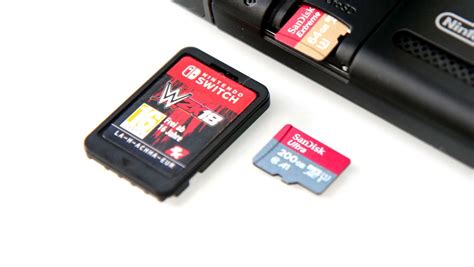
If you frequently run into storage issues, the most robust and long-term solution is to upgrade your microSD card. Nintendo Switch supports microSD, microSDHC, and microSDXC cards up to a whopping 2TB (though 1TB cards are more common and affordable).
Steps to Upgrade:
- Purchase a new, larger microSD card from a reputable brand (SanDisk, Samsung, etc.) with a good read/write speed (UHS-I compatible, Speed Class 3 for best results).
- Back up your existing microSD card data to a computer (optional, but recommended).
- Turn off your Switch completely.
- Remove the old microSD card and insert the new one.
- When you power on your Switch, it will format the new card.
- You can then re-download all your archived games and transfer any manual data.
This upgrade effectively multiplies your storage capacity, giving you peace of mind for countless future game purchases.

Conclusion
Running out of space on your Nintendo Switch doesn’t have to be a recurring nightmare. By regularly archiving unplayed games, managing your media, and considering a microSD card upgrade, you can maintain a healthy amount of free storage. These efficient strategies ensure your Switch is always ready for new adventures, updates, and the latest titles without forcing tough decisions about which beloved game to sacrifice.