




Best parental controls for age-appropriate games & safe online play?

Navigating the Digital Playground: Why Parental Controls are Essential
In today’s digital age, video games are an integral part of many children’s lives. While gaming offers numerous benefits, from problem-solving skills to social interaction, it also presents unique challenges for parents. Ensuring children play age-appropriate games and engage in safe online environments is paramount. This guide explores the best parental control strategies and tools to help you create a secure and enriching gaming experience for your kids.

Understanding the Need for Parental Controls
The online gaming world, while vibrant, can expose children to various risks. These include:
- Inappropriate Content: Games with mature themes, violence, or language not suitable for their age.
- Online Predators and Cyberbullying: Interaction with strangers through in-game chat features, leading to potential grooming or harassment.
- Excessive Screen Time: Difficulty disengaging from games, impacting sleep, schoolwork, and physical activity.
- In-Game Purchases: Unregulated spending on microtransactions, loot boxes, or subscriptions.
- Privacy Concerns: Sharing personal information unintentionally.
Effective parental controls act as a crucial first line of defense, empowering parents to manage these risks proactively.
Types of Parental Control Systems
Parental controls aren’t a one-size-fits-all solution; they exist across various platforms and devices:
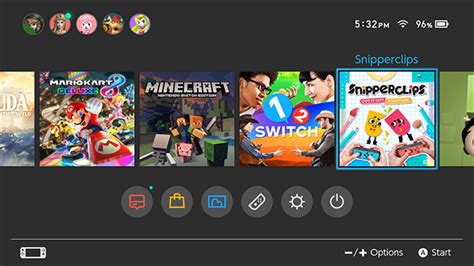
Console-Specific Controls (PlayStation, Xbox, Nintendo Switch)
Modern gaming consoles offer robust built-in parental controls. These typically allow you to:
- Set age restrictions based on rating systems (ESRB, PEGI).
- Manage screen time limits for daily play.
- Restrict online communication (voice chat, text messages).
- Control access to the web browser and online stores.
- Set spending limits for digital purchases.
Each console has its own dashboard for managing these settings, usually accessible via a parent account.

PC and Mobile Device Controls (Windows, macOS, iOS, Android)
Operating systems on computers and mobile devices also provide native parental control features:
- Windows Family Safety / Microsoft Family Features: Manage screen time, filter web content, restrict apps and games, and track activity.
- macOS Screen Time: Similar to iOS, allows setting app limits, communication limits, and content restrictions.
- iOS Screen Time: Offers comprehensive controls for app limits, content & privacy restrictions (including explicit content, web content filters), and communication safety.
- Android Family Link: Google’s solution for managing children’s Android devices, allowing parents to approve app downloads, track location, set screen time, and lock devices.
Beyond built-in features, third-party apps like Qustodio, Bark, and Net Nanny offer advanced monitoring and filtering capabilities across multiple devices.
In-Game and Platform-Specific Controls (Roblox, Minecraft, Epic Games)
Many popular online games and platforms also have their own in-game parental settings. For example:
- Roblox: Offers account restrictions, chat filtering, and the ability to control who can communicate with your child.
- Minecraft: Via Microsoft Account settings, you can manage multiplayer access and communication.
- Epic Games (Fortnite): Provides PIN-protected parental controls for purchasing, social permissions, and content filters.
It’s crucial to check the settings within each game your child plays, as these often complement broader system-level controls.
Key Features to Look for in Parental Control Solutions
When choosing or configuring parental controls, prioritize features that address your main concerns:
- Content Filtering: Blocks access to games or websites with inappropriate content based on age ratings or custom filters.
- Screen Time Management: Allows you to set daily limits, scheduled downtime, and bedtimes for device usage.
- Communication Restrictions: Controls who your child can interact with in-game and blocks unwanted messages or voice chat.
- Purchase Controls: Requires parental approval for all in-game purchases and app downloads.
- Activity Monitoring & Reporting: Provides insights into your child’s online activity, game usage, and attempted access to restricted content.

Best Practices for Parents: Beyond Just Settings
While technical controls are vital, they are most effective when combined with open communication and proactive parenting.
1. Communicate Openly with Your Child
Discuss the rules and reasons behind parental controls. Explain that these measures are for their safety, not just to restrict their fun. Encourage them to come to you if they encounter anything uncomfortable online.
2. Play Together and Understand the Games
Take an interest in the games your child plays. Playing with them gives you firsthand insight into the content, community, and potential risks, fostering shared understanding.
3. Understand Game Ratings
Familiarize yourself with rating systems like ESRB (Entertainment Software Rating Board) in North America or PEGI (Pan European Game Information) in Europe. These ratings provide valuable information about a game’s content and age suitability.
4. Set Clear Rules and Boundaries
Establish family rules for gaming, including designated play times, acceptable content, and consequences for violating rules. Consistency is key.
5. Regularly Review and Adjust Settings
As children grow, their needs and the games they play change. Periodically review and adjust parental control settings to ensure they remain appropriate for your child’s age and maturity level.

Conclusion
Creating a safe and age-appropriate gaming environment for your children requires a multi-faceted approach. By combining robust parental control settings across consoles, PCs, and mobile devices with open communication, clear boundaries, and active engagement, you can empower your children to enjoy the digital world responsibly and safely. Remember, the goal is not to block access entirely, but to guide them towards positive and protected online experiences.


