





Guide: Setting parental controls for game spending?
Navigating the World of In-Game Spending with Your Kids
The digital playground of video games offers endless entertainment, but it also comes with the tempting allure of in-game purchases, microtransactions, and loot boxes. For parents, managing these digital expenditures can feel like a daunting task, often leading to unexpected bills and financial surprises. This guide is designed to empower you with the knowledge and tools to set effective parental controls, ensuring your children enjoy gaming responsibly without overspending.

Why Parental Controls for Game Spending Are Essential
Beyond just saving money, setting limits on game spending teaches valuable financial lessons. It helps children understand the concept of budgeting, the value of money, and the consequences of impulsive purchases. Proactive control prevents arguments, reduces financial stress, and fosters a healthier relationship with technology and finances from an early age. It’s about creating a safe digital environment where fun doesn’t come with a hefty price tag.
Understanding In-Game Purchases and Microtransactions
From character skins and virtual currency to battle passes and pay-to-win advantages, in-game purchases are designed to be appealing and easily accessible. They often blur the line between real money and virtual currency, making it difficult for children to grasp the true cost. Understanding these mechanisms is the first step in effectively managing them, as different platforms and games employ various strategies to encourage spending.

Platform-Specific Guides: How to Set Spending Limits
Each major gaming platform offers its own set of parental control features. Here’s a breakdown of where to find and how to implement spending limits:
PlayStation (PS4/PS5)
- Go to Settings > Family and Parental Controls > Family Management.
- Select the child’s account you wish to manage.
- Under “Parental Controls for This User,” choose “Applications/Devices/Network Features.”
- Set “Monthly Spending Limit” to your desired amount (or zero).
- Ensure “Require Password at Checkout” is enabled for your main account.
Xbox (Xbox One/Series X|S)
- On the console, go to Profile & system > Settings > Account > Family settings > Manage family members.
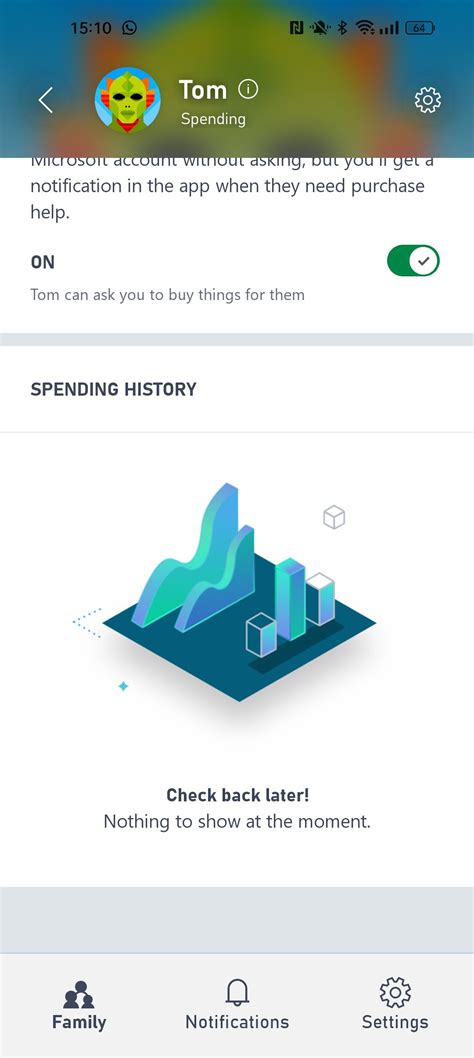
- Select your child’s profile and then “Manage screen time and spending.”
- Under “Spending,” you can set limits for Microsoft account funds or require “Ask to buy” for all purchases.
- You can also add money to their account with a set limit, preventing direct credit card access.

Nintendo Switch
- Download the Nintendo Switch Parental Controls mobile app or access via your Nintendo Account website.
- In the app, select “eShop & Credit Card” restrictions.
- You can restrict eShop purchases entirely or set a specific spending limit.
- Ensure the “Require password for purchases” option is enabled in the eShop settings on the console.
PC Gaming (Steam, Epic Games Store, etc.)
- Steam: Go to Account Details > Manage Family View. This allows you to restrict access to the store or require a PIN for purchases. For direct spending, monitor your own payment methods and consider using Steam Gift Cards.
- Epic Games Store: Epic accounts can have parental controls enabled via the account settings on their website. You can set a PIN to restrict purchases.
- General PC: The best practice here is to ensure your payment methods are not saved on the PC accounts, use strong passwords, and supervise purchases.
Mobile Gaming (Apple App Store, Google Play Store)
- Apple iOS (Screen Time): Go to Settings > Screen Time > Content & Privacy Restrictions > iTunes & App Store Purchases. Here you can turn off In-app Purchases, require password for purchases, and prevent app installations/deletions.
- Google Play Store: Open the Play Store app > Menu > Settings > Authentication > Require authentication for purchases. You can set this to “For all purchases” or “Every 30 minutes.” You can also set up a family library and manage child accounts via Family Link, allowing you to approve or deny purchase requests.

General Tips for Managing Game Spending
- Open Communication: Talk to your children about the value of money, the cost of in-game items, and the family budget. Educate them on responsible spending habits.
- Set a Budget or Allowance: Give them a fixed allowance for gaming-related purchases. This teaches them to prioritize and make choices within a limit.
- Use Gift Cards: Instead of linking credit cards, purchase gift cards for specific platforms (e.g., PlayStation Store Card, Xbox Gift Card). Once the credit is spent, no more purchases can be made.
- Regularly Review Settings: Gaming platforms and operating systems update frequently. Periodically check your parental control settings to ensure they are still active and meet your family’s needs.
- Lead by Example: Demonstrate responsible spending habits in your own digital purchases.

Empowering Your Family for Responsible Gaming
Setting parental controls for game spending isn’t about restricting fun; it’s about fostering financial literacy and a healthy relationship with digital entertainment. By taking these proactive steps and maintaining open lines of communication, you can help your children navigate the exciting world of gaming responsibly, ensuring enjoyment without unexpected financial burdens.