





How to transfer game data & saves between Nintendo Switch consoles?
Whether you’re upgrading to a new model, replacing a lost console, or simply sharing games with family, knowing how to transfer your precious game data and save files between Nintendo Switch consoles is essential. Nintendo offers several robust methods to ensure your progress isn’t lost. This guide will walk you through each option, from individual game saves to entire user profile migrations.
Method 1: Cloud Saves via Nintendo Switch Online
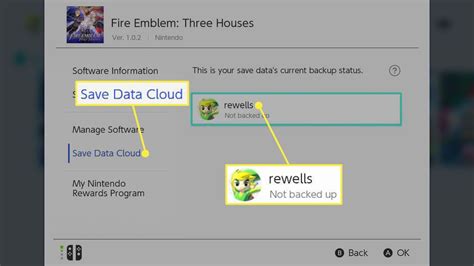
The easiest and most common way to safeguard and transfer individual game save data is through Nintendo Switch Online’s Save Data Cloud service. This service automatically backs up compatible game saves to the cloud, allowing you to download them to any other Nintendo Switch console linked to your Nintendo Account.
Requirements:
- An active Nintendo Switch Online membership.
- A stable internet connection.
- Both consoles must be linked to the same Nintendo Account.
How to Upload and Download:
Most compatible games will automatically upload save data when your console is connected to the internet. To manually check or download:
- From the HOME Menu, select System Settings > Data Management > Save Data Cloud.
- Select the user whose save data you want to manage.
- Choose the game title. You’ll see options to “Check for Corrupt Data” and “Download Save Data.”
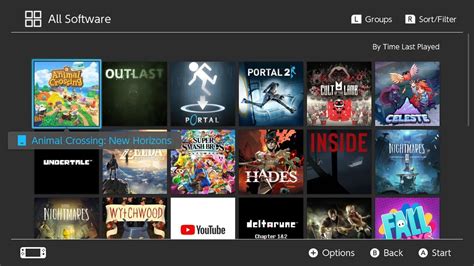
Note: Not all games support cloud saves (e.g., Animal Crossing: New Horizons has its own backup system). Always check a game’s compatibility.
Method 2: Local Save Data Transfer Between Consoles
For games that don’t support cloud saves or if you don’t have a Nintendo Switch Online membership, you can directly transfer individual game save data between two nearby Nintendo Switch consoles. This method moves the save data from the source console to the target console, deleting it from the source.
Requirements:
- Both Nintendo Switch consoles must be powered on and near each other.
- Both consoles must have System Menu version 8.0.0 or higher.
- Both consoles must be connected to the internet at least once during the process for account verification (though the actual transfer is local).
Steps to Transfer Save Data:
- On the source console: From the HOME Menu, select System Settings > Data Management > Transfer Your Save Data.
- Select Send Save Data to Another Console, then choose the user and the game title.
- On the target console: From the HOME Menu, select System Settings > Data Management > Transfer Your Save Data.
- Select Receive Save Data.
- Confirm the transfer on both consoles when prompted.
Method 3: Transferring a User and Their Save Data
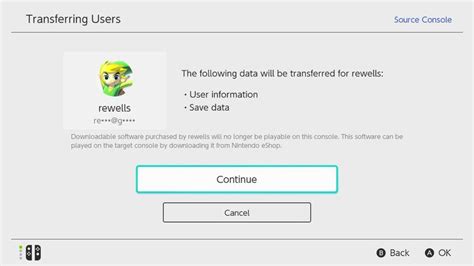
This is the most comprehensive method if you’re migrating your entire gaming identity from one Switch to another. It moves a user profile, along with all associated save data, from a source console to a target console. The user profile and its save data will be deleted from the source console after the transfer.
What Gets Transferred:
- The selected user account.
- All save data associated with that user.
- The user’s Nintendo eShop purchase history (but not the games themselves, which need re-downloading).
What Does NOT Get Transferred:
- Software data (games, updates, DLC) – these must be re-downloaded from the eShop or transferred separately.
- Screenshot and video capture data (unless moved to an SD card).
Requirements:
- Both consoles must be updated to the latest system version.
- Both consoles must be connected to the internet.
- The target console must have enough free user slots.
- The source console cannot have only one user remaining after the transfer.
Steps to Transfer a User:
- On the source console: Go to System Settings > Users > Transfer Your User.
- Select Next on the introductory screens, then Source Console.
- On the target console: Go to System Settings > Users > Transfer Your User.
- Select Next on the introductory screens, then Target Console.
- Follow the on-screen prompts to select the user to transfer and confirm the process on both consoles.
Method 4: Transferring Software Data Between Consoles
While user and save data transfers are crucial, you might also want to move your digital games, updates, and DLC without re-downloading them all from the Nintendo eShop. This can be done locally.
What Gets Transferred:
- Digital game software.
- Game updates.
- Downloadable content (DLC).
Requirements:
- Both Nintendo Switch consoles must be powered on and near each other.
- Both consoles must have System Menu version 4.0.0 or higher.
- Sufficient free space on the target console.
Steps to Transfer Software Data:
- On the source console: Go to System Settings > Data Management > Transfer Software Between Consoles.
- Select Send and choose the software you wish to transfer.
- On the target console: Go to System Settings > Data Management > Transfer Software Between Consoles.
- Select Receive.
- Follow the on-screen instructions to complete the transfer. The software will be copied, not moved, meaning it remains on the source console as well.
Important Considerations and Tips
- Primary Console: Ensure your new console is set as your Nintendo Account’s primary console to easily play digital games offline. You can deregister your old console remotely via accounts.nintendo.com.
- Animal Crossing: New Horizons: This game uses a specific Island Transfer Tool or a dedicated Island Backup Service (requiring NSO) due to its unique save structure. Do not rely on standard cloud saves or local save transfers for ACNNH.
- SD Cards: While you can move an SD card to a new console, software downloaded on the old console won’t automatically work on the new one until you link your Nintendo Account and re-download titles (which then associate them with the new console). Save data is never stored on the SD card for Switch games.
- Physical Games: No data transfer is needed for physical game cards; just insert the card into the new console.
Conclusion
Transferring your Nintendo Switch game data and saves is a straightforward process once you understand the different methods available. Whether you’re moving a single save file or migrating your entire digital life to a new console, Nintendo provides the tools to ensure your gaming adventures continue seamlessly. Always make sure both consoles are updated, connected to the internet when required, and you have sufficient battery life for a smooth transfer experience.


