Switch storage full? Maximize space for your big & small game library.
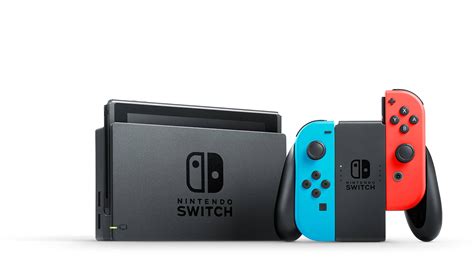
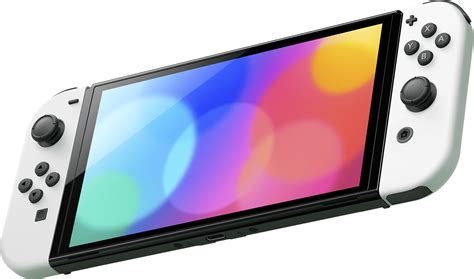
The Nintendo Switch is a marvel of portable gaming, offering a vast and ever-growing library of titles, from sprawling open-world epics to charming indie gems. However, with great games comes a common challenge for many players: running out of storage space. The console’s internal 32GB (or 64GB for OLED models) fills up surprisingly fast, especially if you prefer digital downloads or frequently update your games. Don’t let a full storage message stop your gaming adventures; with a few smart strategies, you can maximize your Switch’s capacity and keep your entire game collection at your fingertips.
Understanding Your Switch’s Storage
Before diving into solutions, it’s helpful to understand where your storage goes. Game files themselves are the biggest culprits, ranging from a few hundred megabytes to over 20GB for AAA titles. Add to that game updates, downloadable content (DLC), save data, screenshots, and video clips, and that internal memory quickly dwindles. While physical game cartridges save some space by not installing the core game, many still require significant updates or DLC that reside on your console’s memory.
Quick Wins: Freeing Up Space Instantly
Sometimes, you just need a quick fix to download that new release. The Switch offers built-in tools to manage your data effectively:
Archiving vs. Deleting Software
- Archiving: This is your best friend for temporarily freeing up space. Archiving removes the game data itself but keeps its icon on your Home screen and, crucially, preserves your save data. You can redownload the game at any time from the eShop or your user profile.
- Deleting: This removes the game data, its icon, and all associated save data (unless cloud saves are enabled). Only delete a game if you’re absolutely sure you won’t play it again and don’t need its save file.
To do this: Go to System Settings > Data Management > Manage Software. Select a game and choose “Archive Software.”
Clearing Screenshots and Videos
Those epic highlights and funny moments can stack up. Navigate to System Settings > Data Management > Manage Screenshots and Videos to review and delete unwanted media. You can also transfer them to a computer or social media to free up space while preserving memories.
Long-Term Solutions: Expanding Storage with a MicroSD Card
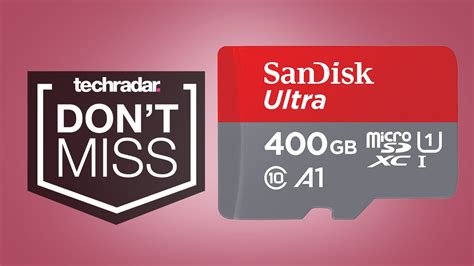
For most avid Switch players, a microSD card is not just an option—it’s a necessity. The Switch supports microSD, microSDHC, and microSDXC cards, allowing for massive storage expansion.
Choosing the Right MicroSD Card
- Capacity: Aim for at least 128GB, but 256GB, 512GB, or even 1TB cards are popular choices for extensive digital libraries. Prices have become very reasonable for larger capacities.
- Speed: Look for cards with a high read speed (e.g., ‘UHS-I’ or ‘Class 10’). While write speed is less critical for gameplay, faster read speeds can help with game loading times. Reputable brands like SanDisk, Samsung, and Kingston are recommended.
Installing and Transferring Data
Installing a microSD card is simple: just open the kickstand and slide the card into the slot. Your Switch will automatically recognize it. For existing games stored internally, you can transfer them to the microSD card. While there isn’t a direct “move” option in the Switch’s system settings, the most effective method is to archive games from internal memory and then redownload them. When redownloading with a microSD card inserted, the game will automatically install to the card.
Smart Library Management Tips
- Prioritize Downloads: Keep your most frequently played digital games on internal storage or your fastest microSD card for optimal performance, while less-played titles can reside on larger, potentially slower cards if needed.
- Physical vs. Digital Strategy: Consider purchasing physical cartridges for large games you play less often. This keeps the core game off your internal memory or microSD card.
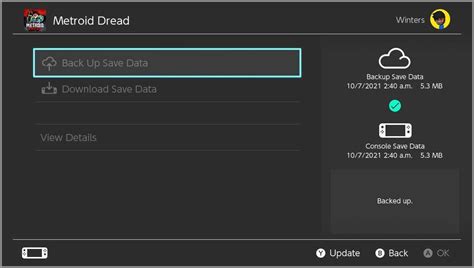
- Leverage Cloud Saves: If you have a Nintendo Switch Online subscription, ensure Cloud Saves are enabled for all your games. This acts as a crucial backup for your save data, especially if you ever need to delete a game or experience an issue with your console.
Conclusion
Running out of space on your Nintendo Switch doesn’t have to be a recurring nightmare. By understanding how to effectively archive unwanted software, manage media, and most importantly, invest in a high-capacity microSD card, you can ensure your console is always ready for your next gaming session. Take control of your storage, and keep your big and small game library growing without limits!