Switch storage full? Best ways to manage your digital game library.
Few messages strike as much dread into the heart of a Nintendo Switch owner as “The console’s storage is full. Please delete software.” It’s an inevitable reality in the digital age of gaming; titles are getting larger, and our desire to own them all only grows. Whether you’re a seasoned Switch veteran or a new owner, learning to efficiently manage your digital game library is key to uninterrupted gaming bliss.
Why Switch Storage Fills Up So Fast
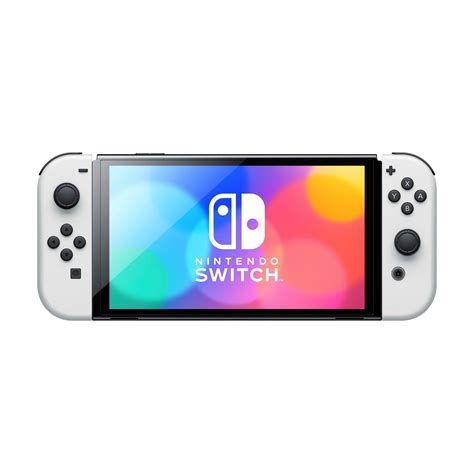
The Nintendo Switch comes with a modest 32GB of internal storage (or 64GB for the OLED model), a significant portion of which is reserved for the system itself. With modern games often ranging from 5GB to over 20GB, it doesn’t take long for that space to vanish. Add in updates, DLC, screenshots, and video captures, and you’re quickly bumping against the limit. This isn’t just about deleting games; it’s about smart, long-term library management.
The Essential Upgrade: A Larger microSD Card
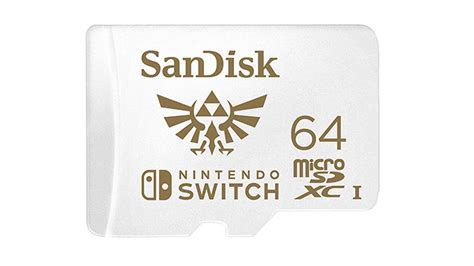
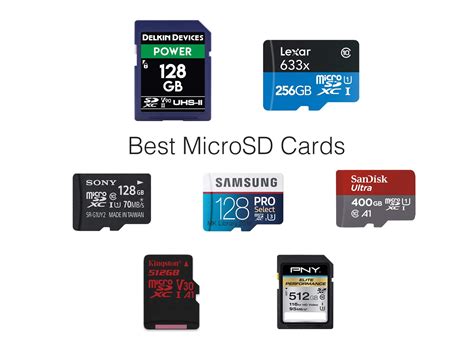
This is by far the most crucial step for any Switch owner. The Switch supports microSDXC cards up to a massive 2TB, though cards in the 128GB to 512GB range offer the best balance of capacity and cost for most players. Installing one is incredibly simple, and once inserted, your Switch will automatically start downloading new games and updates to it.
Choosing the Right microSD Card
- Capacity: Aim for at least 128GB, but 256GB or 512GB will offer more breathing room for a growing library.
- Speed: Look for cards with U3 (UHS Speed Class 3) and A1 or A2 (Application Performance Class) ratings for optimal game loading times.
If you’re upgrading from a smaller microSD card, don’t worry! You can easily transfer your data by copying the contents of the old card to the new one using a computer.
Smart Strategies for Managing Your Games
Archiving vs. Deleting Software
Understanding the difference between archiving and deleting is fundamental to Switch storage management.
- Archiving Software: This removes the game data from your console while keeping its icon on your Home screen. Crucially, it leaves your save data untouched. If you want to play the game again, you simply select its icon to redownload it. This is ideal for games you might return to periodically.
- Deleting Software: This removes both the game data and its icon from your Home screen. Your save data is usually preserved (unless explicitly prompted to delete it), but you’ll need to go to the eShop or your user page to find and redownload the game. Use this for games you’re certain you won’t play again soon, or if you want a cleaner Home screen.
To do either, select a game icon on the Home menu, press the ‘+’ button, then navigate to ‘Manage Software’ > ‘Archive Software’ or ‘Delete Software’.
![How To Delete Games On Nintendo Switch [The right way!] - Alvaro Trigo ...](/images/aHR0cHM6Ly90czMubW0uYmluZy5uZXQvdGg/aWQ9T0lQLkxIZmMwTTlnc1BKN2JBTVRxeF9UOGdIYUVLJnBpZD0xNS4x.webp)
Leveraging Physical Game Cartridges
While digital convenience is appealing, physical game cartridges still offer a significant advantage for storage management: they don’t consume internal or microSD card space for the base game. Only patches, updates, and DLC will use your console’s storage. For large, single-player games you plan to hold onto, buying a physical cartridge can save precious gigabytes.
Managing Save Data, Screenshots, and Videos
- Nintendo Switch Online Cloud Saves: If you have a Nintendo Switch Online subscription, your save data for most games is automatically backed up to the cloud. This means even if you delete a game or lose your console, your progress is safe. Always ensure cloud saves are enabled for your important titles.
- Screenshots and Videos: These can accumulate quickly. Regularly review your Album and delete unnecessary media. You can also transfer them to a computer or another microSD card to free up space.

Regular Library Audits and Future Planning
Periodically (e.g., once a month or every few months), take some time to review your game library. Which games haven’t you touched in ages? Which ones are taking up significant space but can easily be redownloaded? Archiving these can free up immediate space.
When considering new game purchases, weigh the pros and cons of digital versus physical. For smaller indie titles, digital is often the only option and perfectly fine. For massive AAA games, a physical copy might be the smarter storage choice.

Conclusion
A full Nintendo Switch storage doesn’t have to be a source of frustration. By investing in a larger microSD card, understanding the difference between archiving and deleting, leveraging physical games, and utilizing cloud saves, you can effectively manage your digital game library. Implement these strategies, and you’ll spend less time managing storage and more time enjoying the vast world of Switch gaming.