





How to optimize Switch & console settings for best game performance?

Unlocking Your Console’s Full Potential
Whether you’re battling foes on your Nintendo Switch, exploring vast worlds on your PlayStation 5, or engaging in intense multiplayer on your Xbox Series X, getting the most out of your console means more than just having the latest hardware. Optimizing your console’s settings can significantly improve game performance, reduce input lag, and enhance your overall gaming experience. This guide will walk you through the essential tweaks to ensure you’re always playing at peak efficiency.
Understanding Performance vs. Quality Modes
Many modern games offer different graphical modes: Performance Mode (or Fidelity Mode, as it’s sometimes called) and Quality Mode. Performance Mode typically prioritizes higher frame rates (e.g., 60fps or even 120fps on compatible displays) by lowering resolution, texture quality, or other graphical effects. Quality Mode, on the other hand, aims for the highest visual fidelity, often at a lower frame rate (e.g., 30fps), offering sharper images, richer textures, and more detailed environments. Your choice here should depend on your preference and the specific game.
Optimizing Display and Video Settings
Your console’s connection to your TV or monitor is the first crucial step. Ensure your console is connected to an HDMI 2.0 or 2.1 port for 4K and high refresh rate capabilities. Check your TV’s settings for a ‘Game Mode,’ which often reduces input lag by disabling post-processing effects. Calibrate your display’s HDR (High Dynamic Range) settings to ensure colors pop without being oversaturated or washed out. For PS5 and Xbox, enable Variable Refresh Rate (VRR) on compatible displays to eliminate screen tearing and stuttering.

Fine-Tuning In-Game Graphical Options
Beyond system-level settings, individual games often provide their own graphical options. While these can vary wildly, look for settings related to motion blur, depth of field, anti-aliasing, and shadow quality. Reducing motion blur, for example, can lead to a clearer image during fast-paced action. Experiment with these options to find a balance between visual appeal and performance that suits your preference.
Network Optimization for Online Gaming
For online multiplayer, a stable and fast internet connection is paramount. A wired Ethernet connection is almost always superior to Wi-Fi, offering lower latency and more consistent speeds. If Wi-Fi is your only option, ensure your console is close to your router, ideally on the 5GHz band. Consider configuring your router’s Quality of Service (QoS) settings to prioritize your console’s network traffic. You might also experiment with custom DNS servers (like Google DNS or Cloudflare DNS) which can sometimes improve connection speeds to game servers.
Enhancing Audio Settings for Immersion
While often overlooked for performance, audio settings can significantly impact your gaming experience, especially in competitive titles where spatial audio cues are crucial. Utilize surround sound (virtual or true) if your headphones or sound system support it. Ensure your audio output is correctly configured for your setup (e.g., HDMI out, optical, headset). Adjust in-game audio mixes to prioritize crucial sounds like footsteps or gunfire, allowing you to react faster to threats.
System Maintenance and Best Practices
Keeping your console’s software up to date is vital for optimal performance, as updates often include stability improvements and performance enhancements. Regularly clear out old game data and screenshots to free up storage space. While not directly a setting, ensure your console has adequate ventilation to prevent overheating, which can lead to performance throttling. Keep the console clean, occasionally dusting vents to maintain airflow.
Platform-Specific Optimization Tips
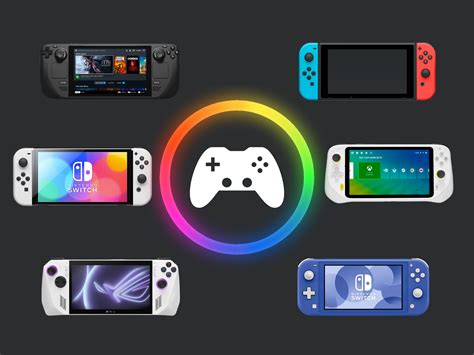
Nintendo Switch
- Docked vs. Handheld: Games often perform better when the Switch is docked, leveraging the TV’s power and potentially higher resolutions. In handheld mode, lower resolutions are common.
- Performance Mode: Check individual game settings; some titles offer a specific ‘performance mode’ to prioritize frame rate over resolution.
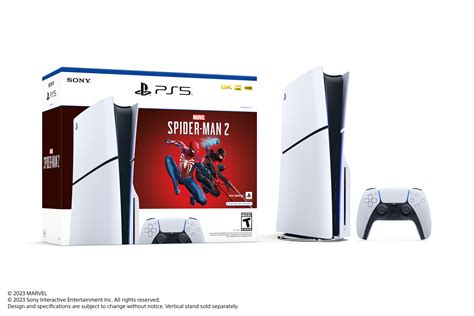
PlayStation Consoles (PS4 Pro / PS5)
- Game Presets (PS5): Go to Settings > Saved Data and Game/App Settings > Game Presets. Here, you can set a default for Performance Mode or Resolution Mode for all games, saving you from changing it per game.
- Boost Mode (PS4 Pro): For PS4 Pro, enable ‘Boost Mode’ in system settings for improved frame rates in some unpatched PS4 games.
- VRR: Ensure your PS5 is connected to a compatible HDMI 2.1 TV and VRR is enabled in the screen and video settings.
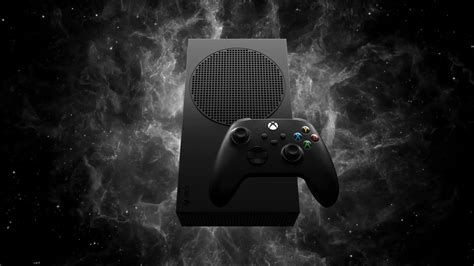
Xbox Consoles (Xbox One X / Series X|S)
- Power Options: Set your console to ‘Instant-on’ mode for faster boot times and background updates, but choose ‘Energy-saving’ if power consumption is a concern.
- FPS Boost/Auto HDR: Series X|S offers these features for backward compatible games. Ensure they are enabled in the game compatibility options.
- VRR and ALLM: Ensure your Xbox is connected to a compatible HDMI 2.1 TV and these features are enabled in the TV & display options for the best visual experience.
Conclusion
Optimizing your console settings is a continuous process that can dramatically improve your gaming enjoyment. By understanding the options available, from display and network settings to platform-specific tweaks and proper system maintenance, you can ensure your Switch, PlayStation, or Xbox is always delivering the best possible performance. Experiment with these suggestions, find what works best for your setup and games, and elevate your gaming experience to the next level.


