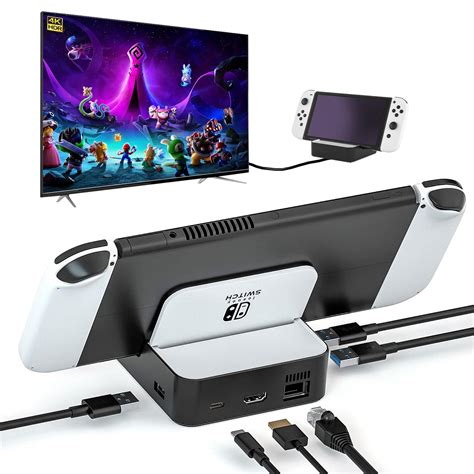
Best methods to free up Switch storage for more digital games?
The Nintendo Switch, with its incredible library of exclusive titles and indie gems, makes digital game ownership incredibly appealing. However, the console’s relatively modest internal storage of 32GB (or 64GB for the OLED model), a significant portion of which is reserved for the system, can quickly fill up. For avid digital game collectors, managing this space is crucial. Fortunately, there are several effective strategies to ensure you always have room for your next adventure.
Understand Your Switch Storage Options
Before diving into solutions, it’s important to know the two primary storage types on your Switch: the internal system memory and a removable microSD card. Game installations, updates, and DLC can reside on either. Save data, however, is always stored on the console’s internal memory and cannot be moved to a microSD card.
The Power of the MicroSD Card
This is by far the most impactful solution for expanding your Switch’s storage. A microSD card can increase your storage by up to 2TB, providing ample space for hundreds of digital titles. It’s highly recommended to invest in a fast, high-capacity microSD card (UHS-I compatible with a read speed of 60-95 MB/s is ideal) to minimize loading times.
Once inserted, new game downloads and updates will automatically prioritize the microSD card if it has more space. You can also manually move existing software to it.

Archive Games You’re Not Playing
Archiving is a fantastic way to free up space without losing your game progress. When you archive software, the game data itself is deleted, but your save data remains safely stored on the console’s internal memory. This means if you decide to play the game again later, you can re-download it from the eShop, and pick up right where you left off.
To archive a game:
- From the HOME Menu, highlight the game you wish to archive.
- Press the + or – button to open the Options menu.
- Select ‘Manage Software’ > ‘Archive Software’.
- Confirm your choice.
Delete Software (When Archiving Isn’t Enough)
Deleting software is a more drastic step than archiving, as it removes the game data, updates, and DLC. However, just like archiving, your save data is preserved on the console’s internal memory. This method is useful if you want to completely clear out a game and all its associated data (except saves) or if archiving isn’t available for some reason.
To delete a game:
- From the HOME Menu, highlight the game you wish to delete.
- Press the + or – button to open the Options menu.
- Select ‘Manage Software’ > ‘Delete Software’.
- Confirm your choice.
Move Downloadable Software to Your MicroSD Card
If you initially downloaded games to your Switch’s internal memory and later added a microSD card, you can transfer some of that data to the card. This is incredibly useful for balancing storage between the two.
To move software:
- From the HOME Menu, select ‘System Settings’.
- Scroll down and select ‘Data Management’.
- Select ‘Move Data Between System / microSD Card’.
- Choose the software you wish to move and follow the prompts.
Clear Out Screenshots and Video Captures
While individual screenshots and video clips don’t take up much space, they can accumulate over time, especially if you frequently capture highlights. Regularly reviewing and deleting unwanted captures can free up a surprising amount of space.
To manage captures:
- From the HOME Menu, select ‘Album’.
- Browse your captures, select the ones you want to delete, or use the ‘Manage Screenshots and Videos’ option in the ‘System Settings’ > ‘Data Management’ menu for bulk deletion.
Re-downloading Games is Easy
One of the biggest advantages of digital purchases is that once you own a game, you own it forever. If you’ve archived or deleted a game to free up space, you can always re-download it from the Nintendo eShop at any time, as long as you’re logged into the account that purchased it. This gives you peace of mind when clearing out your storage.
Conclusion
Managing storage on your Nintendo Switch doesn’t have to be a headache. By effectively utilizing a high-capacity microSD card, smart archiving, and occasionally moving or deleting software, you can keep your console lean and ready for new digital adventures. Prioritize installing new games to your microSD card, regularly archive titles you’re not actively playing, and you’ll seldom find yourself running out of space.