





How to optimize Nintendo Switch storage for indie and AAA games?
The Nintendo Switch, a marvel of portable gaming, often presents a common challenge to its owners: limited storage. With its modest 32GB or 64GB internal memory (of which only a fraction is user-accessible), gamers quickly find themselves juggling space, especially when balancing large-scale AAA titles with a sprawling collection of smaller, yet equally captivating, indie games. Optimizing your Switch’s storage isn’t just about making space; it’s about smart management that lets you enjoy your entire library without constant worry.
Understanding Your Switch’s Storage Basics
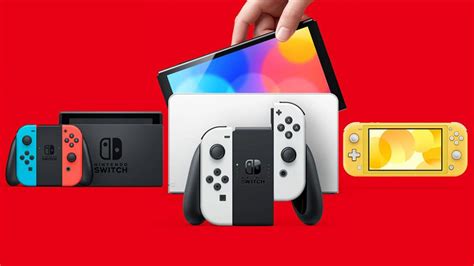
Every Nintendo Switch console comes with built-in NAND flash memory. While the original model and Switch Lite offer 32GB, the OLED model boasts 64GB. However, a significant portion of this is reserved for the system’s operating software, leaving users with considerably less for games, save data, screenshots, and video clips. This internal storage is fast but finite, making external expansion a necessity rather than a luxury for most.
The microSD Card: Your Essential Expansion
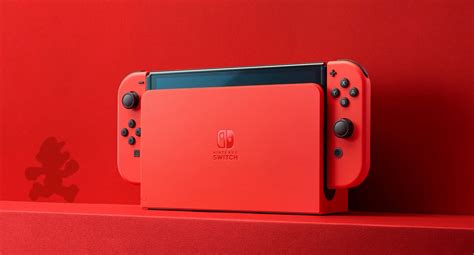
The primary and most effective way to expand your Switch’s storage is through a microSD card. The Switch supports microSD, microSDHC, and microSDXC cards, with capacities currently ranging up to 2TB (though 1TB is currently the largest widely available). When choosing a card, speed matters. Look for cards with a “UHS-I” classification and a write speed of at least 60-90 MB/s, often indicated by a “V30” or “U3” rating. A faster card will reduce game loading times and improve overall system responsiveness, especially for larger games.
For most users, a 256GB, 512GB, or even 1TB microSD card offers a good balance of capacity and cost-effectiveness. Consider your gaming habits: Are you primarily digital? Do you play many AAA titles? If so, lean towards higher capacities.
Physical Game Cartridges vs. Digital Downloads
The choice between physical game cartridges and digital eShop downloads significantly impacts your storage needs:
- Physical Games: While the core game data is on the cartridge, many AAA titles still require significant downloads for updates, patches, and DLC, which reside on your internal or microSD storage. Indie games, being smaller, often have minimal additional data.
- Digital Games: Every byte of a digital game, including the base game, updates, and DLC, needs to be stored on your console’s memory or microSD card. This is where storage fills up fastest, especially with modern AAA games that can easily exceed 10-20GB, with some pushing 50GB+.
A hybrid approach often works best: buy large AAA games physically if possible to save space on your card, and download indie games digitally for convenience.
![[Solved] Make an Infographic that shows 5 Components of Physical ...](/images/aHR0cHM6Ly90czQubW0uYmluZy5uZXQvdGg/aWQ9T0lQLmNWb2pNMDdfcVE5dEJoTk9DRGJENlFIYUpsJnBpZD0xNS4x.webp)
Smart Archiving and Deleting Strategies
Nintendo offers built-in tools to manage your storage:
- Archive Software: This option deletes the game data but keeps its icon on your Home menu and, crucially, preserves your save data on the console’s internal memory. It’s perfect for games you might want to replay later without having to redownload the entire thing immediately. You can redownload the archived software from the eShop or your user page.
- Delete Software: This removes the game data and its icon from your Home menu. Your save data, however, remains on the console’s internal memory (unless you specifically delete it from the Data Management settings). Use this for games you are absolutely certain you won’t play again, or if you need maximum space immediately.
Regularly review your library and archive games you’ve completed or haven’t touched in months. Remember, save data takes up very little space compared to game software.
Managing Downloadable Content (DLC) and Updates
Don’t overlook DLC and game updates. While a base game might be 10GB, its subsequent updates and season pass content can add many more gigabytes. These are almost always stored on your internal or microSD card, regardless of whether the base game is physical or digital. Keep an eye on the total file size of games with extensive DLC.
Best Practices for Data Management
To keep your Switch storage optimized:
- Prioritize microSD: Ensure all new digital game downloads are directed to your microSD card. You can move existing games from internal storage to the microSD card via Data Management in System Settings, though this is a “delete and redownload” process for digital titles.
- Regular Audits: Periodically check your “Data Management” section in System Settings to see what’s consuming the most space.
- Backup Save Data: If you have a Nintendo Switch Online subscription, enable cloud saves for your games. This is primarily for security but can offer peace of mind if you’re ever juggling storage and consider deleting save data (though generally not recommended as it’s small).
- Screenshots/Videos: These can accumulate quickly. Periodically transfer them to a computer or social media to free up space.
Conclusion
Optimizing your Nintendo Switch storage is an ongoing process, but with a good microSD card, a mindful approach to digital vs. physical purchases, and smart use of archiving features, you can comfortably house both demanding AAA titles and a vast universe of indie gems. Stay proactive in your data management, and your Switch will remain a clutter-free, ready-to-play portable powerhouse.


