
Running out of Switch storage? How to manage game downloads efficiently?

The Nintendo Switch, with its incredible library of games, often presents a common challenge to its owners: running out of storage space. Between internal memory limits and ever-growing game file sizes, managing your downloads efficiently becomes crucial. This guide will walk you through practical steps to keep your Switch decluttered and ready for new adventures.
Understanding Your Switch’s Storage Landscape
The standard Nintendo Switch comes with 32GB of internal storage, while the OLED model boasts 64GB. While this might seem sufficient at first, operating system files, essential updates, and the increasing size of modern games quickly consume this space. A single AAA title can easily take up 10-20GB, leaving little room for more. Understanding this limitation is the first step towards effective management.
The Essential Upgrade: MicroSD Cards
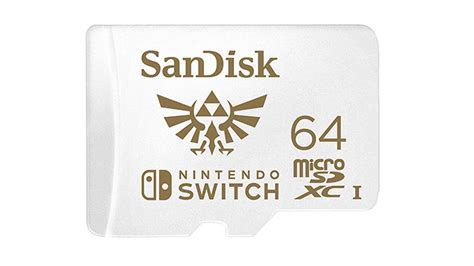
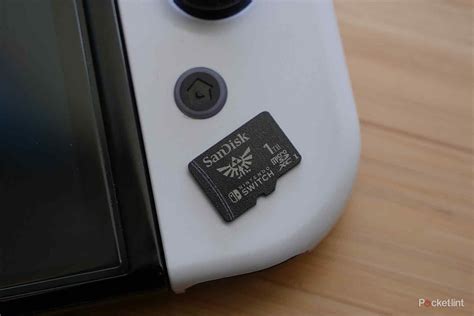
The most fundamental and effective solution to Switch storage woes is investing in a high-capacity microSD card. The Switch supports microSDXC cards up to 2TB, though cards in the 128GB to 512GB range are typically the sweet spot for value and performance. Look for cards with a high read/write speed (UHS-I compatible, U3 class recommended) to ensure smooth game loading and performance.
Once inserted, your Switch will automatically prioritize installing new digital games and updates to the microSD card. You can also manually move existing data from the internal memory to the card through the Data Management settings, freeing up precious internal space for system files and save data, which always reside on the console itself.
Archiving vs. Deleting Games: A Smart Choice
When you need to free up space, the Switch offers two primary options for games: “Archive Software” or “Delete Software.” Understanding the difference is key to efficient management.
- Archive Software: This option deletes the game data from your console but keeps the game icon on your Home screen and, crucially, preserves your save data. If you wish to play the game again, you simply select its icon, and it will re-download. This is ideal for games you might want to revisit but aren’t actively playing.
- Delete Software: This completely removes both the game data and its icon from your Home screen. However, it also preserves your save data, which is stored separately. You’ll need to re-download the game from the eShop or insert a physical cartridge again. Choose this for games you are absolutely sure you won’t play for a very long time, or if you want a cleaner Home screen.
Always prioritize archiving games you’ve completed or aren’t currently playing. Your save data is relatively small and will remain safely on your console, allowing you to pick up where you left off instantly upon re-downloading.
Digital vs. Physical Games: Weighing the Storage Impact
The choice between digital and physical game copies also impacts your storage needs.
- Physical Game Cartridges: These consume very little internal storage, typically only requiring space for save data, updates, and DLC. The bulk of the game data is read directly from the cartridge. This is an excellent way to save space, especially for larger titles.
- Digital Game Downloads: These require full installation onto your internal storage or microSD card. While convenient, especially for travel, they are the primary reason why storage space dwindles quickly.
Consider purchasing physical copies for games you know will be massive or ones you might play once and then trade in. For smaller indie titles or games you’ll constantly revisit, digital might still be preferable.

Other Tips for Freeing Up Space
- Clear Cache Data: From System Settings > Data Management > Delete All Save Data, you can find an option to clear cache data for individual games. While save data is protected, cache can sometimes be cleared to free up minor space.
- Manage Screenshots & Videos: Over time, your capture gallery can accumulate a surprising amount of data. Regularly transfer screenshots and videos to a computer or social media, or delete unwanted ones directly from the Album.
- Delete Old Save Data (Carefully!): While save data is precious, if you have games you truly never intend to play again and have no emotional attachment to the saves, you can delete them via System Settings > Data Management > Delete Save Data. Proceed with extreme caution here!

Conclusion: Stay Organized, Keep Gaming
Running out of Switch storage is a common plight, but it’s far from an insurmountable problem. By investing in a reliable microSD card, thoughtfully archiving games you’re not actively playing, understanding the storage implications of digital versus physical titles, and performing occasional tidying, you can keep your Nintendo Switch running smoothly with plenty of room for all your favorite adventures. Don’t let storage limits hold you back from exploring the vast world of Switch gaming!