





How to optimize console storage for digital games & big downloads?
Modern video games are larger than ever, with massive updates and day-one patches becoming the norm. For digital game enthusiasts, this often translates into a constant struggle for console storage space. Whether you’re a proud owner of a Nintendo Switch, PlayStation 5, or Xbox Series X/S, optimizing your console’s storage is crucial to avoid those frustrating “storage full” notifications and keep your gaming experience smooth.
Why Console Storage Management Matters
Gone are the days when a game came on a cartridge or disc and occupied minimal internal space. Today, even physical games often require substantial installations and ongoing updates that chew through gigabytes. Digital game libraries, while convenient, exacerbate this issue, as every title needs to reside entirely on your console’s storage. Efficient management not only saves you time by avoiding repeated downloads but also ensures you’re always ready for that exciting new release or a friend’s invitation to play.
Understanding Your Console’s Storage Options
Each console platform offers unique internal and external storage solutions. Knowing these distinctions is the first step towards effective optimization:
- Nintendo Switch: Comes with limited internal storage (32GB or 64GB) but is highly expandable via microSD cards. Games can be stored and run directly from the microSD.
- PlayStation 5: Features a fast internal SSD (825GB usable) and supports expandable storage via compatible M.2 NVMe SSDs (for PS5 games) and external USB drives (primarily for PS4 games or PS5 game storage/archiving).
- Xbox Series X/S: Utilizes a proprietary Expansion Card slot for seamless Xbox Series X/S game storage, along with support for external USB drives for Xbox One, Xbox 360, and original Xbox games, or archiving Series X/S titles.
Smart Strategies for Digital Game Management
You don’t always need to buy more storage immediately. Often, a few smart habits can make a big difference.
Archive or Delete Unused Games
Be honest: how many games are you currently playing? Most consoles allow you to “archive” or “delete” games. Archiving typically removes the core game data but keeps your save files, allowing for a quicker redownload later. Deleting removes everything. Prioritize removing games you’ve completed, no longer play, or that have very large file sizes.
Prioritize Installation Locations
If you have multiple storage options, be strategic. For instance, on PS5, keep your most-played PS5 games on the internal or M.2 SSD for optimal load times. Less frequently played PS5 games can be moved to an external USB drive for storage, then transferred back when you want to play them. On Switch, consider putting smaller, indie titles on internal storage and larger AAA games on the microSD card.

Utilize Cloud Saves
Most subscription services (Nintendo Switch Online, PlayStation Plus, Xbox Game Pass Ultimate) offer cloud save backups. Ensure this feature is enabled. While saves themselves are small, knowing they’re safely backed up can give you peace of mind when deleting game installations.
Expanding Your Console’s Storage
Eventually, even the most meticulous management might not be enough. Here’s how to expand your capacity:
Nintendo Switch: MicroSD Cards
This is the easiest and most cost-effective expansion for Switch. Look for high-speed cards (UHS-I Speed Class 3/V30 recommended) from reputable brands. A 256GB, 512GB, or even 1TB card can drastically increase your library size.
PlayStation 5: M.2 NVMe SSDs and External USB Drives
- M.2 SSD: For playing PS5 games directly. Ensure it meets Sony’s specific speed and size requirements (PCIe Gen4, minimum 5,500 MB/s read speed, with a heatsink). Installation is relatively straightforward.
- External USB Drives: Great for storing PS4 games that can be played directly from the drive, or for archiving PS5 games. They cannot play PS5 games directly.
Xbox Series X/S: Storage Expansion Cards and External USB Drives
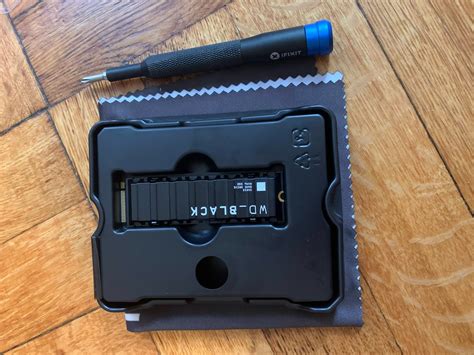
- Storage Expansion Card: These proprietary cards from Seagate or WD_Black offer identical performance to the internal SSD, allowing you to play Series X/S optimized games directly.
- External USB Drives: Similar to PS5, these are ideal for storing Xbox One, Xbox 360, and original Xbox games for direct play, or for archiving Series X/S titles.
Tips for Managing Big Downloads
Large game installations and updates can take hours and consume massive chunks of data. Plan ahead:
- Check Space Before Downloading: Always verify you have sufficient free space before initiating a large download. Many consoles will alert you if space is insufficient.
- Schedule Downloads: Utilize your console’s rest mode or power-saving settings to allow downloads to complete overnight or when internet usage is low.
- Prioritize Bandwidth: If multiple devices are on your network, pause other large downloads or streaming activities to give your console maximum bandwidth.

Conclusion
Optimizing your console storage is an ongoing process, but by understanding your console’s capabilities, practicing smart game management, and investing wisely in expansion options when needed, you can minimize frustration and maximize your gaming enjoyment. Keep your digital library organized, your saves backed up, and your console ready for the next big adventure.


