





How to free up Switch storage for new games without losing saves?

Running Low on Space? Don’t Panic!
It’s a familiar scenario for many Nintendo Switch owners: you’re excited to download a new game, only to be met with the dreaded “not enough space” error. With digital game sizes ever-increasing, the Switch’s internal 32GB or 64GB storage can fill up surprisingly quickly. The good news is that freeing up space for those must-have titles is straightforward, and more importantly, it can be done without jeopardizing your precious game save data.
This guide will walk you through the safest and most efficient methods to reclaim storage on your Switch, ensuring your progress in hundreds of hours of gameplay remains untouched.
Understanding Switch Data: Games vs. Saves
Before diving into the methods, it’s crucial to understand how your Nintendo Switch handles different types of data. Generally, your Switch categorizes data into:
- Software Data: This includes the game itself, updates, and any downloadable content (DLC). This is what takes up the most space.
- Save Data: This is your individual game progress, settings, and player data. Crucially, save data is almost always stored separately on the console’s internal memory and is generally not deleted when you remove software data.
This separation is key to our strategy for freeing up space safely.
Method 1: Archiving Software (Recommended)
Archiving is the primary and safest way to free up significant space on your Switch without losing save data. When you archive a game, the main software data is deleted, but its icon remains on your HOME Menu, and more importantly, your save data is preserved on your console.
How to Archive a Game:
- From the HOME Menu, select System Settings.
- Scroll down to Data Management.
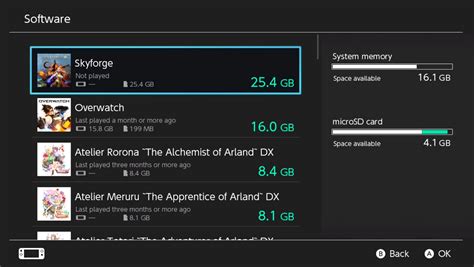
- Select Manage Software.
- Choose the game you wish to archive from the list.
- Select Archive Software, then confirm your choice.
The game’s software data will be removed, freeing up space. If you want to play it again later, simply select its icon from the HOME Menu, and you’ll be prompted to redownload it.
Method 2: Deleting Software
While archiving is generally preferred, you also have the option to “Delete Software.” This method also removes the game’s software data but preserves your save data, similar to archiving. The main difference is that the game’s icon will disappear from your HOME Menu, requiring you to find and redownload it from the Nintendo eShop or your user page if you want to play it again.
When to Delete Instead of Archive:
- For demos or games you’re certain you won’t play again, even if you want to keep the save.
- If you prefer a cleaner HOME Menu without archived game icons.
![How To Delete Games On Nintendo Switch [The right way!] - Alvaro Trigo ...](/images/aHR0cHM6Ly90czQubW0uYmluZy5uZXQvdGg/aWQ9T0lQLjljOWtXcXN4UFBacWhNTGtyR2ZhQlFIYUVLJnBpZD0xNS4x.webp)
Method 3: Managing Screenshots and Video Captures
Over time, your Switch’s Album can accumulate a surprising amount of storage-consuming screenshots and video clips. These are easy to manage and delete without affecting game saves.
How to Manage Your Album:
- From the HOME Menu, select Album.
- Browse through your captures.
- To delete a single item: Select the item, press A (Edit and Post), then choose Delete.
- To delete multiple items: Select A (Edit and Post) and then Select. You can then choose multiple items and delete them all at once.
Consider transferring important captures to a microSD card or social media if you want to save them long-term.
Method 4: Expanding Storage with a microSD Card
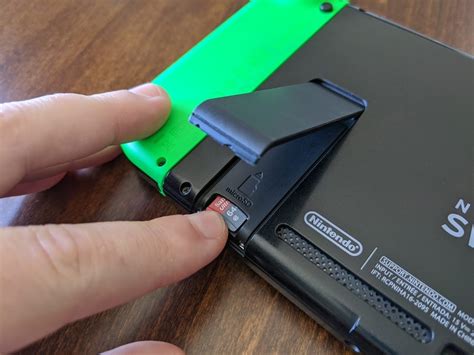
For a long-term solution to storage woes, investing in a microSD card is highly recommended. The Nintendo Switch supports microSD, microSDHC, and microSDXC cards up to 2TB (though 128GB, 256GB, or 512GB are typically sufficient and more affordable).
Benefits of a microSD Card:
- Vastly Increased Space: Store dozens, if not hundreds, of digital games.
- Automatic Downloads: Once inserted, new digital game downloads, updates, and screenshots will automatically be saved to the microSD card.
- Portability: You can easily transfer your digital library to another Switch (though save data remains tied to your user profile on the console).
Save data, as always, will continue to be stored on the console’s internal memory even if the game itself is on the microSD card.
What About Nintendo Switch Online Cloud Saves?
If you have a Nintendo Switch Online membership, most of your game save data is automatically backed up to the cloud. This provides an additional layer of security, ensuring that even if something catastrophic happened to your console, your progress would still be retrievable. This feature works independently of whether a game is archived or deleted from your local storage.
Conclusion
Running out of space on your Nintendo Switch is a common issue, but it’s easily remedied. By understanding the difference between game software and save data, you can confidently archive or delete games, manage your media, and expand your storage with a microSD card, all without the fear of losing your hard-earned progress. Now go forth and download that new game!


