





Optimize Switch storage for huge game collections: What’s the best strategy?

Conquering the Storage Challenge: Why Your Switch Needs a Plan
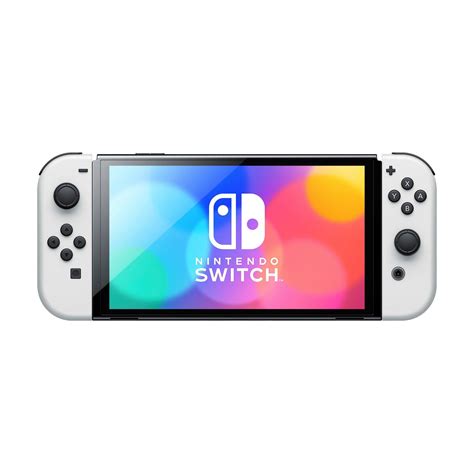
The Nintendo Switch, a marvel of portable gaming, comes with a rather modest 32GB (or 64GB for the OLED model) of internal storage. While sufficient for a few indie titles or smaller downloads, this quickly becomes a bottleneck for any gamer with a burgeoning library of AAA blockbusters and a passion for digital purchases. Constantly deleting and re-downloading games is not only frustrating but also time-consuming. The good news? There are effective strategies to expand and manage your Switch’s storage, allowing your huge game collection to live comfortably.
The Cornerstone of Expansion: MicroSD Cards
The single most crucial upgrade for any Switch owner with storage woes is a high-capacity MicroSD card. The Switch supports MicroSD, MicroSDHC, and MicroSDXC cards, with MicroSDXC being the standard for larger capacities. Here’s what to consider:
Capacity: Go Big or Go Home
- Minimum Recommendation: For serious collectors, 128GB should be considered an absolute minimum, but you’ll likely outgrow it quickly.
- Sweet Spot: 256GB to 512GB offers a great balance of cost and capacity, accommodating dozens of large games.
- Maximum Capacity: The Switch officially supports up to 2TB MicroSDXC cards. While 2TB cards are still very expensive, 1TB cards are becoming more accessible and offer virtually unlimited space for most users. Always check for deals, as prices fluctuate.
Speed: Class Matters for Performance
While all compatible MicroSD cards will work, their speed can impact game loading times. Look for cards with:
- UHS-I Speed Class 3 (U3): This ensures faster read/write speeds, which translates to quicker game loading and smoother performance.
- A1 or A2 App Performance Class: These classes are designed for faster random read/write operations, ideal for game files.
Digital vs. Physical: A Balancing Act
Your choice between digital downloads and physical game cartridges significantly impacts your storage needs.
- Digital Games: These are convenient but consume internal or MicroSD card storage. Even if you archive them, the save data remains, but the game itself needs to be re-downloaded.
- Physical Games: While the cartridge holds the core game, many modern titles require substantial patches, updates, and DLC, which *do* take up storage space on your console or MicroSD card. Don’t assume physical copies mean zero storage consumption.
A smart strategy involves prioritizing. Keep your most frequently played digital games and larger updates/DLC on your MicroSD card, leaving some internal space for crucial system updates.
Smart Management and Maintenance Tips
Regularly Check Storage Usage
Go to System Settings > Data Management. Here you can see how much space your software, save data, and screenshots/videos are consuming. This is your command center for identifying storage hogs.
Archive vs. Delete Software
- Archive Software: This removes the game data but keeps the icon on your Home screen and preserves your save data. It’s ideal for games you might want to play again later, as re-downloading is usually quicker than deleting and reinstalling everything.
- Delete Software: This removes both the game data and its icon. Use this for games you are absolutely sure you won’t play again, or for problematic installations you want to completely refresh.
Important Note: Save data for almost all games is stored on the Switch’s internal memory and is not affected by archiving or deleting game software, nor is it stored on the MicroSD card. Nintendo Switch Online members can back up most save data to the cloud.
Leverage Cloud Saves
If you have a Nintendo Switch Online subscription, make sure cloud save data backup is enabled. While this doesn’t free up local storage, it provides peace of mind that your progress is safe, especially if you ever need to factory reset your console or get a new one.
Manage Screenshots and Videos
High-resolution screenshots and video captures can quickly add up. Periodically review your Album (Home Menu > Album) and transfer unwanted media to a computer or delete them. You can also transfer them to a MicroSD card if they are currently on internal storage.

Final Thoughts: A Future-Proof Collection
Optimizing your Nintendo Switch storage isn’t just about making space; it’s about enhancing your gaming experience. By investing in a high-quality, high-capacity MicroSD card and adopting smart data management habits, you can ensure your Switch is always ready for the next big adventure, without the constant digital juggling act. Build your game collection without fear, knowing your storage strategy has you covered.


