How to extend Nintendo Switch battery life for portable play?
Mastering Your Nintendo Switch’s Endurance for Portable Fun
The Nintendo Switch offers unparalleled flexibility, letting you seamlessly switch between TV and handheld mode. However, a common challenge for many portable gamers is the console’s battery life, especially during long commutes or travel. While models like the Switch OLED and the updated V2 offer improved battery performance over the original, every gamer can benefit from optimizing their device for maximum playtime. This guide will walk you through essential settings and habits to squeeze every last minute out of your Nintendo Switch’s battery.
Understanding Your Switch Model’s Battery Potential
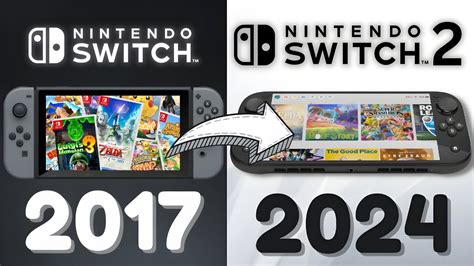
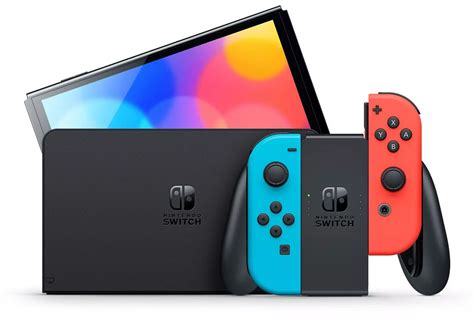
It’s worth noting that not all Nintendo Switch consoles are created equal when it comes to battery life. The original V1 model (released 2017) has the shortest battery, followed by the improved V2 (released 2019), the Switch Lite, and finally the Switch OLED Model (released 2021) which generally boasts the longest.
Key Settings to Optimize Battery Life
Small adjustments in your Switch’s System Settings can lead to significant battery gains.
Adjust Screen Brightness
This is arguably the most impactful change you can make. The screen is a major power consumer. Head to System Settings > Screen Brightness and manually lower it. You’ll be surprised how much less brightness you need indoors, and even outdoors, a moderate setting can suffice. Disabling ‘Auto-Brightness’ (the default setting) gives you more control, as the automatic adjustment can sometimes set the screen brighter than necessary.
Manage Wireless Connections
If you’re playing offline or not connecting with friends, there’s no need for Wi-Fi or Bluetooth to be active. Turn off Wi-Fi in System Settings > Internet. For Bluetooth, if you’re not using wireless headphones or controllers, it can be disabled as well. Even better, for completely offline play, consider activating Airplane Mode via the Quick Settings menu (hold down the HOME button). This disables all wireless communication, conserving a considerable amount of power.
Enable Sleep Mode & Auto-Sleep
Ensure your Switch goes to sleep automatically when not in use. In System Settings > Sleep Mode, you can set ‘Auto-Sleep (Playing)’ and ‘Auto-Sleep (Docked)’ to shorter durations. For example, setting ‘Auto-Sleep (Playing)’ to 5 or 10 minutes will prevent the battery from draining if you forget to put it to sleep manually.
Turn Off Controller Rumble
While haptic feedback adds immersion, the vibration motors in your Joy-Cons or Pro Controller consume power. You can disable rumble for individual controllers in System Settings > Controllers and Sensors > Controller Vibration. This is a minor saving, but every bit helps.
Game-Specific & Usage Tips
Close Background Software
Just like on a smartphone, applications running in the background can consume power. When you’re done with a game, press the X button on its icon from the HOME menu and select ‘Close’ to fully shut it down. Don’t just suspend it.
Choose Games Wisely
Graphically intensive games or those with constant online connections (even if you’re playing solo) tend to drain the battery faster. If you’re looking for maximum playtime, consider playing less demanding indie titles or older games that aren’t pushing the Switch’s hardware to its limits.

Consider Lowering Game Graphics/Frame Rate (If Applicable)
Some games offer in-game settings to adjust graphics quality or frame rate. While not common on the Switch, if a game does provide these options, opting for lower settings can sometimes reduce the processing load and thus power consumption.
External Solutions for Extended Play
Invest in a High-Quality Power Bank
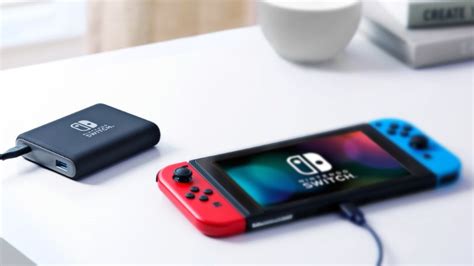
For truly extended play sessions, a portable power bank is indispensable. Look for one with a USB-C PD (Power Delivery) output of at least 18W to effectively charge your Switch while you play. A capacity of 10,000mAh or more will provide multiple charges.
Use an Official AC Adapter for Charging
Always use the official Nintendo AC adapter or a reputable third-party charger that supports USB-C PD to ensure efficient and safe charging. Inferior chargers might charge slowly or even damage your battery over time.
Maintaining Your Battery Health
Avoid Extreme Temperatures
Exposing your Switch to very hot or very cold temperatures can degrade the battery over time. Always play and store your console in moderate conditions.
Don’t Fully Drain Often
Modern lithium-ion batteries, like the one in your Switch, prefer partial discharges. It’s generally better to charge your Switch when it’s at 20-30% rather than letting it constantly drain to 0%.
Conclusion
By implementing these tips and making a few adjustments to your console’s settings and your gaming habits, you can significantly extend your Nintendo Switch’s battery life. This means more uninterrupted portable adventures, whether you’re battling monsters, exploring vast worlds, or enjoying a quick gaming session on the go. Happy gaming!