How to boost mobile game performance on older phones without major lag?

Playing mobile games on an older smartphone can often feel like an uphill battle. With newer games demanding more processing power and RAM, your trusty older device might struggle, leading to frustrating lag, stuttering, and even crashes. However, you don’t necessarily need to upgrade your phone immediately. There are several effective software-based strategies you can employ to squeeze out better performance and enjoy a smoother gaming experience.
1. Free Up Storage Space
One of the most common culprits for poor phone performance, including gaming lag, is a lack of free storage. When your phone’s storage is nearly full, it can slow down the entire system, as the operating system and apps struggle to find space for temporary files and cached data. This directly impacts game loading times and in-game fluidity.
- Delete Unused Apps: Go through your app list and uninstall any applications you no longer use.
- Clear Cache: Regularly clear the cache for individual apps, especially social media and browser apps, as these can accumulate gigabytes of data.
- Manage Photos & Videos: Transfer old photos and videos to cloud storage or an external drive. Alternatively, use Google Photos or Apple Photos to free up space while keeping low-resolution copies on your device.
- Download Manager: Check your downloads folder for large, unnecessary files.

2. Close Background Applications
Every app running in the background, even if you’re not actively using it, consumes RAM and CPU cycles. This significantly reduces the resources available for your game, leading to performance drops. Before launching a demanding game, make it a habit to close all unnecessary background applications.
- Swipe Away Recent Apps: Use your phone’s recent apps switcher to manually close all open apps.
- Disable Auto-Start: Some apps are configured to start automatically when your phone boots up. Check your phone’s settings (often under ‘Apps’ or ‘Battery optimization’) to disable auto-start for non-essential applications.
- Restrict Background Data: For apps that don’t need real-time updates, restrict their background data usage.
3. Adjust In-Game Graphics Settings
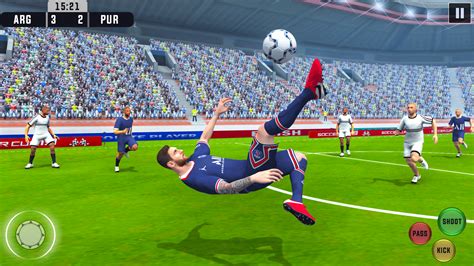
Most modern mobile games offer a range of graphics settings. While it’s tempting to play on the highest possible quality, older phones simply can’t handle it. Lowering these settings is often the most impactful step you can take to boost performance.
- Resolution: Reduce the in-game resolution. This is often the biggest performance booster.
- Texture Quality: Lowering texture quality will make surfaces look less detailed but significantly reduce the load on your GPU.
- Shadows and Reflections: Disable or reduce the quality of shadows and reflections, as these are computationally intensive.
- Effects: Turn off or minimize visual effects like bloom, motion blur, and anti-aliasing.
- Frame Rate: If given the option, prioritize a stable 30fps over an unstable 60fps.
4. Keep Your Phone’s Software Updated (or Reinstall)
While newer Android or iOS versions might sometimes feel slower on older hardware, operating system updates often include performance optimizations and bug fixes that can benefit gaming. Always ensure your phone’s operating system is updated to the latest stable version available for your device. If your phone feels sluggish after an update, or generally, a factory reset can sometimes work wonders by removing accumulated junk and giving you a fresh start, though this should be a last resort after backing up all your data.
5. Consider a Game Booster App
Many Android phones come with a built-in ‘Game Mode’ or ‘Game Launcher’ that automatically optimizes settings, clears RAM, and blocks notifications when you launch a game. If your phone doesn’t have one, or if you want more control, consider a third-party game booster app. These apps often provide tools to:
- Clear RAM: Automatically kill background processes before launching a game.
- Optimize CPU/GPU: Some can tweak system settings for better gaming performance (use with caution).
- Block Notifications: Prevent distractions during gameplay.
While these apps can be helpful, always download them from trusted sources (Google Play Store/Apple App Store) and read reviews, as some can be ineffective or even introduce more bloatware.
6. Disable Power Saving Mode
Power-saving mode is designed to extend your battery life by reducing CPU speed, dimming the screen, and limiting background activities. While great for everyday use, it’s detrimental to gaming performance. Always disable power-saving mode when you want to play a demanding game to ensure your phone is running at its full potential.
7. Keep Your Device Cool
Overheating can cause your phone’s CPU to ‘throttle’ – deliberately slow down its clock speed to prevent damage. This thermal throttling directly leads to lag and reduced performance. Ensure your phone isn’t overheating while gaming:
- Avoid charging your phone while playing graphics-intensive games.
- Play in a well-ventilated area.
- Remove your phone case if it’s contributing to heat buildup.
- Take short breaks to let your phone cool down.

Conclusion
While an older phone will never match the raw power of a brand-new flagship device, these optimization techniques can significantly improve your mobile gaming experience. By meticulously managing your storage, background apps, in-game settings, and overall device health, you can breathe new life into your older smartphone and enjoy your favorite games without constant frustration. Give these tips a try, and you might be surprised at how much performance you can reclaim!