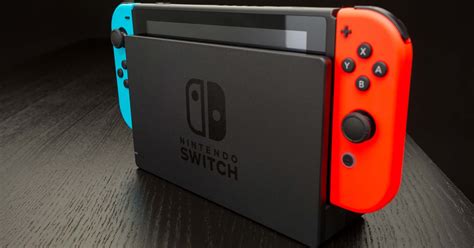

Switch console storage full? Top tips to free space for more downloaded games.

Running out of space on your Nintendo Switch is a common plight for avid digital game collectors. With so many fantastic titles available on the eShop, it’s easy to fill up the console’s internal storage faster than you can say “It’s-a me, Mario!” But fear not, there are several effective ways to free up precious gigabytes without sacrificing your entire game library. Let’s dive into the top strategies to make room for your next gaming adventure.
Archive Software: The Smart Way to Free Space
The most straightforward method to reclaim storage is by archiving software. When you archive a game, the game’s data is deleted from your console, but its icon remains on your HOME Menu. This means your save data is also preserved. If you want to play the game again, you simply select its icon, and it will begin redownloading from the eShop (assuming you still own it).
To archive a game:
- From the HOME Menu, highlight the game you wish to archive.
- Press the + or – button to open the Options menu.
- Select “Manage Software” then “Archive Software.”
- Confirm your choice.

Delete Software: When You’re Done for Good (For Now)
If you’re absolutely certain you won’t be playing a game again anytime soon, or if you need to free up the maximum amount of space, you can choose to delete it. Unlike archiving, deleting software removes both the game data and its icon from your HOME Menu. Your save data, however, is generally kept separate and remains on your console (unless you specifically delete it).
To delete a game:
- From the HOME Menu, highlight the game you wish to delete.
- Press the + or – button to open the Options menu.
- Select “Manage Software” then “Delete Software.”
- Confirm your choice.
Manage Save Data: Small but Significant
While game data takes up the bulk of storage, save data is crucial and often stored separately. Usually, save files are quite small, but it’s good to know how to manage them. For most users, it’s highly recommended to subscribe to Nintendo Switch Online for cloud save backups, preventing loss if your console is damaged or replaced.
To manage save data:
- From the HOME Menu, go to “System Settings.”
- Scroll down to “Data Management” and then “Delete Save Data.”
- Select the game for which you want to delete save data.
- Be extremely cautious here, as deleting save data is permanent and cannot be recovered unless backed up via Nintendo Switch Online.
Upgrade with a MicroSD Card: Expand Your Horizons
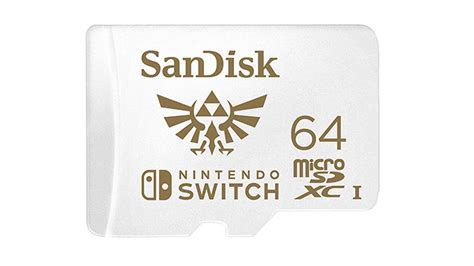
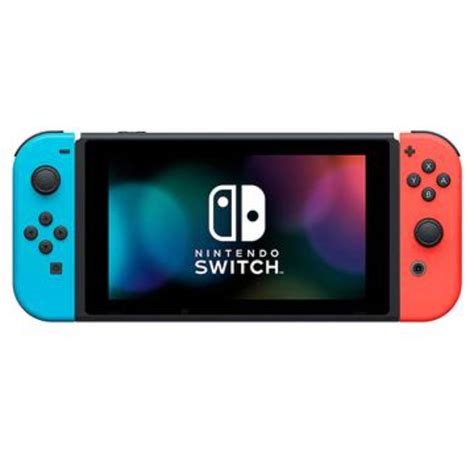
The Nintendo Switch comes with 32GB (or 64GB for the OLED model) of internal storage, a portion of which is reserved for the system. A microSD card is arguably the best long-term solution for storage woes. You can install games directly onto the card, and even transfer data from your internal memory to the microSD card.
How to Transfer Data to a MicroSD Card:
- First, ensure you have a microSD card inserted into your Switch.
- Go to “System Settings” from the HOME Menu.
- Scroll down to “Data Management.”
- Select “Move Data Between System / microSD Card.”
- Choose the software you wish to move and select “Move Data.”
If you don’t have a microSD card, consider investing in one. They are relatively inexpensive and significantly boost your storage capacity, allowing for dozens, if not hundreds, more downloaded games.
Check Data Management: See What’s Hogging Space
Sometimes, it’s not always obvious which games or applications are the biggest culprits. Your Switch’s Data Management settings offer a clear breakdown of where your storage is going, both on internal memory and any inserted microSD card. This allows you to target the largest files for archiving or deletion first.
- From the HOME Menu, go to “System Settings.”
- Scroll down to “Data Management.”
- Here, you’ll see a visual breakdown of your free space and what’s occupying the rest, including software, downloadable content, update data, and save data.
Conclusion: Stay Organized, Keep Gaming
Managing your Nintendo Switch’s storage is an ongoing task, especially if you frequently download new games. By regularly archiving games you’re not actively playing, considering a microSD card for long-term expansion, and periodically checking your data management, you can ensure there’s always room for the next big title. Happy gaming!