Switch storage full? Best SD card for more games & console management tips?
Why Your Nintendo Switch Storage Fills Up So Fast
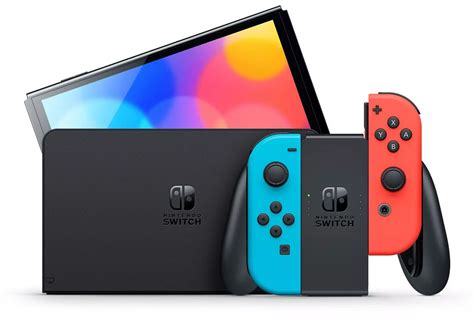
It’s a common dilemma for Nintendo Switch owners: you’ve downloaded a few big games, captured some epic screenshots, and suddenly, your console is yelling about low storage. The base Nintendo Switch and Switch Lite come with a modest 32GB of internal storage, while the OLED model offers 64GB. While this sounds okay, operating system files consume a significant chunk, and modern games can easily be 10-20GB or even larger. Digital purchases, game updates, DLC, and media captures quickly eat away at this limited space, leaving you scrambling to make room for new titles.
Thankfully, Nintendo designed the Switch with expandable storage in mind, making it incredibly easy to add a microSD card. This simple upgrade can vastly increase your game library potential and save you the constant headache of deleting beloved titles.
Understanding SD Cards for Your Nintendo Switch
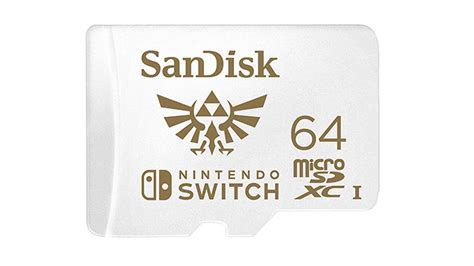
Not all SD cards are created equal, especially when it comes to gaming. For your Nintendo Switch, you’ll need a microSD card, specifically a microSDHC (up to 32GB) or microSDXC (32GB to 2TB) card. Here’s what to look for:
- Capacity: While 32GB or 64GB might seem like an upgrade, we recommend at least 128GB for most users. If you’re a heavy digital game buyer, 256GB, 512GB, or even 1TB will provide ample space.
- Speed: This is crucial for smooth gameplay and faster load times. Look for cards with a UHS-I (Ultra High Speed Phase I) rating. Additionally, an “A1” or “A2” Application Performance Class rating is beneficial, as these cards are optimized for running apps (like games) directly from the card. A2 offers better performance than A1, but both are suitable.
Avoid generic or unbranded cards, as they can be slower, less reliable, and more prone to data corruption. Stick with reputable brands known for quality and performance.
The Best SD Cards for Nintendo Switch
When selecting an SD card, certain brands consistently deliver the performance and reliability needed for gaming. Here are our top recommendations:
- SanDisk Ultra / Extreme microSDXC: SanDisk is an industry leader. Their Ultra series offers a great balance of price and performance, while the Extreme series provides even faster speeds, often with A2 ratings, ideal for demanding gamers.
- Samsung EVO Select / Plus microSDXC: Samsung’s EVO line is another excellent choice, known for its strong performance and durability. The EVO Select (often found on Amazon) and EVO Plus are both highly reliable with good read/write speeds.
- Lexar Play microSDXC: Lexar’s “Play” series is specifically designed for gaming devices, offering high capacities and fast read speeds (often up to 150MB/s), ensuring quick game loading.
For most users, a 256GB or 512GB card from one of these brands will provide a significant storage boost without breaking the bank. Always ensure the card is UHS-I compatible with a good A1 or A2 rating.
Installing Your SD Card and Managing Game Data
Installing a microSD card into your Nintendo Switch is incredibly simple:
- Turn off your Nintendo Switch completely (hold the power button, then select “Power Options” > “Turn Off”).
- Open the kickstand on the back of the console to reveal the microSD card slot.
- Insert the microSD card with the label facing down until it clicks into place.
- Close the kickstand and power on your Switch.
Once installed, your Switch will automatically recognize the card and use it for new game downloads, updates, and screenshots. For games already downloaded to your internal storage, you can move them to the SD card by navigating to System Settings > Data Management > Move Data Between System / microSD Card. Keep in mind that save data is always stored internally and cannot be moved to an SD card.
Essential Console Management Tips for Your Switch
Beyond adding an SD card, effective data management can help keep your Switch running smoothly:
- Archive vs. Delete: If you’re low on space, you can “Archive Software.” This removes the game data but keeps its icon on your Home menu and retains your save data. You can redownload it anytime. “Deleting Software” removes everything, including the icon, but save data remains.
- Manage Screenshots and Videos: These can accumulate quickly. Regularly transfer them to your computer or upload them to social media, then delete them from your console to free up space. Go to Album > Select > Delete.
- Check Storage Usage: Under System Settings > Data Management, you can see exactly how much space each game and application is taking up, making it easier to decide what to archive or delete.
- Nintendo Switch Online Cloud Saves: If you subscribe to Nintendo Switch Online, many games automatically back up your save data to the cloud. This is a crucial safeguard, ensuring your progress is safe even if something happens to your console.
Conclusion
Running out of storage on your Nintendo Switch doesn’t have to be a barrier to enjoying your favorite games. By investing in a high-quality microSD card and practicing smart console management, you can vastly expand your game library and ensure your Switch always has room for the next big adventure. Choose a reputable brand with adequate capacity and speed, and you’ll be set for countless hours of portable gaming fun.