





Running out of Switch storage? Top tips to free up space fast!
The Nintendo Switch, a marvel of portable gaming, often comes with one common challenge for its dedicated players: limited storage. With digital game downloads growing in size and a constant stream of new titles, running out of space can be a frustrating roadblock. But fear not! There are several effective strategies to reclaim your precious storage, fast. Let’s dive into the top tips to keep your Switch ready for its next adventure.

Archive vs. Delete: Knowing the Difference
When faced with a full storage warning, your first instinct might be to delete games. However, the Switch offers two distinct options, each with its own benefits:
Archiving Software
This is your go-to option for games you plan to play again. Archiving removes the game’s core data from your system, freeing up significant space, but keeps the game’s icon on your Home menu. Crucially, it preserves your save data, which is stored separately. When you want to replay the game, simply select its icon to re-download it.
Deleting Software
Deleting a game removes everything associated with it – the game data itself and its save data (unless you have a Nintendo Switch Online subscription with cloud saves enabled). Only choose this for games you are absolutely certain you won’t play again, or if you have backed up your save data to the cloud.
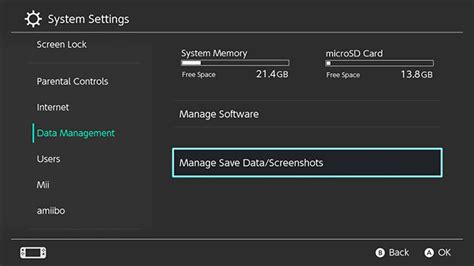
To do either, head to System Settings > Data Management > Manage Software. Select the game and choose your preferred option.
Manage Your Save Data (Carefully!)
While game software takes up the bulk of your storage, save data also contributes. However, managing it requires caution.
- Cloud Saves: If you have a Nintendo Switch Online subscription, your save data for most games is automatically backed up to the cloud. This is a lifesaver, as it allows you to safely delete local game data without losing your progress.
- Local Save Data: Your Switch stores save data directly on the console’s internal memory, not on a microSD card. Deleting save data is an option under System Settings > Data Management > Delete Save Data, but proceed with extreme caution as this is irreversible unless you have a cloud backup. For most users, it’s best to leave save data alone and focus on game software.

Clear Out Screenshots and Video Captures
It’s easy to accumulate hundreds, if not thousands, of screenshots and video clips over time. These can eat into your storage without you even realizing it, especially longer video captures. Fortunately, clearing them out is simple:
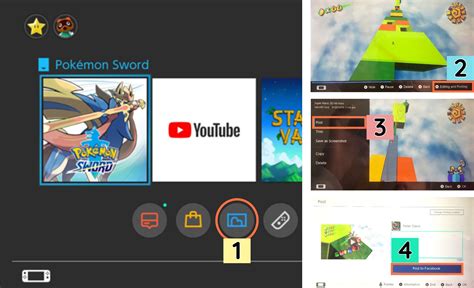
- From the Home menu, select the Album icon.
- Browse through your captures.
- To delete individual captures, select a capture, press ‘A’ (Options), then ‘Delete’.
- To delete multiple, select ‘Delete Multiple’ from the Album menu, choose your captures, and confirm.
Alternatively, you can transfer these captures to a microSD card or wirelessly to a smartphone/PC, freeing up internal storage while preserving your memories.
Invest in a MicroSD Card: The Ultimate Expansion
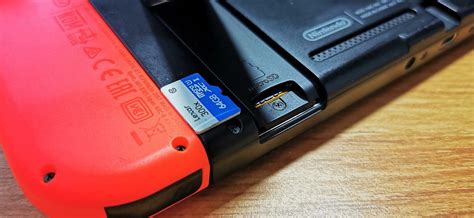
If you frequently download digital games, a microSD card is not just a recommendation; it’s a necessity. The Switch supports microSD, microSDHC, and microSDXC cards up to a massive 2TB (though 128GB, 256GB, or 512GB are common and highly effective choices).
How it Helps:
- Games installed after inserting a microSD card will automatically save to it.
- You can transfer existing downloaded software from your console’s internal memory to the microSD card via System Settings > Data Management > Move Data Between System / microSD Card.
This single upgrade can dramatically increase your available storage and virtually eliminate future space concerns.
Conclusion: Stay Organized for Endless Gaming
Running out of storage on your Nintendo Switch doesn’t have to be a recurring nightmare. By regularly archiving games you’re not currently playing, managing your media captures, and especially by investing in a reliable microSD card, you can ensure your console always has room for new adventures. A little proactive data management goes a long way in keeping your Switch gaming experience smooth and uninterrupted.


