How to optimize storage on Switch and other consoles for your game library?
The Ever-Growing Digital Library Dilemma
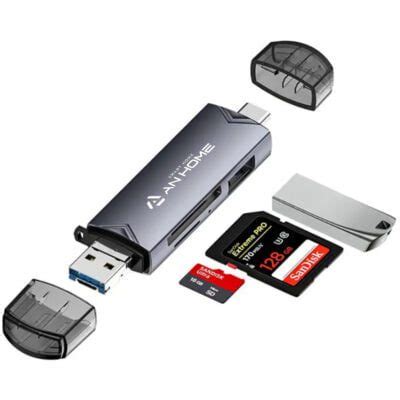
As modern gaming increasingly shifts towards digital downloads and ever-larger game sizes, console storage can quickly become a bottleneck. Whether you’re a Nintendo Switch enthusiast juggling multiple indie gems and AAA titles, or a PlayStation/Xbox owner with a vast collection, managing your console’s internal memory is crucial for a smooth gaming experience. Running out of space can mean difficult choices: which beloved game gets deleted to make room for the new hotness? Fortunately, there are several smart strategies to optimize your storage and keep your entire game library accessible.
Nintendo Switch Storage Solutions: MicroSD Cards are Your Best Friend
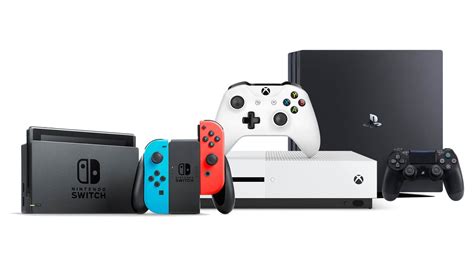
The Nintendo Switch comes with a modest 32GB (or 64GB for the OLED model) of internal storage, a significant portion of which is used by the system itself. For any serious digital gamer, a microSD card is not just recommended, it’s essential.
Choosing the Right MicroSD Card
- Capacity: Aim for at least 128GB, but 256GB, 512GB, or even 1TB cards offer far more breathing room. Games like The Legend of Zelda: Tears of the Kingdom can be over 18GB, while others are even larger.
- Speed: Look for cards with a high “UHS-I” speed class (U3 is ideal) and read/write speeds of 90MB/s or higher. This ensures faster game loading times.
- Brand: Stick to reputable brands like SanDisk, Samsung, or Lexar to avoid counterfeit cards and ensure reliability.
Managing Switch Game Data
- Archiving Software: The Switch allows you to “Archive Software” which deletes the game data but keeps its icon and save data. You can re-download it later if needed. This is perfect for games you’re not actively playing but want to keep the save data for.
- Deleting Software: This removes both the game and its save data. Only do this if you’re absolutely sure you won’t play it again or if your saves are backed up via Nintendo Switch Online cloud saves.
- Data Management Settings: Regularly check your “Data Management” settings in the System Settings to see which games are taking up the most space and decide what to keep or archive.
PlayStation and Xbox Consoles: External Drives and Internal Upgrades
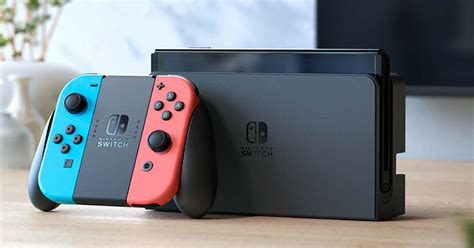
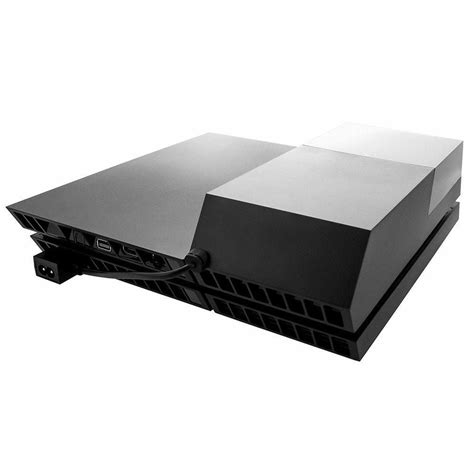
For PlayStation (PS4, PS5) and Xbox (Xbox One, Xbox Series X|S) consoles, storage solutions often involve external hard drives or, for the newer generation, specialized internal expansion cards.
External Storage for PS4, Xbox One, and Previous Gen Games on PS5/Xbox Series X|S
- USB Hard Drives: Both PlayStation and Xbox consoles support external USB 3.0 hard drives. For PS4 and Xbox One, you can install and play games directly from these drives. For PS5 and Xbox Series X|S, you can store (but usually not play) current-gen games, and play backward-compatible last-gen games directly from the external drive.
- Capacity: External HDDs are available in very large capacities (2TB, 4TB, 8TB, or more) and are generally more cost-effective per gigabyte than internal SSDs.
- Installation: Simply plug into a free USB port, format it through your console’s settings, and you’re ready to go.
Next-Gen Storage Solutions: PS5 M.2 SSDs and Xbox Series X|S Expansion Cards
- PS5 M.2 SSD Expansion: The PlayStation 5 allows users to install a compatible M.2 NVMe SSD internally to expand playable PS5 game storage. These drives must meet specific speed and cooling requirements. This is a powerful, albeit more expensive, way to add lightning-fast storage.
- Xbox Series X|S Storage Expansion Card: Microsoft offers proprietary Storage Expansion Cards that plug directly into a dedicated port on the back of the Xbox Series X and Series S. These cards replicate the internal SSD’s speed, allowing full next-gen game performance.
General Strategies for an Optimized Game Library
Beyond hardware solutions, smart management practices can significantly impact your available storage and overall gaming experience.
- Prioritize and Purge: Be honest with yourself about which games you’re actively playing or plan to revisit soon. If a game has been gathering digital dust for months or years, consider uninstalling it. You can always re-download it later.
- Utilize Cloud Saves: Most modern consoles offer cloud save backups (often tied to a subscription service like Nintendo Switch Online, PlayStation Plus, or Xbox Game Pass Ultimate). Ensure these are enabled so your progress is safe, even if you delete a game.
- Understand Game Sizes: Keep an eye on the file sizes of games before downloading. Some large titles can eat up a significant chunk of your storage in one go.
- Delete Unused Demos and Betas: Demos and beta clients can sometimes be quite large and are often forgotten after you’ve tried them out. Regularly clear these out.
- Manage Screenshots and Video Captures: While typically not massive, an accumulation of screenshots and video clips can add up. Transfer them to an external drive or cloud service if you want to keep them.
Conclusion: Keep Gaming, Not Deleting
Optimizing storage on your Nintendo Switch, PlayStation, Xbox, or other gaming console doesn’t have to be a chore. By investing in appropriate expansion hardware like microSD cards or external drives, and by adopting smart management habits such as archiving, prioritizing, and regular clean-ups, you can ensure your game library remains robust and ready for play. Say goodbye to the frustrating “storage full” message and hello to more seamless gaming adventures!