





Improve Switch game performance: Stop lag for smoother play?
Tired of Stuttering Gameplay? Here’s How to Boost Your Switch Performance
Few things are more frustrating than experiencing lag or choppy frame rates when you’re deeply engrossed in a game on your Nintendo Switch. Whether you’re battling foes, exploring vast worlds, or racing to the finish line, performance issues can severely detract from your enjoyment. The good news is that many common causes of Switch lag are easily fixable. By implementing a few simple troubleshooting steps and optimization techniques, you can significantly improve your console’s performance and get back to seamless gaming.
Understanding Why Your Switch Might Be Lagging
Before diving into solutions, it’s helpful to understand the potential culprits behind your Switch’s performance woes. Lag can manifest in various ways, from input delay to visual stuttering, and can stem from several sources:
- Network Issues: For online games, a weak or unstable Wi-Fi connection is often the primary cause of lag.
- Insufficient Storage: A full storage drive (internal or microSD) can slow down data access and overall system performance.
- Outdated Software: Both the system software and individual game updates can contain critical performance improvements.
- System Overload: Too many background downloads, applications running, or even prolonged play without a restart can bog down the console.
- Hardware Limitations: While less common, an aging console or a game pushing the Switch’s graphical limits can sometimes result in unavoidable performance dips.
Now, let’s explore practical steps you can take to alleviate these issues.
Practical Solutions to Improve Your Switch’s Performance
1. Optimize Your Internet Connection
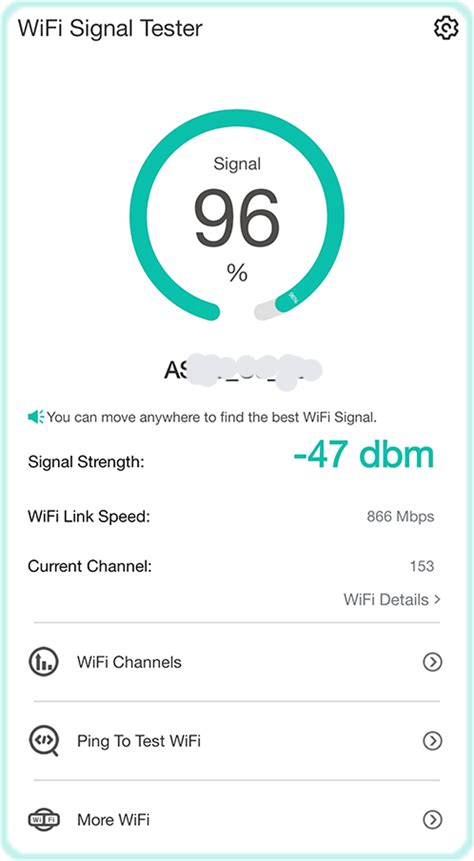
If you primarily play online, your Wi-Fi connection is paramount.
- Move Closer to Your Router: Physical distance and obstructions can weaken your signal.
- Reduce Network Congestion: Limit other devices using bandwidth on your network, especially during peak gaming times.
- Restart Your Router: A simple power cycle can often resolve minor network glitches.
- Consider a Wired Connection: For docked play, a USB-to-Ethernet adapter provides the most stable and fastest connection possible.
2. Free Up Storage Space
A full storage drive can slow down data retrieval times. Check your available space:
- Go to System Settings > Data Management.
- Archive Unused Software: This keeps your save data but deletes the game data, which you can redownload later.
- Delete Screenshots and Videos: These can accumulate quickly.
- Consider a Larger MicroSD Card: If you frequently download many games, upgrading your storage is a wise investment.
3. Restart Your Nintendo Switch
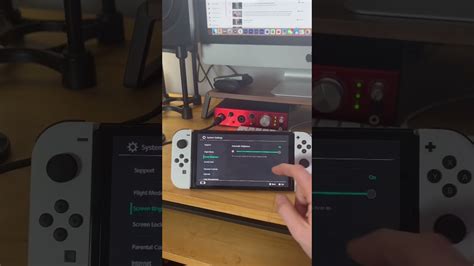
Like any electronic device, your Switch benefits from a regular restart to clear its temporary memory and resolve minor software conflicts.
- Hold down the POWER Button for three seconds.
- Select Power Options > Restart.
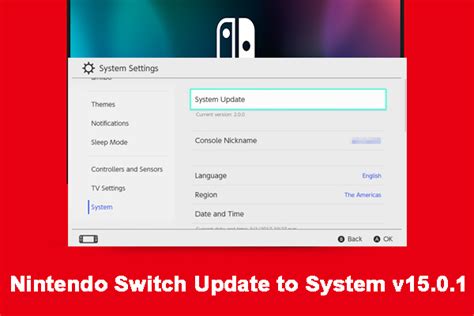
4. Ensure Software and Games are Updated
Developers frequently release patches that include performance optimizations and bug fixes.
- System Software: Go to System Settings > System > System Update.
- Game Updates: On the HOME Menu, highlight the game, press the + or – button, then select Software Update > Via the Internet.
5. Manage Background Downloads and Processes
Multiple downloads or updates running simultaneously can strain your system’s resources.
- Pause Downloads: Prioritize your current game by pausing other downloads in the HOME Menu.
- Close Other Software: If you’ve suspended multiple games, fully close any you’re not actively playing.
6. Clear Your Cache
Over time, cached data can build up and potentially cause issues.
- Go to System Settings > System > Formatting Options > Clear Cache. This will not delete your save data.
7. Check for Overheating
While less common, prolonged intensive gaming in poorly ventilated areas can lead to the Switch throttling its performance to prevent overheating.
- Ensure the console’s vents are not blocked.
- Play in a well-ventilated area.
- Give the console a break if it feels excessively warm.
Conclusion: Enjoy Smoother Switch Gaming
By systematically addressing potential issues, from your network connection to internal storage, you can significantly reduce lag and enhance your Nintendo Switch’s performance. Most performance hitches are minor and can be resolved with a bit of troubleshooting. Don’t let frustrating lag spoil your gaming sessions; take these steps, and get back to enjoying your favorite Switch titles with the smooth, responsive gameplay they were designed for.


